
How A Website Malware Scanner Keeps Your Site Off Blacklists
A website malware scanner checks your site's files, database, and public pages for injected code, backdoors, spam links, and malicious redirects. Run an external scan every week, a full server-side scan once a month, and an extra scan within 24 hours of any plugin, theme, or core update.
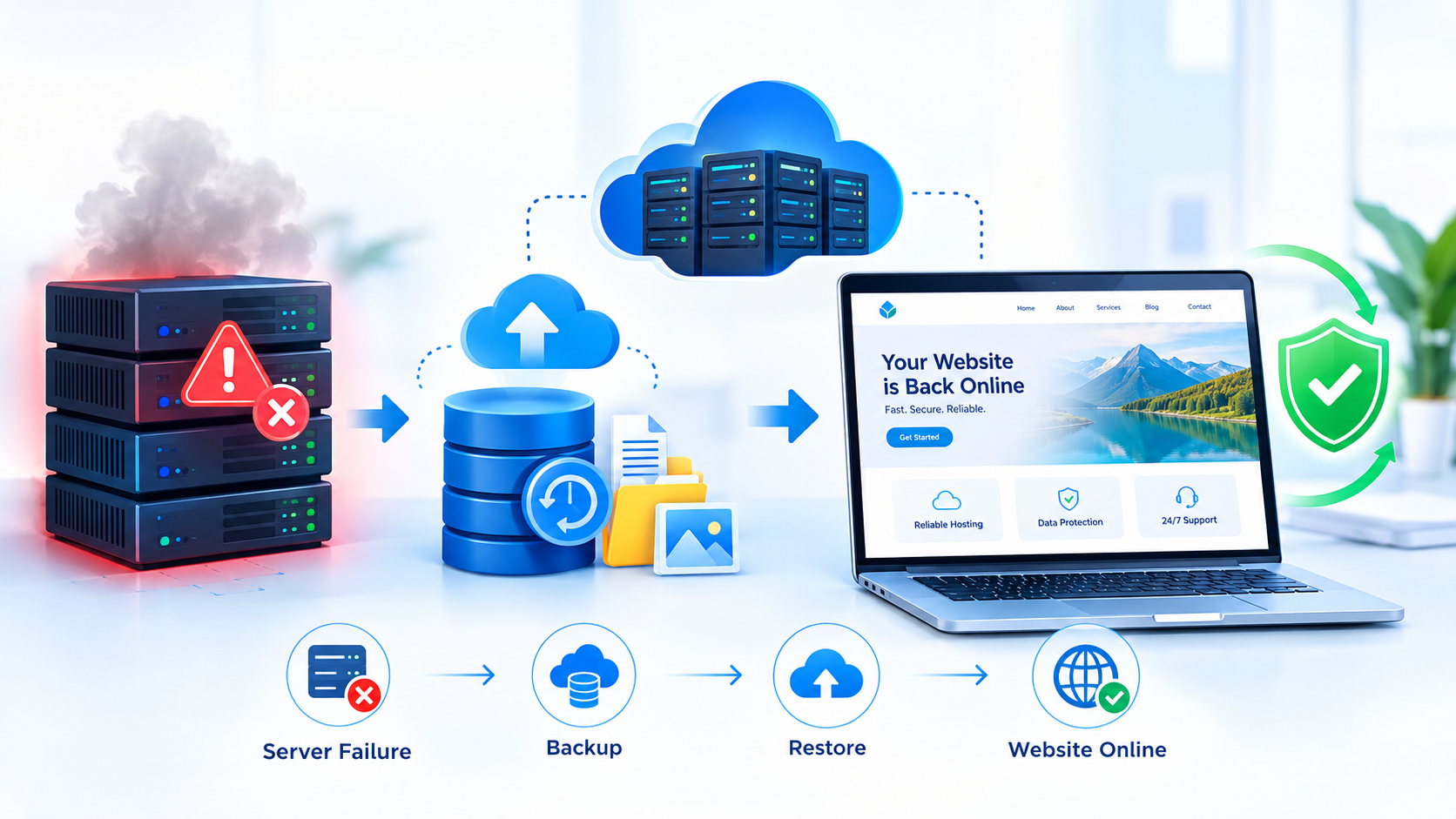
Scanning finds the problem, but a clean copy lets you undo it. If you have not set up off-site cloud backup services for your server data yet, do that first, because many attackers delete local backups before anything else.
At A Glance
• Scan types: external (remote) scan and server-side file scan
• Price: daily backups from ₹899/month on the Standard plan
• Critical support response: within 1 hour
• Scan again after every plugin, theme, or core update
• Google Search Console flags suspected files for free
What Does A Website Malware Scanner Actually Detect?
A good website malware scanner looks for code that should not be on your site: hidden scripts in pages, backdoor files that let an attacker back in, spam pages created for search rankings, and redirects that send visitors elsewhere. It also checks whether browsers and blocklists already flag your domain.
Most infections fall into a small set of patterns. Knowing them helps you read a scan report without panic.
• Injected JavaScript: a script tag added to your header, footer, or database that loads code from an unknown domain.
• PHP backdoors and web shells: small files, often named to look harmless, that run commands sent by the attacker.
• SEO spam: thousands of hidden pages or links selling pharmacy, betting, or loan products under your domain.
• Malicious redirects: visitors from Google or mobile devices get sent to scam pages, while you see the normal site.
• Cryptominers: scripts or server processes that use your CPU to mine coins, slowing everything down.
• Phishing kits: fake bank or login pages uploaded to a forgotten folder.
Redirects that target only mobile visitors are common, so always test from a phone on mobile data, not only from your office laptop.
Why Do Websites Get Infected In The First Place?
Most sites are not hacked by a person picking them out. Automated bots scan millions of domains for known weak spots, and a website malware scanner usually finds the result of one of a handful of causes: outdated software, weak passwords, or an insecure upload form.
The usual entry points look like this:
1. Outdated plugins and themes. A single unpatched plugin with a public exploit is the most common way in.
2. Unsupported PHP. Old PHP branches stop receiving security fixes. PHP 8.2 security support ends on 31 December 2026, so check which PHP version your site runs and plan the upgrade.
3. Weak or reused passwords. This covers admin logins, FTP, database users, and the hosting control panel itself.
4. Nulled themes and plugins. Pirated premium code often ships with a backdoor already inside.
5. Open upload forms. Contact or career forms that accept any file type can let an attacker upload a script.
6. Shared accounts. One infected site on an account can spread to every other site that shares the same user.
Fixing the entry point matters more than deleting the infected files. If the hole stays open, the same bot comes back within days.
Remote Scan Or Server-Side Scan: Which Do You Need?
You need both. A remote scan sees what visitors and Google see, while a server-side scan reads every file on your hosting account. A website malware scanner that runs only from outside will miss a backdoor that sits quietly in a folder and never shows on a page.
A remote web malware scanner is a fast first check because it needs nothing but your domain name. A server-side tool, such as the scanner in your control panel or a security plugin, needs access but sees far more.
|
Scan type |
What it sees |
Needs access? |
Good at catching |
Misses |
|
External (remote) scan |
Public pages and scripts |
No, just the URL |
Visible spam, redirects, blocklist status |
Backdoors, files not linked from any page |
|
Server-side file scan |
Every file on the account |
Yes, control panel or SSH |
Web shells, modified core files, hidden folders |
Database-only injections, unless it scans the database too |
|
Search Console Security Issues report |
What Google has flagged |
Yes, verified property |
Problems Google already knows about |
Anything Google has not crawled yet |
|
Manual review |
Whatever you inspect |
Yes |
Odd file dates, unknown admin users |
Anything you do not think to look for |
Use the external scan weekly as a smoke alarm. Use the server-side scan monthly and after every incident to confirm the site is actually clean.
How Can You Check Website For Malware Without Any Tools?
You can spot most infections by watching for warning signs: a browser warning on your domain, unknown admin users, spam pages in Google results, sudden slowness, or a hosting suspension notice. Any one of these is a reason to run a website malware scanner straight away.
To check website for malware by hand, work through these quick tests:
• Search Google for site:yourdomain.com and look for pages in a language or topic you never published.
• Open the site on a phone using mobile data and click through from a Google result, not by typing the address.
• Review the admin user list for accounts you did not create.
• Look at outgoing email logs. A sudden spike often means a spam script is running.
• Check server CPU use. A cryptominer keeps it high even when traffic is low.
Google is often the first to notice. According to Google Search Central’s guidance on malware and unwanted software, suspected harmful files appear in the Security Issues report, and Google can show warnings to visitors. Verify your site in Search Console so you hear about it before your customers do.
How Do You Scan Your Site For Malware Step By Step?
Back up the current state, run an external scan, then a server-side scan, review recently changed files and the database, verify core files, fix the entry point, and rescan. This seven-step website malware scanner routine takes about an hour on a typical small business site.
If you have ever typed “scan my site for malware” into a search bar and felt lost in the results, follow this order:
1. Take a backup of the infected site. Keep it separate. You may need it to trace how the attacker got in.
2. Run an external scan. Note every flagged URL and any blocklist warnings.
3. Run a server-side scan. Use the malware scanner in your control panel, such as ImunifyAV or ClamAV, or a security plugin on WordPress.
4. Review recently modified files. Sort by date in the cPanel File Manager, or run find . -name "*.php" -mtime -7 over SSH to list PHP files changed in the last 7 days.
5. Check the database. Search posts, options, and widgets for <script tags and unfamiliar domains.
6. Verify core files. On WordPress, wp core verify-checksums compares your core files against the official release.
7. Patch and rescan. Update everything, change all passwords, remove unknown users, then scan again until the report is clean.
Do not skip step 7. A clean result before patching only proves the attacker has not come back yet.
What Should You Do When A Scan Flags Your Site?
Stay calm and confirm the finding before deleting anything. Scanners raise false positives, especially on page builders and theme frameworks. Check the flagged file’s path, modified date, and origin, then either clean it, replace it with a fresh copy, or restore the site from a backup taken before the infection.
A practical response looks like this:
• Contain it. Put the site in maintenance mode if visitors are being redirected or served harmful files.
• Change every credential. Hosting panel, FTP, database, admin users, and any API keys stored in config files.
• Replace, do not repair. Reinstall core files, plugins, and themes from official sources rather than editing infected copies.
• Restore when unsure. If you cannot tell which files were changed, a clean backup is faster and safer than hunting line by line.
• Request a review. Once clean, ask Google to re-check the site from the Security Issues report.
Keep a short log of what you found, where, and when. That record makes the next incident far quicker to handle.
How Does Your Hosting Plan Affect Malware Protection?
Your host decides how quickly an infection is caught and how easily you recover. Server-level scanning, firewalls, automatic updates, and frequent backups all reduce the damage, while a plan with no backups leaves you rebuilding from scratch after a bad infection.
When you compare plans, look past storage and bandwidth:
• Backup frequency. Daily backups let you roll back to yesterday. Weekly backups can mean losing six days of orders or posts.
• Server-level scanning. A scan that runs on the server catches files a plugin cannot see.
• Firewall and update policy. Blocking known attack patterns stops many bots before they reach your code.
• Account isolation. Separate sites should not share one user, so one infection cannot spread.
Cloud India Hub’s WordPress hosting plans with malware scanning and daily backups include weekly backups on Basic and daily backups on Standard and Professional, so pick at least Basic if your site takes orders or enquiries.
Frequently Asked Questions
Is A Free Scanner Good Enough?
A free website malware scanner is a good first check, but it only sees public pages. Pair it with a server-side scan from your host or control panel to catch backdoors hidden in files.
How Often Should I Scan My Site For Malware?
Run an external scan weekly and a full server-side scan monthly. Add an extra scan right after any plugin, theme, or core update, or when an admin user appears that you did not create.
Can A Malware Scanner Remove The Infection For Me?
Some scanners can quarantine or clean known files, but automatic removal can break a site. Back up first, review each flagged file, and close the hole that let the attacker in.
Why Does My Scanner Flag Files That Look Normal?
Page builders, theme frameworks, and minified scripts often use eval or base64 decoding, which look like malware patterns. Check the file’s path, date, and source before deleting anything.
Will Google Remove The Warning After I Clean My Site?
No, you need to fix the issue and request a review in the Security Issues report in Search Console. Google then re-checks the site and lifts the warning once it finds no harmful content.
Does An SSL Certificate Protect My Website From Malware?
No, SSL only encrypts traffic between the visitor and the server. It does not stop injected code, outdated plugins, or stolen passwords, so you still need scanning, updates, and backups.
Where Do You Go From Here?
Run one external scan today, confirm you have a clean backup, and book a monthly server-side scan so new problems surface while they are still small and cheap to fix.
A website malware scanner only protects you when someone acts on its results, so if a scan flags files you cannot explain, raise a ticket with the Cloud India Hub support team and attach the scan report.
Expert advice
|
Learn what a website malware scanner detects, when to use a remote or server-side scan, the warning signs to watch for, and a 7-step routine for finding and cleaning infected files on your hosting. |
Serving Bengaluru, Karnataka.














































































































































































Leave A Comment