
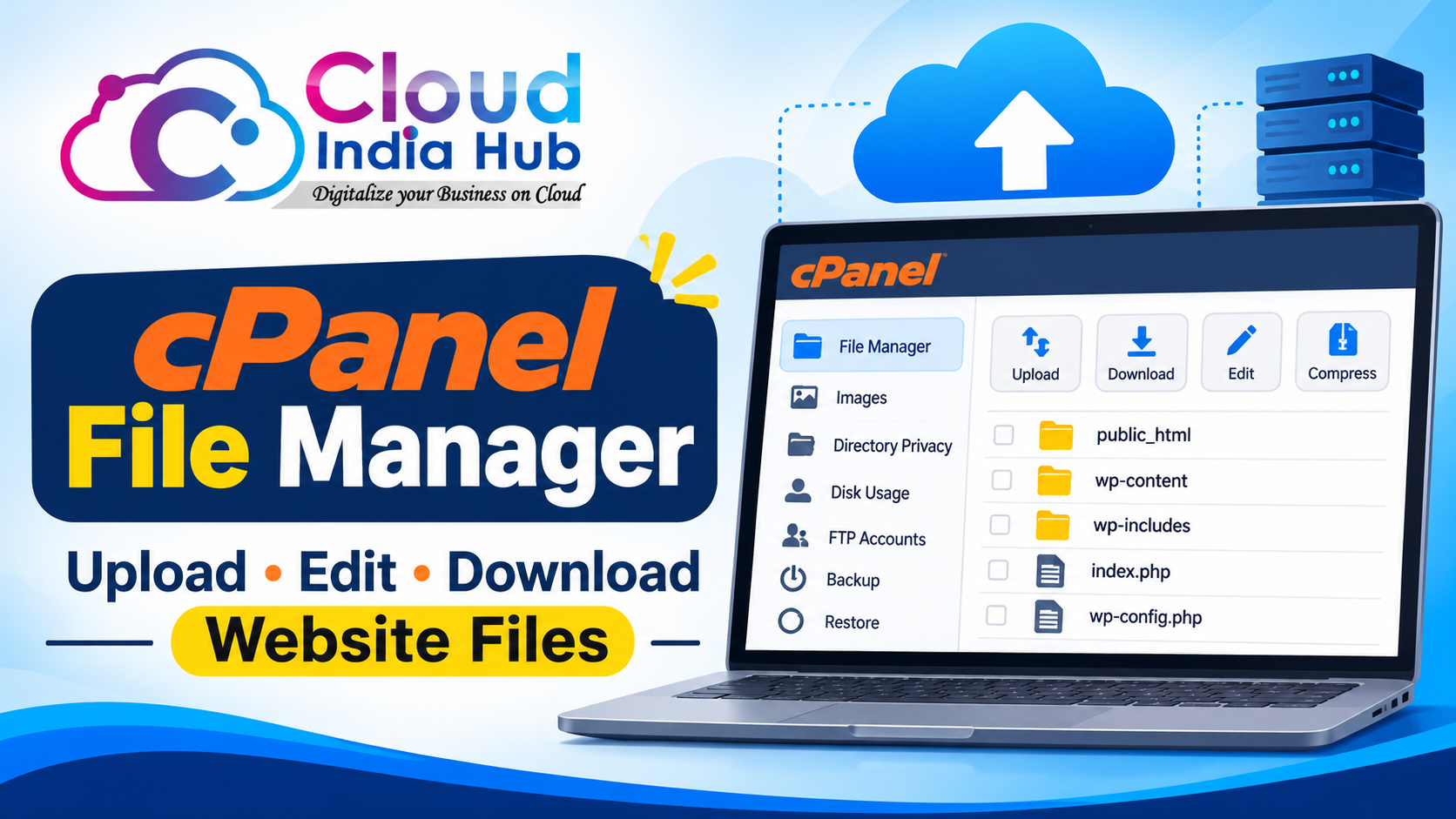
How To Use The cPanel File Manager To Manage Website Files
cPanel File Manager is a browser tool inside cPanel that lets you upload, edit, move, compress and download website files without FTP software. It cannot upload folders directly, and its editor stops at files of 1 MB, so large jobs need a zip archive.
Most site owners open it to fix a broken config file or unpack a theme. If you resell hosting, WHM and cPanel play different roles, so skim how WHM and cPanel divide the work on reseller plans first, then return here.
At A Glance
• Price: shared hosting from ₹239 per month on a 1-year term, plus GST
• Edit limit: 1 MB per file
• Default permission: 0644
• Extract formats: .zip, .gz and .bz2
• Folders cannot be uploaded directly, so zip them first.
What Does File Manager Actually Control On Your Hosting Account?
cPanel File Manager controls the files and folders in your hosting account, from the public_html folder that serves your website to the rest of your home directory. Think of it as a file explorer in the browser, where your host decides whether the feature is switched on.
The official cPanel documentation for File Manager lists limits worth knowing before you start:
• Upload accepts files only, so a folder must be zipped first.
• The built-in editor cannot open a file larger than 1 MB.
• Compress and Extract work with .zip only if Zip exists on the server.
• Some actions, such as Password Protect, need your host to enable them.
The toolbar covers the daily jobs. The + File and + Folder buttons create items, Copy and Move relocate them, Rename, Edit and View open or change them, and Compress and Extract handle archives.
Not every file is safe to touch. Your website lives in public_html, while the other folders in your home directory hold items such as mail data and logs. If you are unsure what a folder does, leave it alone and ask support rather than deleting it.
Because everything runs in the browser, you can work from any laptop with no software to install. The trade-off is speed: a browser upload is usually slower than a desktop FTP client when you move hundreds of files, which is why the zip method later in this guide matters.
How Do You Get Through The File Manager Login Screen?
Your cPanel File Manager login is the same as your cPanel login, because File Manager is a tool inside that account rather than a separate site. Browse to your cPanel address, sign in with your cPanel username and password, then open File Manager from the Files section.
Your host’s welcome email lists the address. Many hosts also accept your domain name followed by /cpanel, but the link in that email is the one to trust.
If sign-in fails, work through this short list:
• Use the cPanel username from the welcome email, which is often different from your billing email.
• Reset the password from your hosting client area, then try again in a private browser window.
• Ask support whether the account is active, since a suspended account may block sign-in.
• If File Manager is missing from the Files section, your host may have disabled it, so ask support to enable it.
After you sign in, open the Files section of the cPanel manager home screen and click File Manager. It opens in your home directory by default. Click Settings to open at Web Root (public_html) instead, and tick Show Hidden Files (dotfiles) to reveal items such as .htaccess.
If you manage several domains, Settings also lets you pick the document root of one domain as the folder that opens first.
Cloud India Hub’s shared web hosting plans list storage, website counts and backups, but the plan page does not name the control panel. Ask the support team to confirm that your plan includes cPanel before you rely on these steps.
How Do You Upload And Edit Files Without Breaking Your Site?
Click Upload in the toolbar to add files, or select a file and click Edit to change it. A careful cPanel File Manager routine means one change at a time, a copy of the original first, and a quick test of the page you touched.
Follow these habits for each change:
• Upload: click Upload, then drag files onto the page or use Select File.
• Edit: select the file and click Edit, then confirm the character encoding.
• Large files: download anything over 1 MB, edit it locally, then upload the new copy.
• Git folders: leave them alone, because edits can damage the repository.
The encoding prompt matters. If you pick the wrong encoding the file can become corrupt, so when a page full of odd symbols appears, stop and do not save.
File Manager will not copy an item into the same folder, so send your safety copy to another path, such as a folder named backup. You can also use the Search box at the top right: choose All Your Files, only public_html or Current Directory, type the name and click Go.
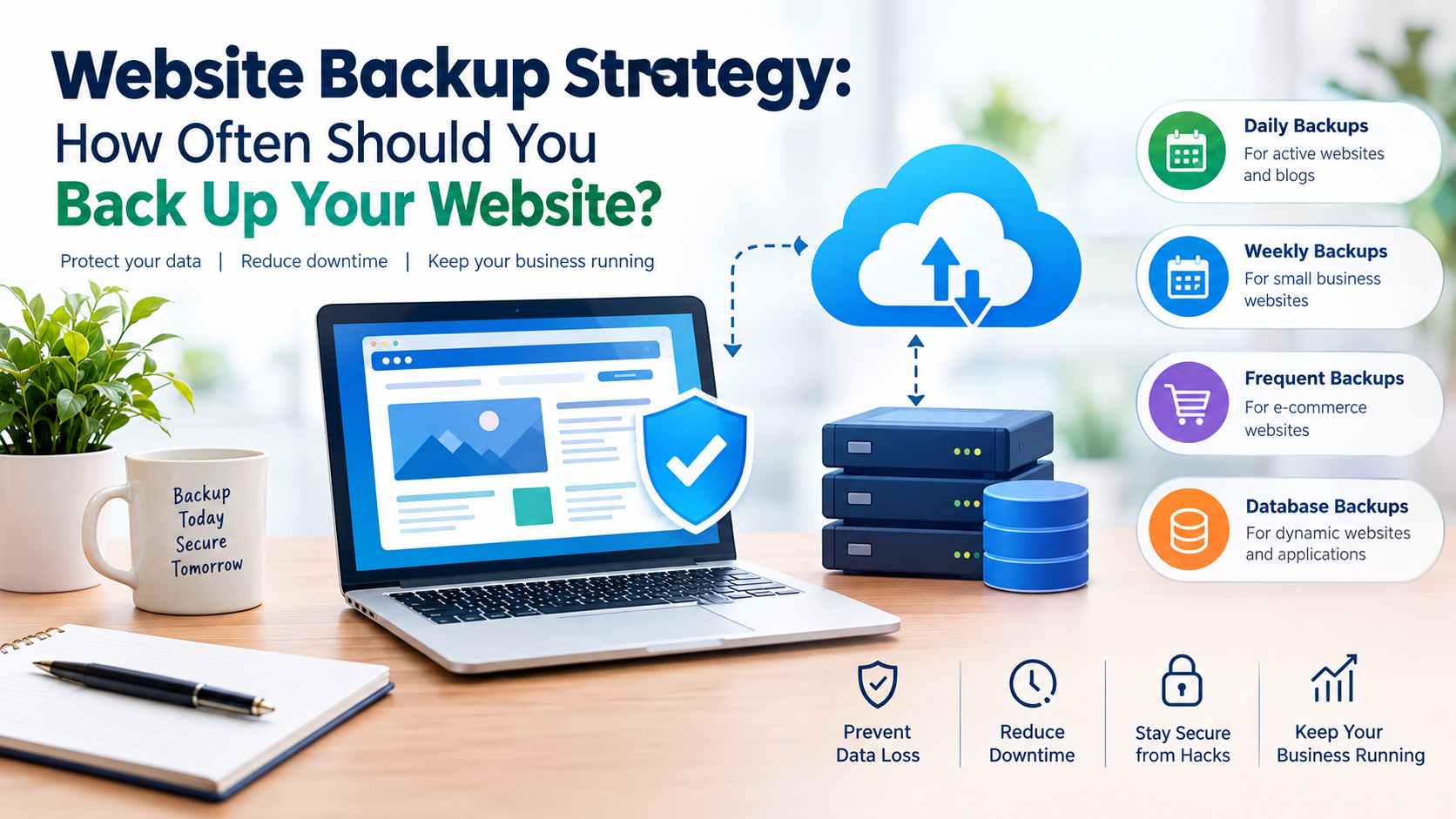
Before you touch wp-config.php or .htaccess, keep a copy somewhere safe. Our website backup frequency guide explains how often to back up and why a tested restore matters more than the backup itself.
How Does File Download Work For Single Files And Whole Folders?
Select the file in cPanel File Manager, click Download in the toolbar, and your browser saves it. A cPanel file download of a folder needs one extra step: compress the folder first, then download the archive, because Download is listed for files, not folders.
Use this short routine for a folder:
• Right-click the folder and choose Compress.
• Pick Zip, name the archive and confirm.
• Select the new archive and click Download.
• Delete the archive afterwards, because it takes up disk space.
Deleting is gentler than it sounds. The system moves items to the Trash folder, so View Trash and Restore can bring a file back. Click Empty Trash only when you are sure, because that removes the contents permanently.
Name archives so you can find them later, for example with the date in the file name. A folder called site-copy, or an archive dated the day you made it, saves guessing which version is which when a change goes wrong.
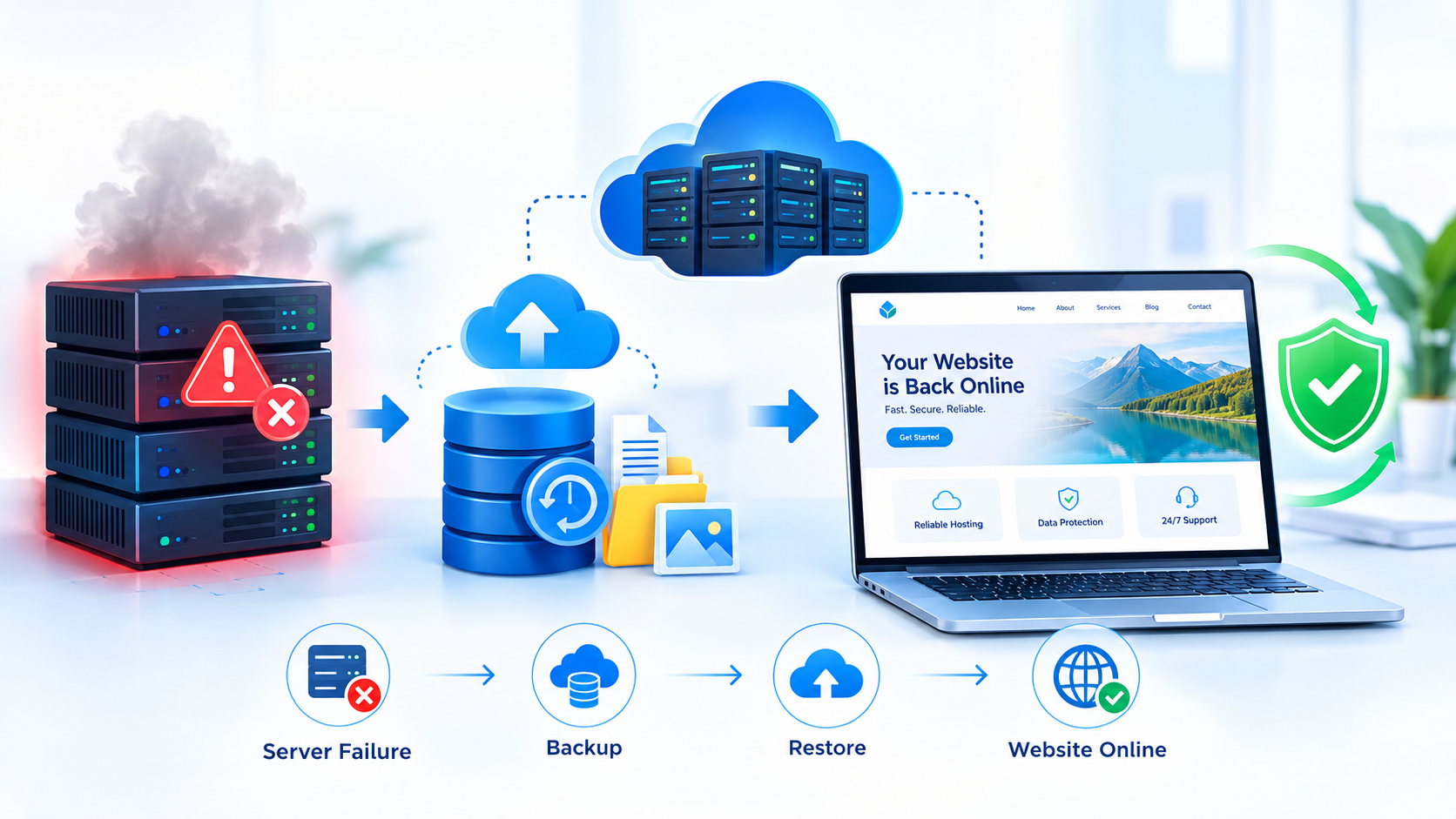
A downloaded folder is a handy snapshot before a risky edit, yet it is not a full backup, because databases and mailboxes live elsewhere. Pair it with a proper backup routine.
Which Tool Fits The Job: File Manager, FTP Or A Full Backup?
Use File Manager for quick edits, small uploads and archive jobs. Use an FTP client for large folders you sync often, and a full backup for anything you cannot afford to lose. Each tool covers a different risk, so many site owners use more than one.
|
Job |
Best tool |
Why it fits |
Watch out for |
|
Fix one config file |
File Manager |
Built-in editor, no software |
1 MB edit limit and the encoding prompt |
|
Upload a theme folder |
File Manager with a zip |
One upload, then Extract |
Zip must exist on the server |
|
Sync hundreds of files often |
FTP client |
Works with whole folders |
Needs FTP details from your host |
|
Protect the whole site |
Full backup |
Covers files and databases |
Store a copy away from the server |
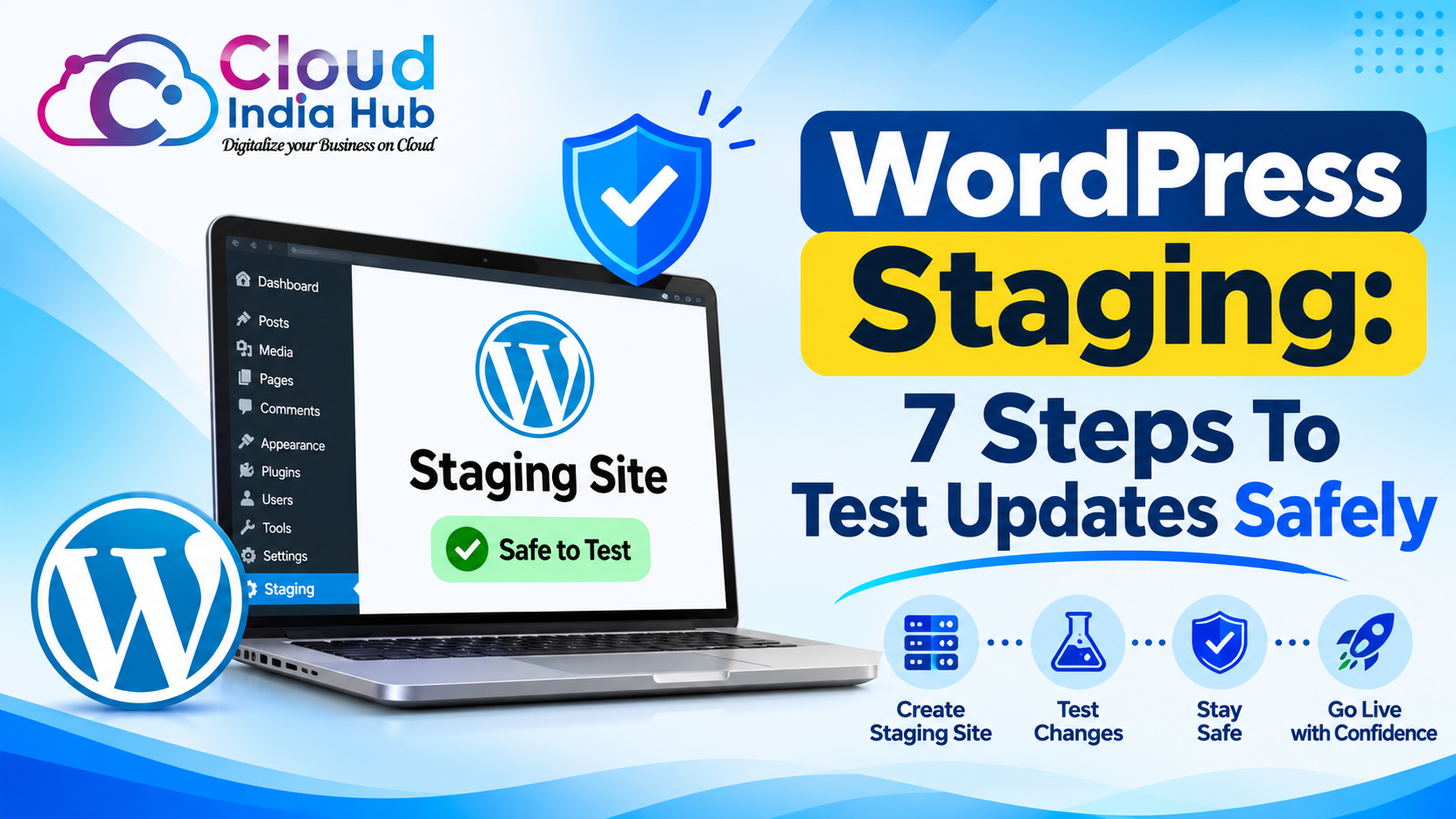
If you edit theme or plugin files on a live WordPress site, rehearse the change first. Our WordPress staging guide shows how to test on a private copy before you change anything customers can see.
How Do You Deploy A Website With A Zip File?
The fastest way to move a site into cPanel File Manager is one zip upload followed by Extract, because uploading files individually is slow. Follow these six steps and keep the zip until you confirm the site loads.
1. On your computer, compress the site folder into a single .zip file.
2. Sign in to cPanel and open File Manager from the Files section.
3. Open public_html, or the document root of your domain, then click Upload and add the zip.
4. Return to File Manager, select the zip, click Extract, and choose where the files should land.
5. Open the target folder and check that index.php or index.html sits directly inside it, not one level deeper.
6. Load the site in a private browser window, then delete the zip and empty the Trash.
If a file will not load after extraction, select it and click Permissions. The Change Permissions window defaults to 0644, so compare your value before changing anything, and change it only when an application’s documentation asks for it.
Clear the browser cache or use a private window when you test, because an old copy of a page can make a successful deploy look broken. If the site still shows the old version after that, confirm that the files landed in the folder your domain actually points to.
Three mistakes cause most failed deploys:
• Extracting into the home directory instead of public_html.
• Leaving the site inside an extra folder, so the homepage sits one level down.
• Skipping Show Hidden Files, so a needed .htaccess file never gets checked.
Frequently Asked Questions
Why can’t I see my .htaccess file in File Manager?
Hidden files stay out of view by default. Click Settings, tick Show Hidden Files (dotfiles) and click Save, and .htaccess appears in the list.
What should I do if my cPanel File Manager login fails?
Confirm you are using your cPanel username, not your billing email, then reset the password. If the cPanel File Manager login still fails, ask your host whether the account is suspended.
Can I upload a whole folder?
Not directly. The upload page accepts files only, so compress the folder into a zip archive on your computer, upload it, then select it and click Extract.
Why does the editor refuse my large file?
The built-in editor cannot open files above 1 MB. Download the file, edit it in a local code editor, then upload the edited copy.
Does deleting a file remove it for good?
No, Delete moves items to the Trash folder. Click View Trash, then Restore, to bring one back, or Empty Trash to remove everything permanently.
Is File Manager the same as WHM?
No, WHM is the server-level panel that hosts and resellers use to create accounts. File Manager sits inside each account’s cPanel and only touches that account’s files.
Where Do You Go From Here?
Pick one small job today, such as copying your config file to a backup folder, and practise it in cPanel File Manager before you attempt a full deploy.
If anything on your screen looks different from this guide, ask the Cloud India Hub support team, where chat runs 24x7.
Expert advice
|
Log in, upload, edit, compress and download site files with cPanel File Manager. This guide covers the 1 MB edit limit, zip uploads, permissions and the mistakes that quietly break a website. |
Serving Bengaluru, Karnataka.

















































































































































Leave A Comment