
DNS Settings Explained: Point Your Domain The Right Way
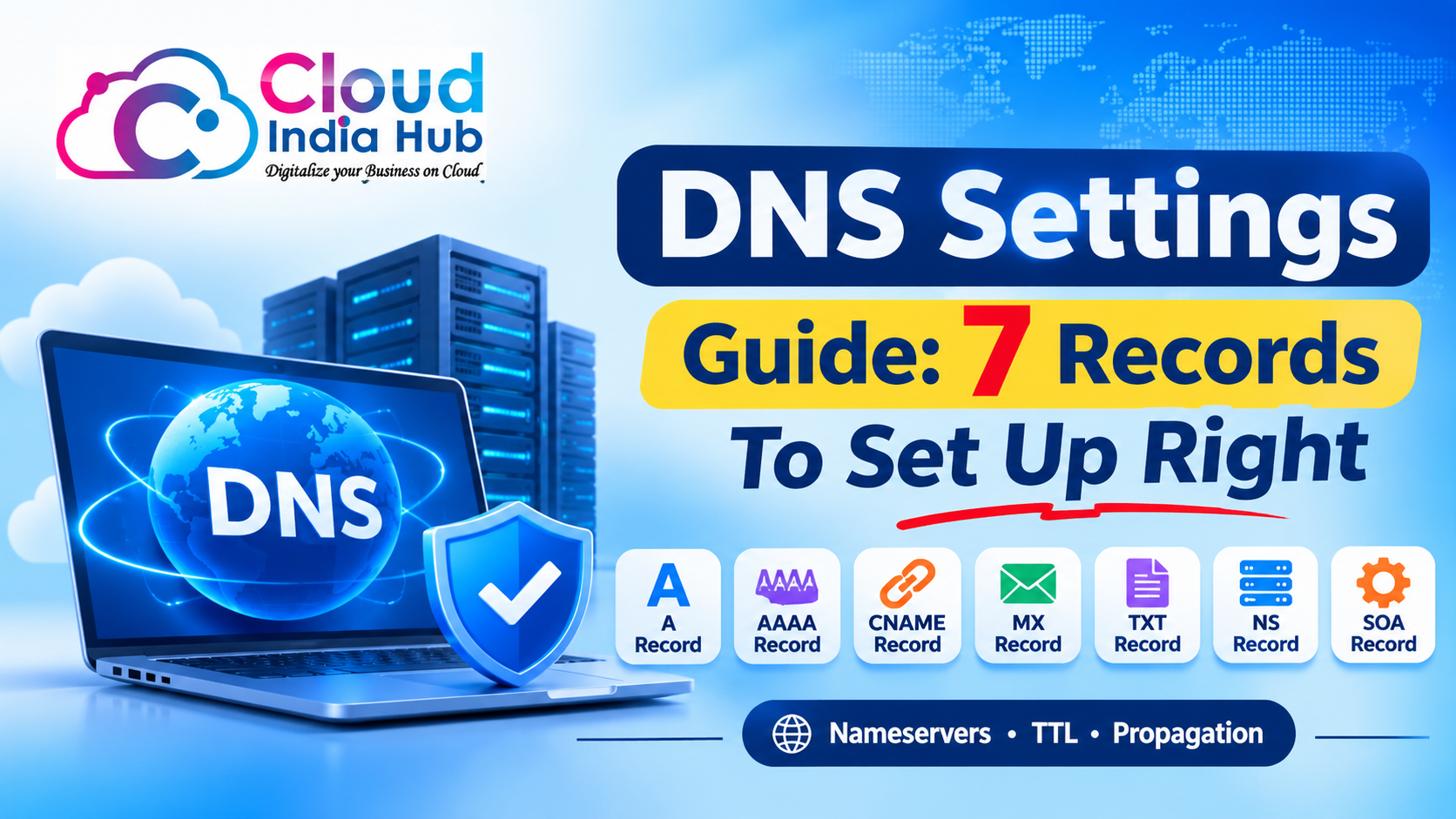
DNS settings are the records that tell the internet where your domain's website and email live. Most domains rely on 7 record types (A, AAAA, CNAME, MX, TXT, NS, and SOA), and each change goes live once the old TTL expires.
Get one record wrong and your site goes blank or your inbox stops receiving mail. If you are unsure which resolver your own laptop queries, read our guide to checking which DNS server your device uses, then come back here to set up the domain side.
At A Glance
• Core records: A, AAAA, CNAME, MX, TXT, NS and SOA
• Label limit: 63 characters per label, set by the DNS standard
• Duration: 5 to 7 business days for a domain transfer
• Check tool: Cloud India Hub DNS Record Lookup, which reads every common record type
• Lower the TTL at least one full TTL period before any planned change
What Are DNS Settings And Why Do They Matter?
Your DNS settings are the zone of records that maps a domain name to real servers. They decide which IP address loads your website, which server accepts your email, and which outside services can prove they act on your behalf.
Computers talk in IP addresses such as 203.0.113.10. People remember names. The Domain Name System sits between the two, translating one into the other millions of times a second.
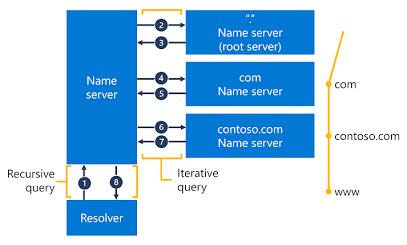
When a visitor types your domain, their resolver asks the root servers, then the servers for the extension (.in, .com, .co.in), and finally the nameservers listed for your domain. Those authoritative nameservers answer from your zone file. Everything in that zone is yours to control.
What the zone controls:
• Website: which server or IP address loads your pages
• Email: which mail server receives messages sent to your addresses
• Verification: proof of ownership for Google Workspace, Search Console and similar services
• Security: SPF, DKIM and DMARC policies that stop others spoofing your domain
That is why a tiny typo matters. A wrong A record sends every visitor to the wrong machine, and a missing MX record bounces every incoming email.
Which DNS Records Does Your Website Need?
A typical business site needs an A record for the root domain, a CNAME or A record for www, MX records for mail, and TXT records for verification and email security. The DNS settings for website traffic are mostly the A and CNAME entries.
Here is what each record does and when you would touch it:
|
Record |
What it does |
Example value |
When you edit it |
|
A |
Points a name to an IPv4 address |
203.0.113.10 |
Moving to a new server or host |
|
AAAA |
Points a name to an IPv6 address |
2001:db8::10 |
Your host gives you an IPv6 address |
|
CNAME |
Makes one name an alias of another |
www pointing to yourdomain.in |
Adding www or a subdomain for a SaaS tool |
|
MX |
Names the server that receives mail, with a priority |
10 mail.yourdomain.in |
Switching email provider |
|
TXT |
Holds text such as SPF, DKIM and verification codes |
v=spf1 include:… ~all |
Adding a mail service or verifying ownership |
|
NS |
Lists the authoritative nameservers |
ns1.yourhost.com |
Moving DNS hosting to another provider |
|
SOA |
Stores zone admin data and a serial number |
Set by your DNS host |
Rarely, as the host manages it |
A CNAME cannot share a name with other records, so the bare root domain almost always uses an A record instead. Subdomains such as shop or blog are where CNAMEs earn their keep, because one change at the target updates every alias.
Before you change anything, run your domain through the Cloud India Hub DNS Record Lookup tool and copy the current values somewhere safe. That copy is your rollback plan.
How Do You Set Up Email Records Without Breaking Mail?
Email depends on four records working together: MX routes incoming mail, SPF lists who may send for you, DKIM signs each message, and DMARC tells receivers what to do when checks fail. Copy each value exactly as your mail provider supplies it.
• MX: points to your provider’s mail server. Lower priority numbers are tried first.
• SPF: a single TXT record starting with v=spf1. Keep only one per domain, because two cause a permanent error.
• DKIM: a TXT record at a selector name such as selector._domainkey, holding a public key from your provider.
• DMARC: a TXT record at _dmarc with a policy such as p=none while you monitor reports.
SPF trips up more people than any other record, mostly because of its 10 DNS lookup limit. Every include adds lookups, and a domain that sends through a CRM, a newsletter tool and a mail host can hit the ceiling quickly.
Our walkthrough on reading SPF record checker results explains each verdict and how to fix a failing record.
If you are moving mailboxes, change the MX record last, after the new mailboxes exist. That order means no message ever lands in an empty account.
Where Should You Change Your DNS Configuration?
Change records wherever your domain’s nameservers point. If the NS records point to your registrar, edit the DNS settings for a domain in the registrar’s panel. If they point to your hosting company or a DNS service, edits made at the registrar do nothing.
This is the single most common source of confusion. Your registrar holds the registration, while your DNS host answers queries, and these can be two different companies.
|
Setup |
Where you edit records |
Good for |
Watch out for |
|
Registrar nameservers |
The registrar’s DNS panel |
Simple sites with email on a separate service |
Some panels support fewer record types |
|
Hosting nameservers |
Your hosting control panel, such as Plesk or cPanel |
Website and email on the same host |
The zone can disappear if hosting is cancelled |
|
Third-party DNS service |
The DNS provider’s dashboard |
Busy sites with many subdomains |
One more account to secure |
To find out which applies to you, look up the NS records for your domain and match them to a provider. Whichever company those nameservers belong to is where your DNS configuration lives.
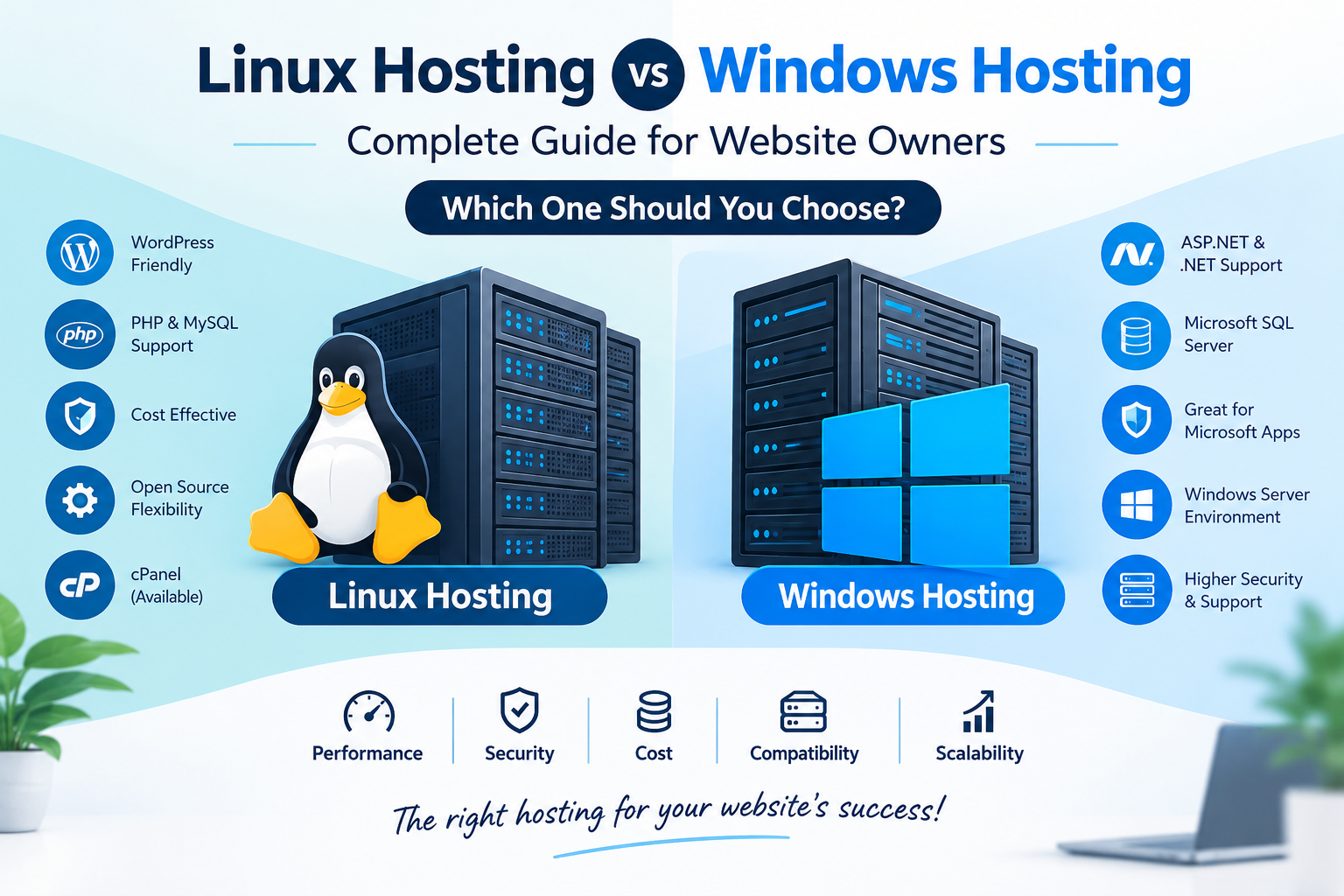
Keeping registration and DNS under one roof removes a whole class of mistakes. Cloud India Hub’s client dashboard includes a DNS section for domains managed here, and you can transfer your domain to Cloud India Hub with the authorization code from your current registrar. Transfers typically complete in 5 to 7 business days.
How Long Do DNS Changes Take To Work?
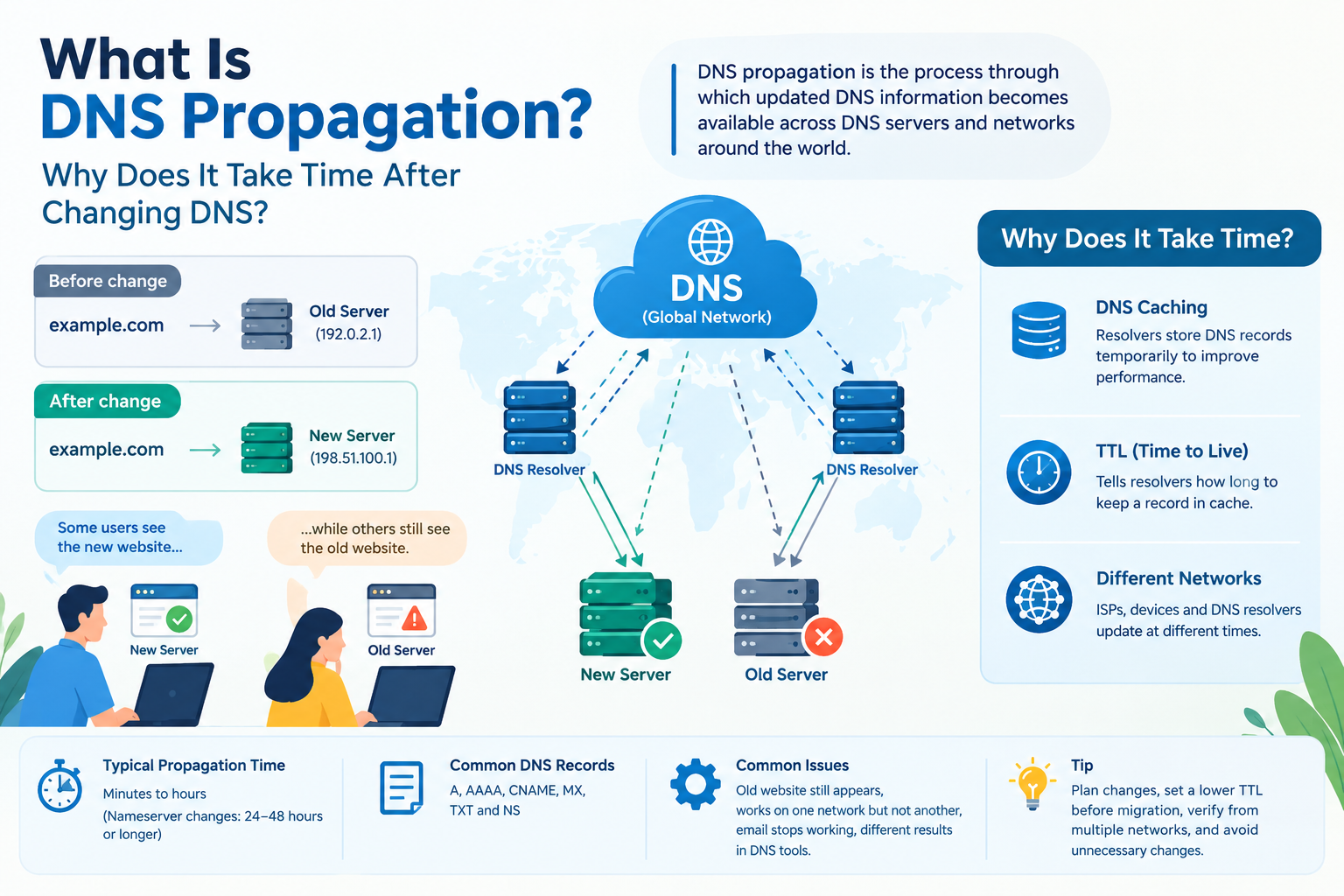
Most DNS settings changes show up within minutes to a few hours, but the real limit is the TTL. Resolvers that cached the old record keep serving it until its TTL runs out, so a 3600 second TTL can mean up to one hour of stale answers.
TTL, or time to live, is the number of seconds a resolver may keep a record in its cache. The DNS standard, RFC 1035 from the IETF, defines TTL as a count of seconds and limits each label in a domain name to 63 characters.
The wait people call propagation is really resolvers holding on to answers they saved earlier. No update travels out from your DNS host. Each resolver asks again once its saved copy goes stale.
You can shorten the wait with a little planning:
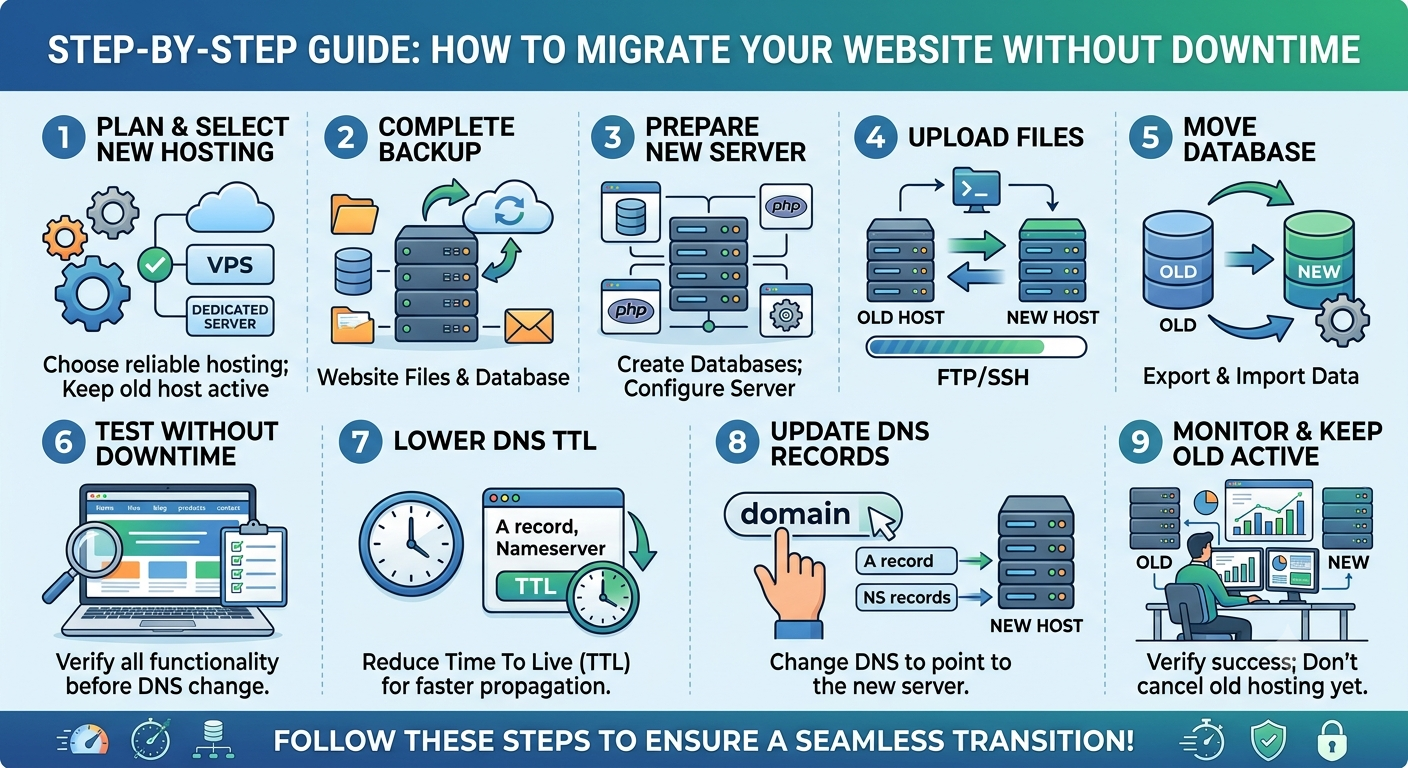
• Lower the TTL to 300 seconds at least one full old TTL before a planned move.
• Make the change once the short TTL is in effect everywhere.
• Raise the TTL back to its normal value after traffic looks stable for a day.
Nameserver changes usually take longer than record edits. The delegation is cached at the extension’s registry level, which sits outside your control, so plan a nameserver switch for a quiet day.
How Do You Update Your DNS Records Step By Step?
Back up the current zone, lower the TTL, edit one record at a time, and verify each change from outside your network. Following this order keeps your DNS settings recoverable if a value turns out to be wrong.
1. Export or screenshot every existing record, including the full TXT and MX values.
2. Confirm which nameservers are authoritative, so you edit the right panel.
3. Lower the TTL on the records you plan to change, then wait for the old TTL to pass.
4. Add or edit the record. Use @ for the root domain and the bare label, such as www, for subdomains.
5. Save, then query the record from a different network with a lookup tool.
6. Open the site in a private browser window and send a test email to an outside address.
7. Restore a normal TTL once everything resolves correctly.
If you work from a terminal, dig yourdomain.in A +short or nslookup -type=MX yourdomain.in shows exactly what public resolvers return. Add @8.8.8.8 to dig to bypass your local cache.
Change one record, verify it, then move to the next. Batch edits make it hard to tell which line caused a problem.
What Mistakes Break A Domain After A DNS Change?
Most outages after a DNS edit come from five slips: editing the wrong panel, a typo in an IP address, two SPF records, a CNAME on the root domain, or switching nameservers without copying the old zone first. Each one is avoidable.
• Editing the wrong panel: changes at a registrar that does not host your DNS have no effect.
• Duplicated names: some panels append the domain automatically, so typing the full name creates www.yourdomain.in.yourdomain.in.
• Two SPF records: merge them into one TXT value with every include in a single line.
• Root CNAME: use an A record, or an ALIAS record if your DNS host offers one.
• Lost records on a nameserver move: recreate MX, TXT and subdomain records at the new host before you switch.
Keep a dated copy of your zone in a shared document. When something breaks late at night, that file is the fastest rollback you have.
Frequently Asked Questions
What Is The Difference Between Nameservers And DNS Records?
Nameservers decide which provider answers for your domain. DNS records are the individual answers that provider gives, such as the A record for your site or the MX record for mail.
Can I Change My DNS Records Without Moving My Website?
Yes. Editing your DNS settings only changes where names point, so your files, database and hosting plan stay put unless you aim the A record at a different server.
Why Is My Website Still Showing The Old Server?
Your resolver or browser still holds a cached copy of the old record. Wait for the previous TTL to expire, clear your browser cache, or test from mobile data to confirm the new answer.
Which DNS Configuration Do I Need For Google Workspace?
Google Workspace needs its MX records, a TXT record for domain verification, an SPF include, and a DKIM key generated in the admin console. Remove old MX records so mail does not split between providers.
Do I Need An AAAA Record?
Only if your server has an IPv6 address, since visitors still reach your site over IPv4 without one. A wrong AAAA record is worse than none, because IPv6 users will hit a dead address.
How Do I Check My Records Are Correct?
Run a lookup from outside your network and compare each value with what your host or mail provider supplied. A tool that shows A, MX, TXT and NS together makes mismatches easy to spot.
Who Can Help If Your Records Still Look Wrong?
If a record refuses to resolve after the TTL has passed, the cause is usually delegation or a typo you cannot see. Share your domain and its current DNS settings with the Cloud India Hub support team on 24x7 chat, and get a second pair of eyes before the next change.
Expert advice
|
Learn which DNS settings your domain needs, where to edit them, and how TTL decides when a change goes live, with a 7-step checklist that keeps your website and email online. |
Serving Bengaluru, Karnataka.







































































































































































































Leave A Comment