
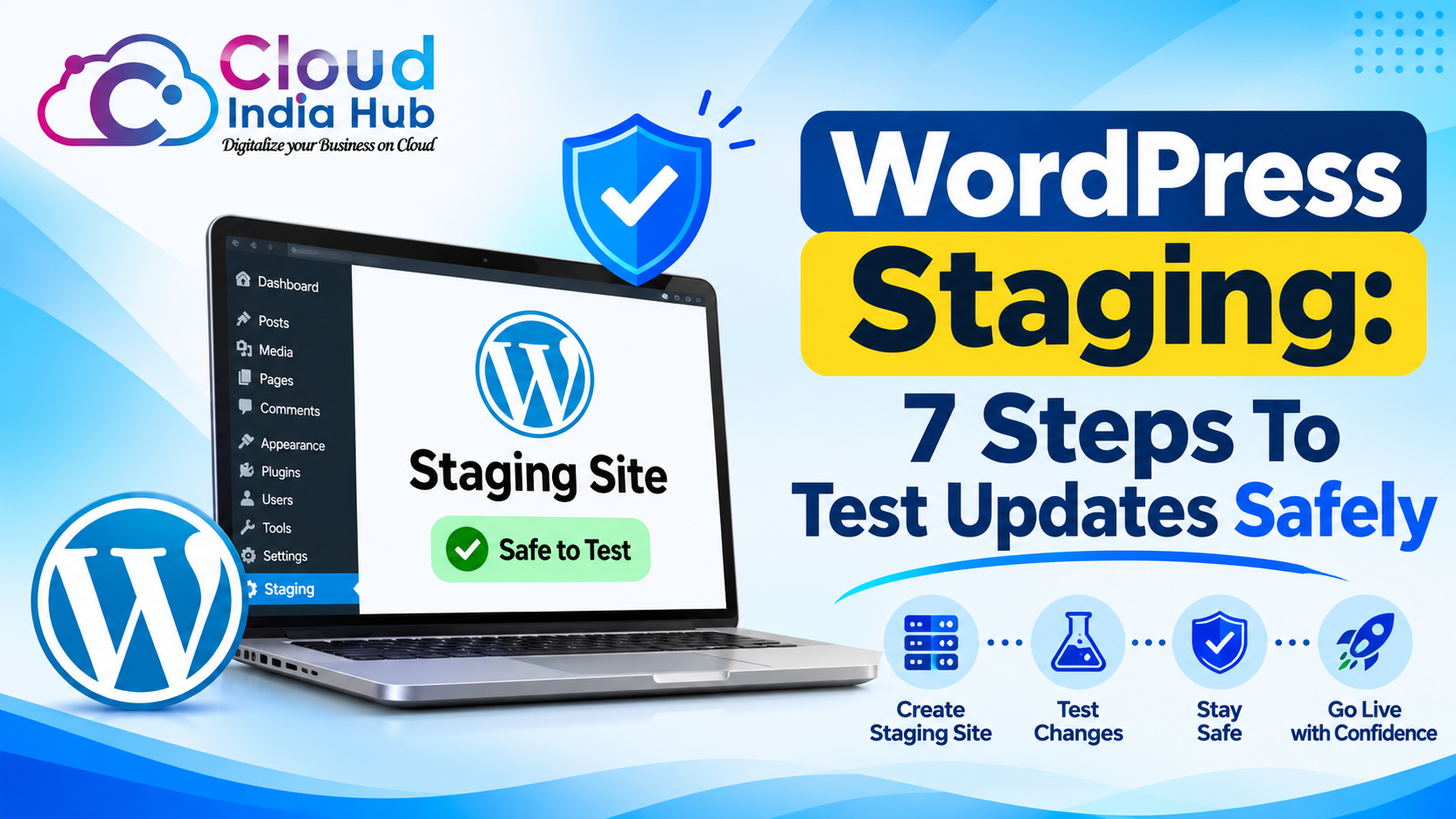
How To Set Up WordPress Staging Without Risking Your Live Site
WordPress staging is a private copy of your live site where you test updates, plugins and design changes before any visitor sees them. Since version 5.5, WordPress core has recognised four environment types, and staging is the one built for pre-launch checks.
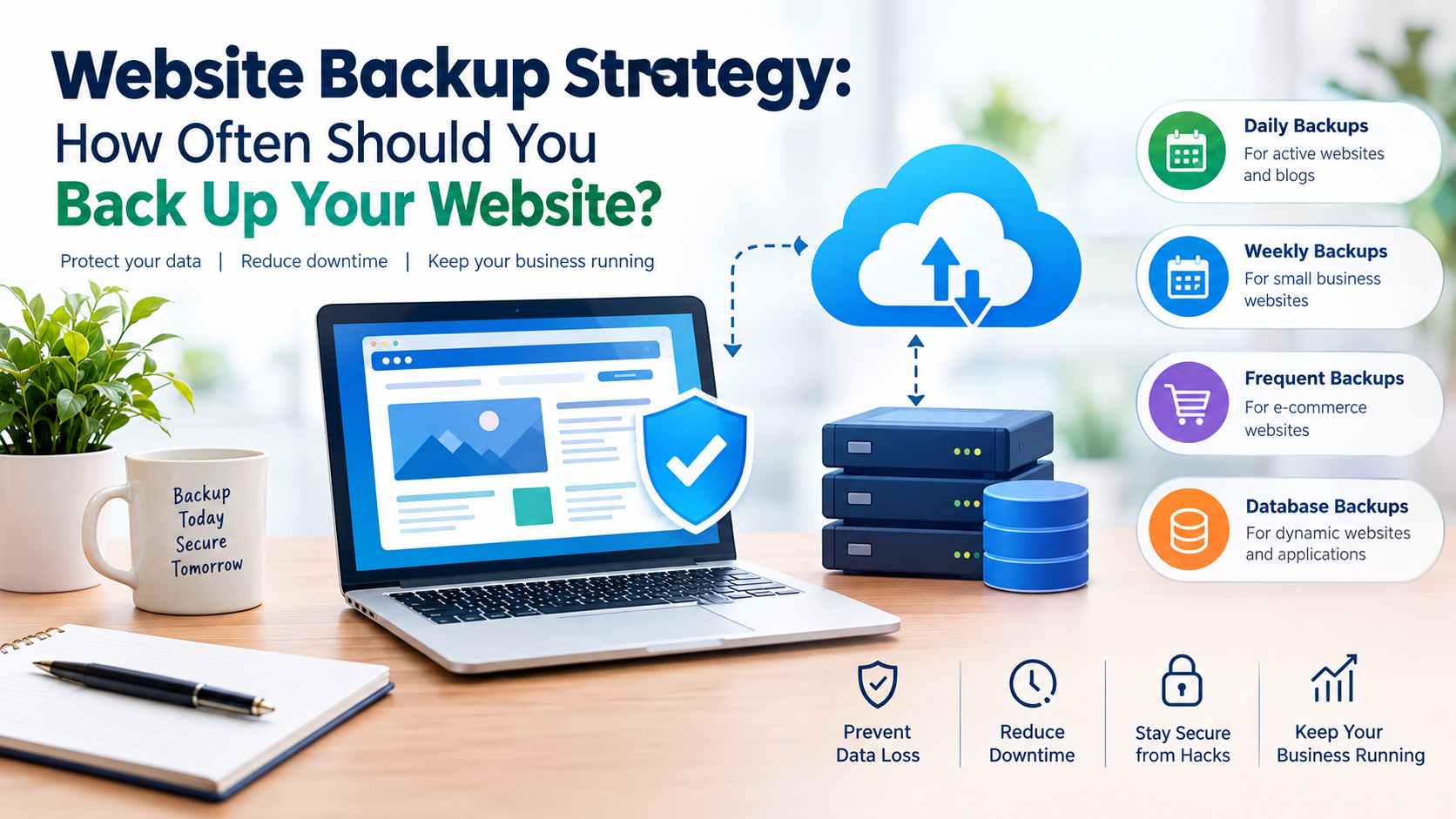
A staging copy is only as useful as the backup behind it, so keep our website backup frequency guide open while you work. This post covers how staging works, which method suits your host, and how to move finished changes to production.
At A Glance
• Price: ₹299 per month for the Starter WordPress hosting plan
• Backups: daily backups from ₹899 per month, none on Starter
• Core environment types: local, development, staging and production
• A staging database pushed over a live store can erase newer orders.
What Is Staging In WordPress And Why Does Your Site Need One?
A staging environment is a separate, non-public copy of your site with its own files and database. WordPress staging lets you break things safely: update a plugin, swap a theme or rebuild a checkout page, then move only the changes that worked to the live site.
Live sites break in predictable ways. A plugin update clashes with the theme, a PHP version bump retires a function, or a page builder change shifts a layout on mobile. Each of those is a quick fix on a copy and a lost afternoon of sales on the real thing.
You need a staging copy most when:
• A store takes orders around the clock and cannot afford a broken checkout.
• Several people edit pages, plugins or theme files.
• You plan a redesign, a PHP upgrade or a major plugin swap.
• Forms, memberships or bookings must keep working through every change.
Staging has limits worth knowing. It catches what you can see and click, not what a thousand visitors do at once, and it cannot predict orders that arrive on the live site while you test. Treat it as a rehearsal, not a guarantee.
How Does WordPress Know It Is Running On A Staging Copy?
WordPress reads an environment type from the WP_ENVIRONMENT_TYPE constant or a system variable. The accepted values are local, development, staging and production, and a site with nothing set defaults to production. Hosts that build staging tools are asked to set the value to staging.
Setting it correctly matters for every WordPress staging copy, because plugins and themes can read the value to switch off live-only behaviour such as order emails, analytics tags and cache warmers. When the type is development, core also turns on debugging if nothing else has.
The WordPress developer reference for the environment type function documents all of this, and its changelog shows environment types arrived in version 5.5.0. Setting the constant by hand takes one line in wp-config.php.
Two habits complete the setup. Tick Discourage search engines from indexing this site under Settings, then Reading, and add password protection at the server level. The first is a request that search engines may ignore, so the password is what truly keeps the copy private.
Which Staging Method Should You Pick: Host Tool, Plugin Or Manual Copy?
Pick the host’s built-in tool if you have one, because it copies files and the database in a few clicks. Use a plugin when your plan has no tool, and reserve a manual subdomain copy for developers who need full control over the stack.
Host tools win on speed. They clone files and the database in one pass, often set the environment type for you, and give you a push button when testing ends. The catch is plan limits, so read the plan page before you assume staging is included.
|
Method |
Effort |
Best for |
Watch out for |
|
Host tool |
Low |
Business sites and stores |
Plan limits and what the copy skips |
|
Plugin clone |
Medium |
Shared plans without a tool |
Time limits on large databases |
|
Manual subdomain |
High |
Developers who want control |
DNS, URL rewrites, serialized data |
|
Local machine |
Medium |
Theme and code work |
Differences from the live server |
Searches for wp staging usually point to the plugin route, where a plugin clones the site into a subfolder or subdomain on the same account. It is quick and needs no server access, though very large databases can hit time limits.
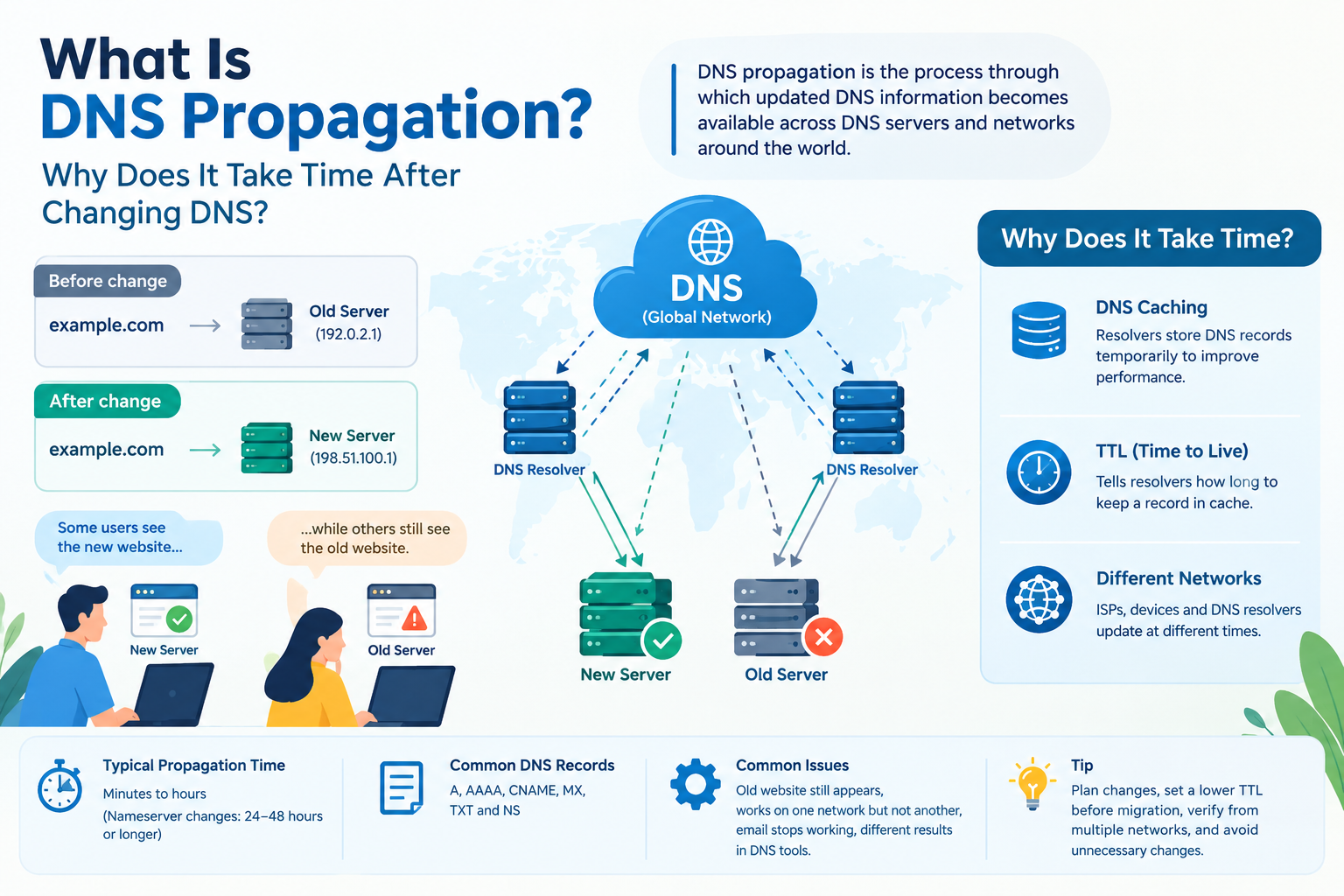
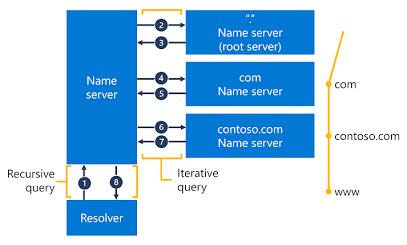
Manual copies usually live on a subdomain such as staging.yourdomain.com, which needs its own DNS record. Our guide to A, CNAME, MX and TXT records shows which record points a subdomain at your server.
Pick by the kind of site you run:
• A small brochure site: a plugin or host tool is enough.
• A store or membership site: use a host tool and keep database pushes manual.A custom theme or code project: build locally, then promote to a staging subdomain.
• A custom theme or code project: build locally, then promote to a staging subdomain.
How Does WPEngine Staging Compare With A Typical Shared Hosting Setup?
On WP Engine, each site holds up to three environments: production, staging and development, and a Copy Environment tool moves data between them. Other hosts differ, so check what yours builds in before you pick a method.
WP Engine’s documentation lists items that do not travel with a copy, so you recreate them on the target by hand:
• Redirects set in the User Portal
• SSL certificates
• Custom cache exclusions
• Nginx rules and other custom server settings
The same documentation advises against copying a database to production, since the live database is rewritten entirely. People who search wpengine staging are usually asking about exactly these edges. The same lesson holds for any WordPress staging workflow: copy code freely, but treat the database as live data that staging must not overwrite.
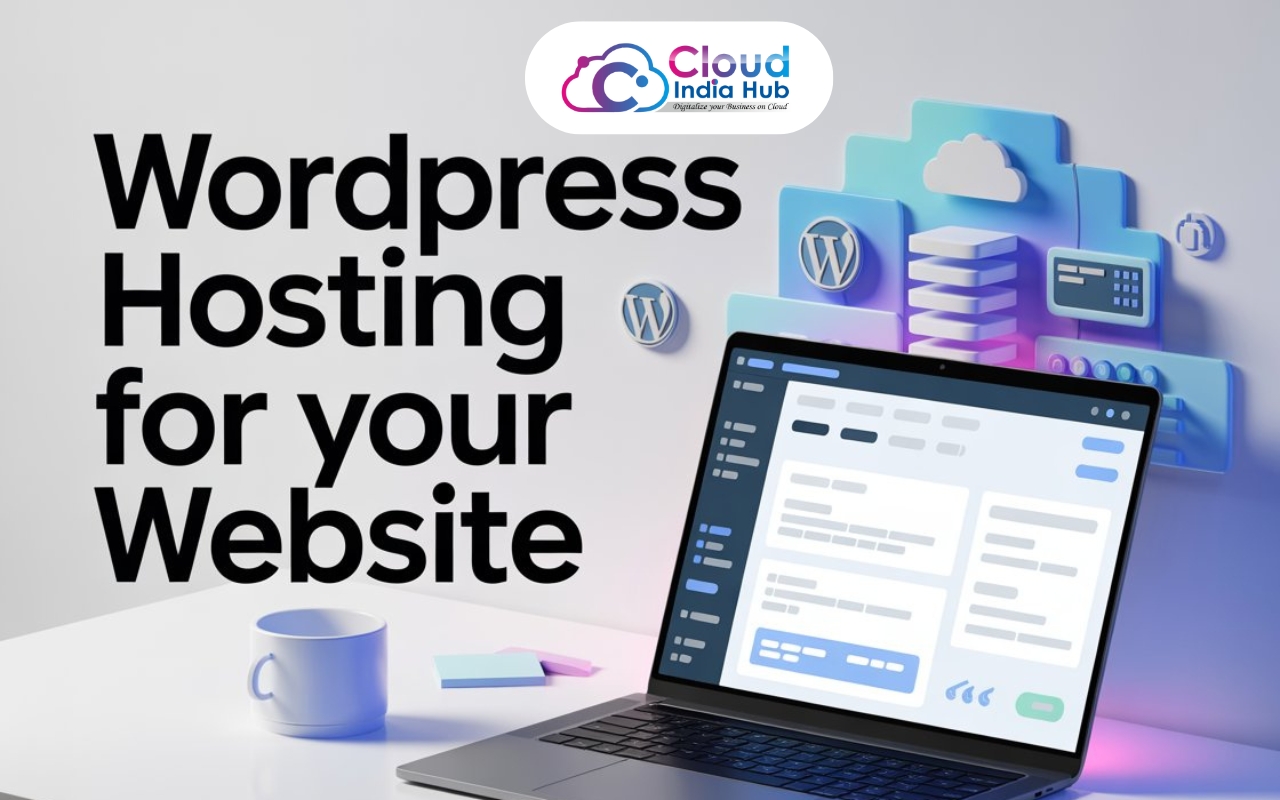
On our side, the Cloud India Hub WordPress hosting page lists a staging environment among its features, with plans from ₹299 per month. The page shows no backups on Starter, weekly on Basic and daily from the ₹899 Standard plan. Ask support which plan includes staging before you buy.
How Do You Build A WordPress Staging Site Step By Step?
Create the WordPress staging site in seven steps: back up, clone, lock it down, neutralise live-only features, fix URLs, test and record changes. A host tool reduces the clone step to a click, while manual copies need every step by hand.
1. Back up the live site. Save the files and the database, and confirm you can download the copy before you touch anything.
2. Clone to a separate location. Use the host tool, a plugin, or a subdomain with its own database. Never share a database with the live site.
3. Lock the copy. Add password protection, tick the discourage search engines setting and set WP_ENVIRONMENT_TYPE to staging.
4. Neutralise live-only features. Put payment gateways in test mode, stop outgoing customer email and disable live analytics tags.
5. Fix URLs. Replace the live address in the database with a tool that handles serialized data, such as WP-CLI search-replace.
6. Test like a visitor. Update plugins one at a time, then walk through checkout, forms, login and mobile layouts.
7. Record what changed. Note every plugin version and setting you altered so you can repeat it on the live site.
Name the copy clearly in your dashboard and keep a short change log beside it. Two weeks later, nobody remembers which setting fixed which bug.
What Should You Test On The Staging Copy Before Going Live?
Test everything a visitor or customer can touch: checkout, forms, logins, search, mobile layouts and page speed. Then add scheduled tasks, redirects and email delivery, because those are the failures nobody notices until a customer complains.
|
Area |
What to check |
Why it matters |
|
Checkout |
Cart, coupon and test payment |
Lost orders cost the most |
|
Forms |
Submission, confirmation and spam filter |
Leads vanish quietly |
|
Login and accounts |
Registration, password reset and roles |
Locked-out members leave |
|
Mobile layout |
Menus, buttons and popups |
Layout bugs show on small screens first |
|
Speed |
Load time before and after each update |
New plugins can add weight |
|
Redirects |
Old URLs still resolve |
Protects existing rankings |
|
Scheduled tasks |
Cron jobs, backups and scheduled posts |
Silent failures pile up |
Four mistakes sink most staging runs:
• A stale copy that no longer matches live data
• A different PHP version from production
• Live payment keys left switched on
• A copy that search engines can index
Test on a real phone as well as a resized desktop window. Touch targets, keyboard pop-ups and slow mobile connections expose problems that a desktop browser hides.
How Do You Push Staging Changes To The Live Site Safely?
Push files first and treat the database with caution. Copy changed theme and plugin files, repeat the recorded settings by hand on the live site, and only overwrite the live database when the site takes no orders, comments or sign-ups in the meantime.
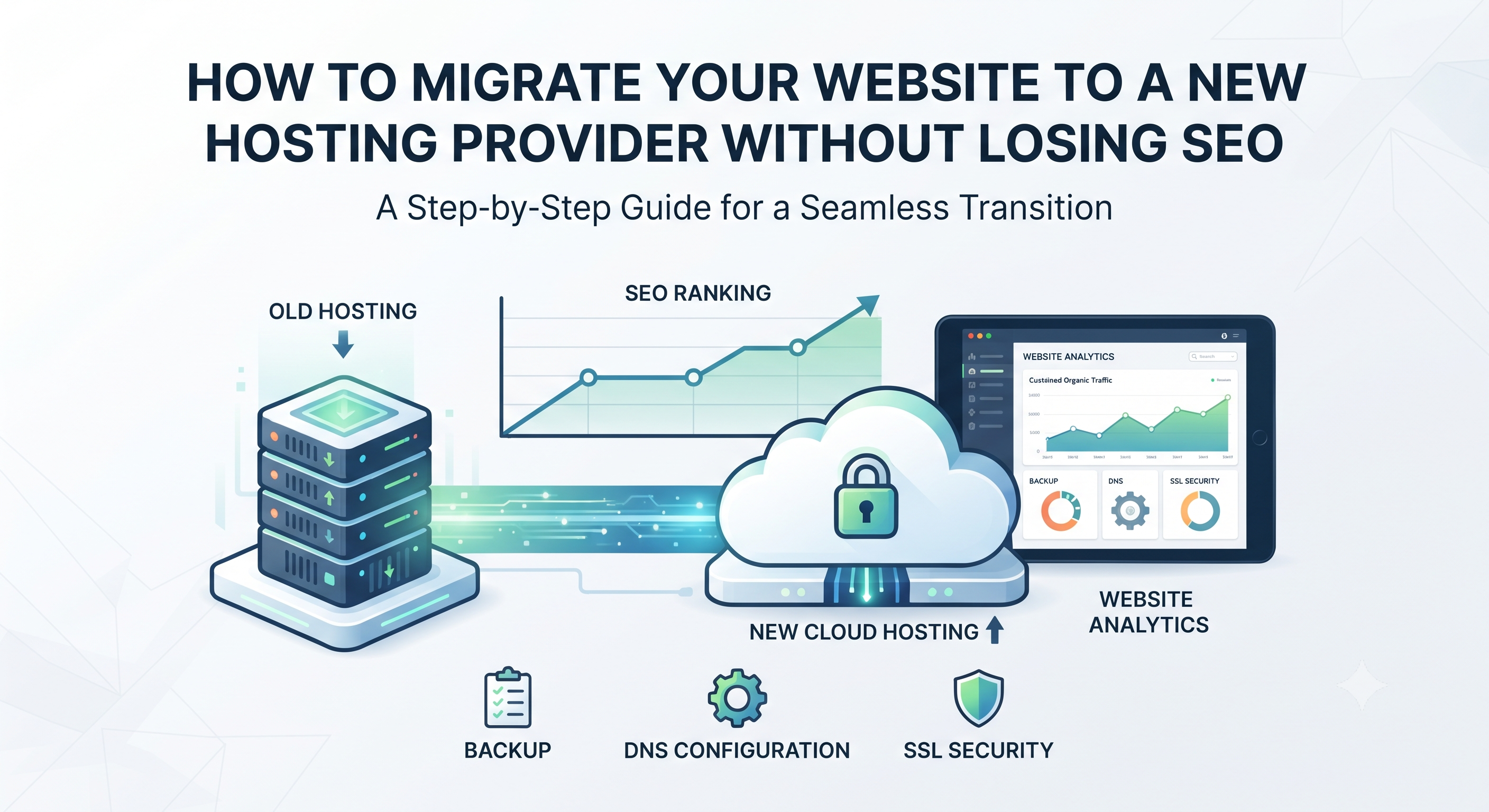
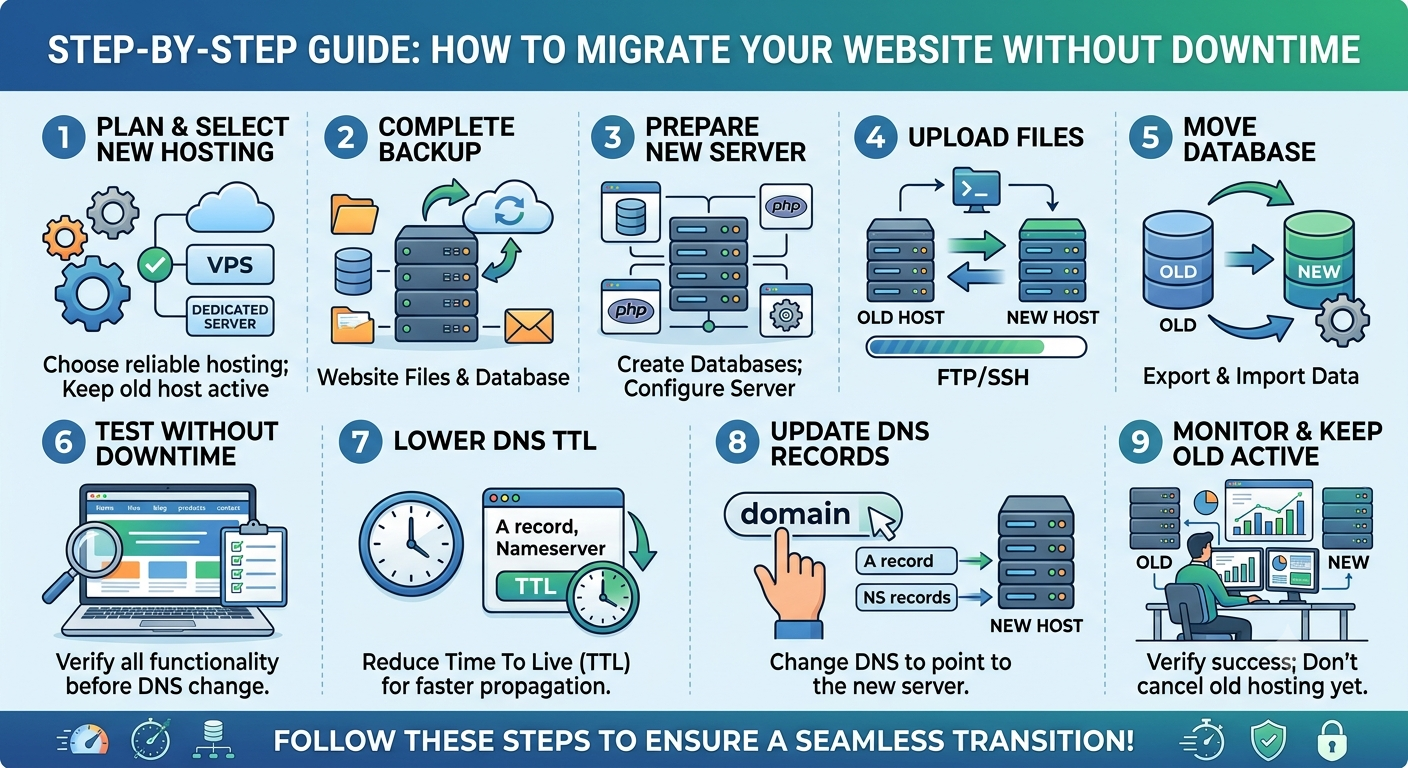
The same discipline appears in our website migration walkthrough, which tests the new server before any DNS change and keeps the old one running until everything checks out.
Treat every WordPress staging release like a small launch: schedule it, announce it if customers are affected, and name one person who decides whether to roll back. A written rollback plan turns a bad push into a short detour.
Run this checklist before you push:
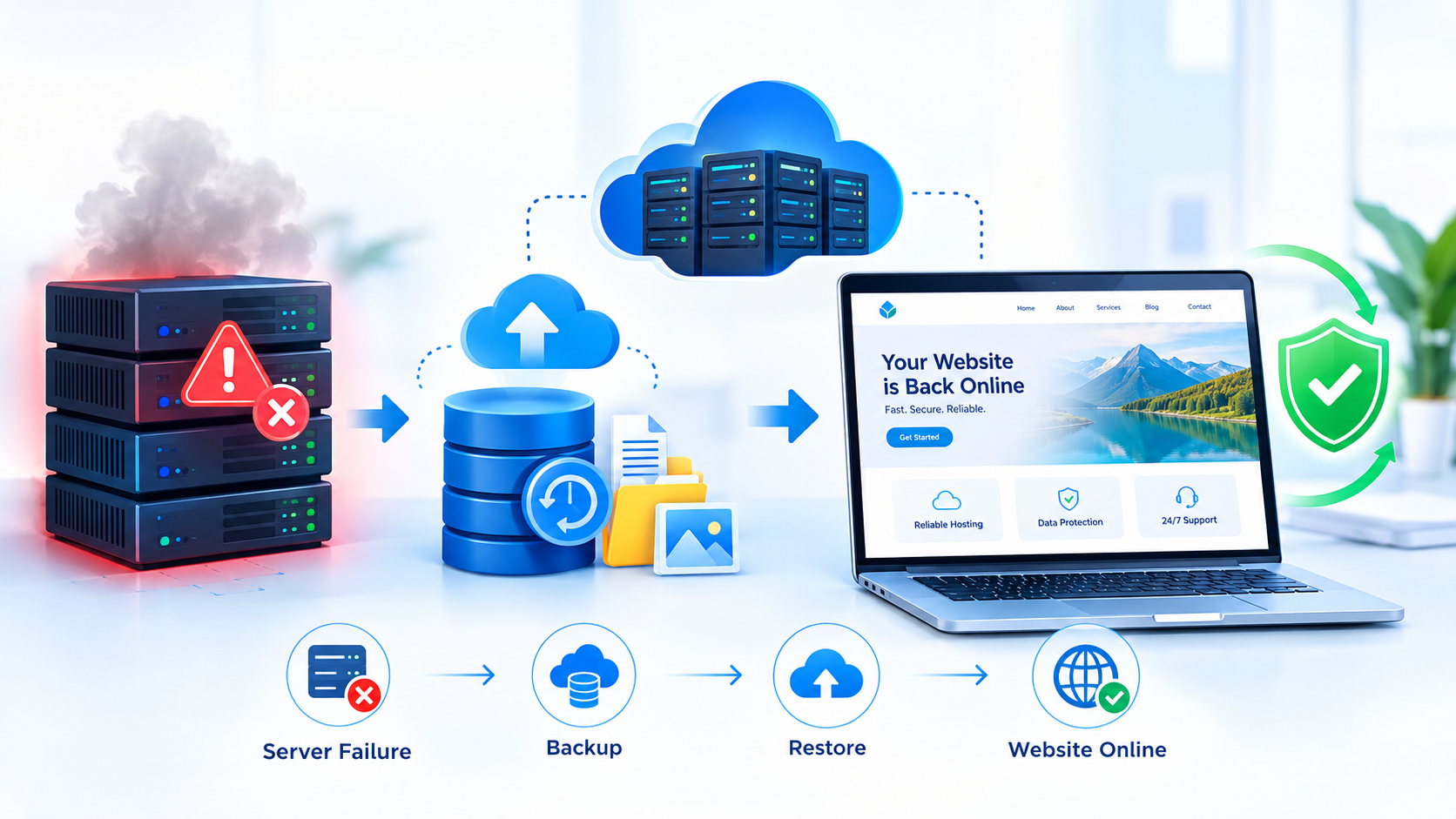
• Take a fresh backup of the live site and confirm it downloads.
• Pick a low-traffic window.
• Push files, then clear every cache layer, including any CDN.
• Re-test checkout, forms and login on the live site straight away.
• Keep the backup for several days in case a problem appears late.
For stores and membership sites, merge data changes with care. Export only the tables or options that changed rather than the whole database, so newer orders and sign-ups on the live site survive the release.
Frequently Asked Questions
What is the difference between staging and development environments?
A development environment is where code is written, often on a local machine. Staging mirrors production closely and is where final checks run before launch, and WordPress core treats the two as separate types.
Can a staging copy hurt my search rankings?
Only if search engines index the copy, so password-protect it and tick the discourage setting in Reading. A properly locked WordPress staging copy is far less likely to compete with your live pages.
Do I need a plugin to create a staging site?
Not always, because WP Engine and some other hosts build copy tools into the dashboard and our WordPress hosting page lists a staging environment. Plugins and manual subdomain copies fill the gap on other plans.
How often should I refresh the staging copy?
Refresh it from live before every significant test, because stale data hides real bugs. On a store, pull a fresh copy on test day and never push its database back over live orders.
Can a staging site send real emails or take real payments?
Yes, unless you stop it. Switch payment gateways to test mode and disable outgoing email, or route it to a mail catcher, so customers never receive messages from your test copy.
Does a staging copy slow down my live site?
It depends on the setup, because a copy on the same shared account draws on the same resources. Heavy imports can slow live pages, so run large tests off peak and check your plan limits.
Where Do You Go From Here?
Start with a fresh backup, then try WordPress staging on your very next plugin or theme update. If you want a hosting plan matched to that workflow, reach the Cloud India Hub team through our contact page, where chat runs 24x7.
Expert advice
|
Learn how WordPress staging gives you a private copy of your site for testing updates, compare host tools, plugins and manual copies, and follow seven steps to push changes live without breaking orders, forms or rankings. |
Serving Bengaluru, Karnataka.






















































































































Leave A Comment