

How To Use A Website Safety Checker Before Visitors Do
A website safety checker scans your public URL from the outside for malware, blacklist listings and risky redirects. No single scan sees everything, so combine 3 checks: a remote scanner, Google's Safe Browsing lookup and a scan of the files on your hosting account.
Most owners learn their site is unsafe from a visitor, not from a scanner. An expired certificate is one common trigger, so read our SSL certificate renewal guide first. This article then covers every other check, from malware scans to Google’s blacklist lookup.
At A Glance
• Price: Free for basic remote scans
• Scope: Remote, from outside your server
• Checks: Malware, blacklists, redirects and outdated software
• Re-check: Monthly and after every update
• A clean result is a snapshot, never a guarantee
What Does A Website Safety Checker Actually Test?
A website safety checker requests your page the way a visitor or search bot would, then looks for known malware signatures, injected scripts, hidden redirects, blacklist listings and outdated software. It reports what appears in the page output, not what sits quietly in your server folders.
The tool stands outside your site, loads the pages a visitor would load, and reports what it can see. It cannot step inside, so anything hidden in server folders stays out of view, however dangerous it is.
Most remote checkers test for the same six things: code patterns that security vendors already track
• Known malware: code patterns that security vendors already track
• Blacklist status: whether Google or another engine flags the domain
• Injected content: spam links, hidden frames and unfamiliar scripts
• Redirects: visitors bounced to another site, sometimes on mobile only
• Outdated software: old CMS, theme or plugin versions that attackers target
• Certificate health: an expired or misconfigured HTTPS setup
The stakes are practical. Google says it shows warnings on Search and in web browsers when it detects an unsafe site, so visitors often see the problem before you do. Fixing the code takes hours, while rebuilding visitor trust takes far longer.
Because the scan is remote, it works on any public URL, including a supplier’s site or a new client’s. That is also its blind spot, which the next section explains.
How Does A Sucuri Site Check Work?
A Sucuri site check is a free remote scanner. You paste a URL and it inspects the public page for known malware, blacklisting, defacements, outdated software and suspicious code, then returns a summary. It does not log in to your hosting account or read private files.
Sucuri says openly that remote scanners have limited access, so treat a result as a guide rather than a guarantee. The scanner costs nothing to use, while the company sells separate paid products for server-level monitoring and cleanup.
Its blacklist lookup queries several security vendors at once, Google Safe Browsing among them. That makes it a quick first pass, because one entry field replaces a handful of separate lookups.
Run SiteCheck when:
• You want an outside view of your own site after a plugin update
• You need a second opinion because a security plugin reported clean
• You are vetting a supplier or client site before sharing any logins
Read the result in layers. Start with the malware verdict, then the blacklist status, then the software and hardening notes. A red item in the first two layers needs action today, while the third layer feeds your monthly maintenance list.
The report also lists hardening suggestions and out-of-date software warnings. Read those lines even when the malware section says clean, because old software is a common way in.
Which Free Checker Fits Which Job?
Match the tool to the question. A remote scanner answers whether your public page looks infected, Google’s lookup answers whether the domain is flagged, and a host-side scan answers whether something hides in your files. Use each website safety checker for the job it does best.
|
Check |
What it sees |
What it misses |
Best for |
|
Remote scanner such as SiteCheck |
Public pages, redirects, blacklist status |
Files that never reach the browser |
A quick outside view of any URL |
|
Google Safe Browsing lookup |
Google’s current danger status for a URL |
Anything Google has not flagged yet |
Confirming a browser warning |
|
Malware scan from your hosting panel or a plugin |
Files and folders on your account |
Problems that show only in a visitor’s browser |
Finding hidden backdoors |
|
Manual review |
Certificate, domain age, plugins, user accounts |
Cleverly hidden injected code |
The final judgment call |
Start with the remote scan because it takes the least effort, then work down the rows. Each row catches problems the one above it cannot, which is why a single green tick never settles the question.
What Should A Safe Site Checker Show Before You Trust A URL?
A safe site checker should confirm three things before you trust a URL: a valid HTTPS certificate, no blacklist flags and a domain history that matches the business. A clean scan on a domain registered last week still deserves caution.
Google runs the best-known public lookup. Its Safe Browsing report says the company examines billions of URLs each day and finds thousands of newly unsafe sites daily, many of them honest sites that were hacked. You can search any address in Google’s Safe Browsing site status tool without visiting it.
Pair that lookup with domain age. Our WHOIS lookup tool shows registration dates and registrar details, though it asks you to log in first. Any website safety checker can miss a brand-new scam domain, because no blacklist has seen it yet.
The padlock only proves the connection is encrypted. It says nothing about who runs the site. Watch for these red flags as well:
• A domain registered within the last few weeks
• Contact details that are missing or copied from another business
• Payment or login pages that do not use HTTPS
• Prices far below every competitor, with pressure to pay quickly
If a supplier’s site fails these checks, pause before sharing logins, invoices or card details. Ask them to confirm the fix once they have made it, then run your own scan again.
What Does A Clean Result Not Prove?
A clean result proves only that nothing known was visible at scan time. Any website safety checker that works remotely can miss dormant backdoors, malware that fires only for certain visitors, and files changed after the scan finished.
Treat the report from any website safe checker as a snapshot. Re-run it monthly and after every plugin, theme or CMS update, because new problems arrive between scans.
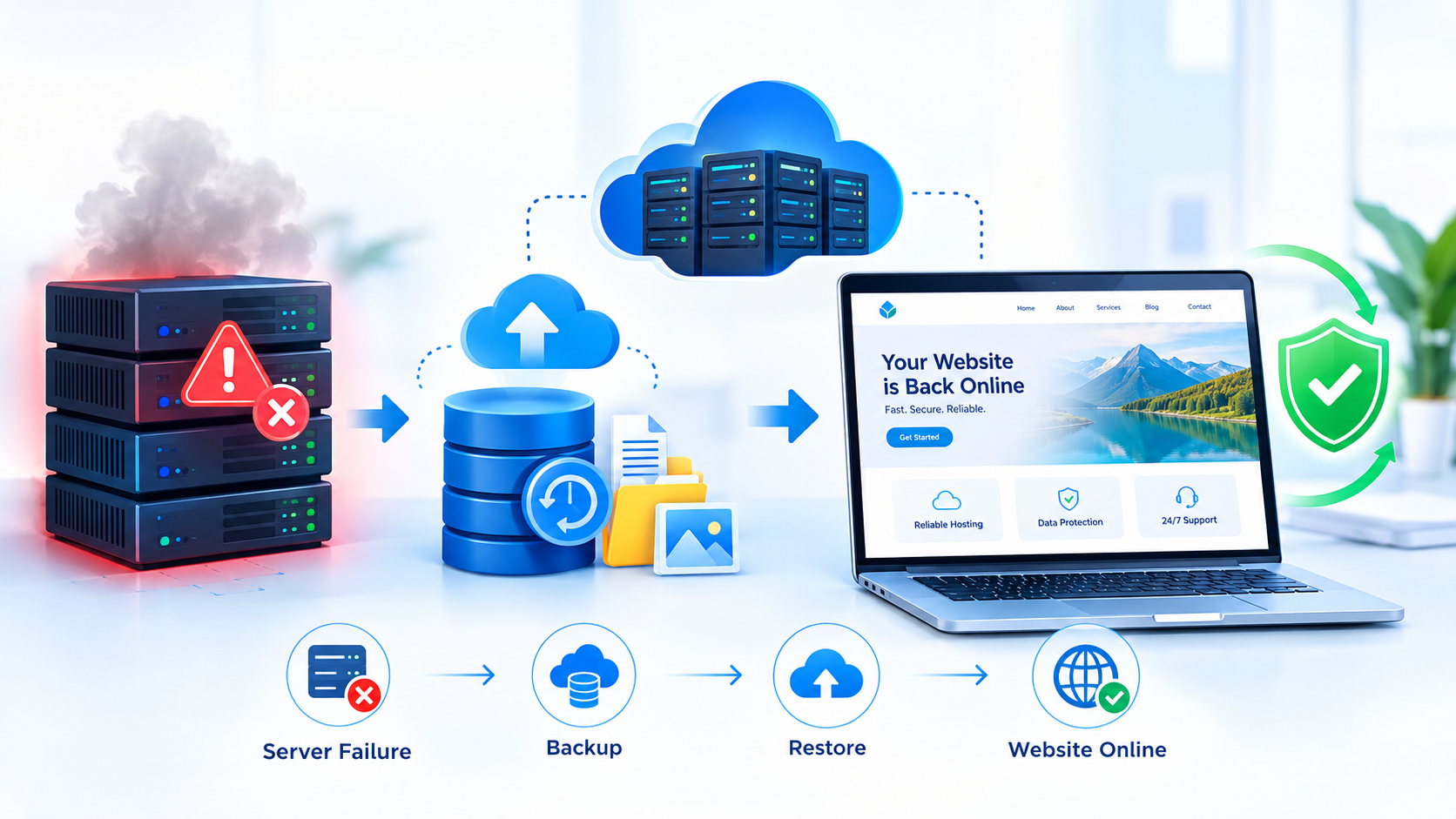
If a later scan does find a problem, a clean backup is the fastest way back. Our website backup strategy guide explains how often to back up, and it warns that you must close the security hole before restoring, or the infection returns.
Check your plan’s backup frequency now, not during an incident. On Cloud India Hub shared hosting, Starter has no backups, Basic keeps weekly backups, and Standard and Professional keep daily backups.
Three common false comforts:
• The scan ran before the infection began
• The malicious code shows only on mobile or only to search visitors
• A backdoor file sits in a folder that no public page loads
That is why professionals layer checks instead of trusting one tool. The remote scan shows what visitors see, the file scan shows what the server holds, and the backup shows what a clean version looked like.
How Do You Run A Website Safety Check In 7 Steps?
Start with a remote scan, then confirm with Google, check your host and tidy your logins. This website safety checker routine has seven steps and suits a small business site, a blog or a WordPress store.
1. Scan the URL. Run a Sucuri site check or a similar remote scanner and save the result with today’s date.
2. Look the domain up in Google. Confirm the Safe Browsing status shows no warning for your address.
3. Check the certificate. Click the padlock, confirm the expiry date and fix any mixed-content warnings.
4. Review users and plugins. Delete unknown admin accounts and remove plugins or themes you no longer use.
5. Scan the files. Run a malware scan from your hosting panel or a security plugin to reach what remote tools cannot.
6. Fix first, restore second. Change passwords, update software, then restore a clean backup only after the hole is closed.
7. Re-scan and log it. Repeat the remote scan a week later and note the result, so the next check has a baseline.
If a flagged site is not yours but is hosted with Cloud India Hub, send the URL and what you saw through our report abuse form.
Picture a made-up bakery site. Its order page passes the remote scan, but step 5 finds an unknown script in an old plugin folder. The owner deletes the plugin, changes passwords and re-scans a week later.
If Google has already flagged your site, Search Console holds the diagnostic detail for site owners. Check it before guessing what tripped the warning.
Frequently Asked Questions
Is a Sucuri site check enough to prove my site is safe?
No, because it scans only what a browser can see and Sucuri says remote results are not guaranteed. Pair it with a server-side file scan and a Google lookup, then repeat monthly.
How often should I scan my website?
Monthly for a quiet brochure site, weekly for a store or busy WordPress blog, and always right after updating a plugin, theme or CMS version.
Does Google warn about every infected site?
No, because Google flags only what its crawlers have seen, so a fresh infection can sit unflagged for a while. A clean Safe Browsing status is useful but is not proof.
Can a website safe checker find malware inside server files?
Not a remote one, because it sees page output only. To inspect files and folders, run a malware scan from your hosting control panel or a security plugin.
Is it safe to paste a client’s URL into a free scanner?
Yes for public pages, since a remote scanner requests only what any visitor could load. Never paste passwords, admin links with tokens or private staging URLs into an online tool.
What should I do first if a scan finds malware?
Change every password, update all software, then restore a clean backup taken before the infection. Run a fresh website safety checker scan afterward to confirm the warning is gone.
Where Do You Go From Here?
Book your first website safety checker scan for today, then check your Google status and set a monthly reminder to repeat both. If your plan has no backups, fix that next: our shared web hosting plans include free SSL, 24/7 support and daily backups on the Standard plan.
Sources and stats: Google’s Safe Browsing report supplies the daily scale figures, and the plan details come from the Cloud India Hub web hosting page.
Expert advice
|
Learn what a website safety checker tests, how a Sucuri site check works, what a clean result cannot prove, and the seven steps to scan, fix and recheck your site before visitors or Google flag it. |
Serving Bengaluru, Karnataka.







































































































































































Leave A Comment