
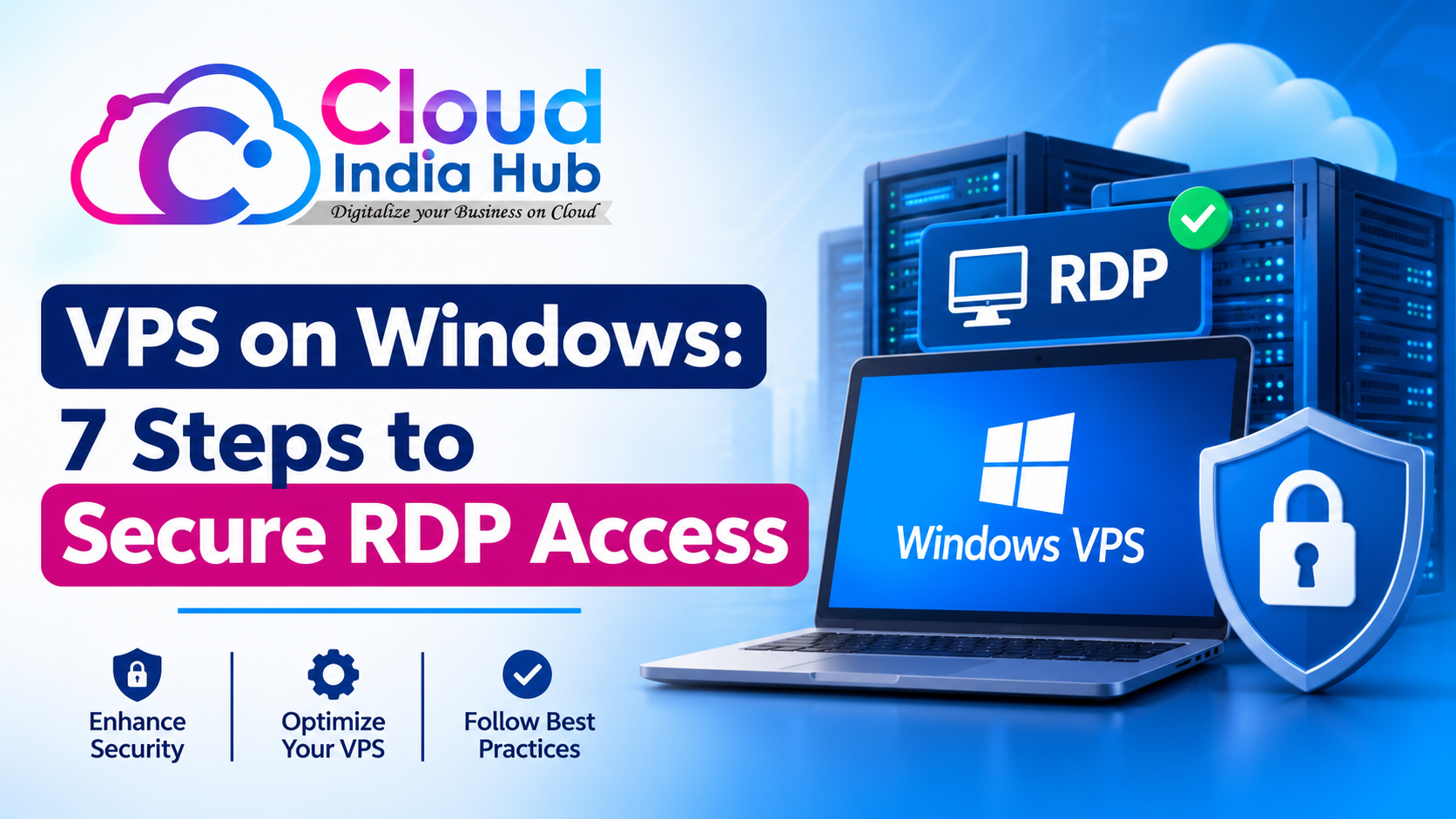
VPS on Windows: How Remote Desktop Access Really Works
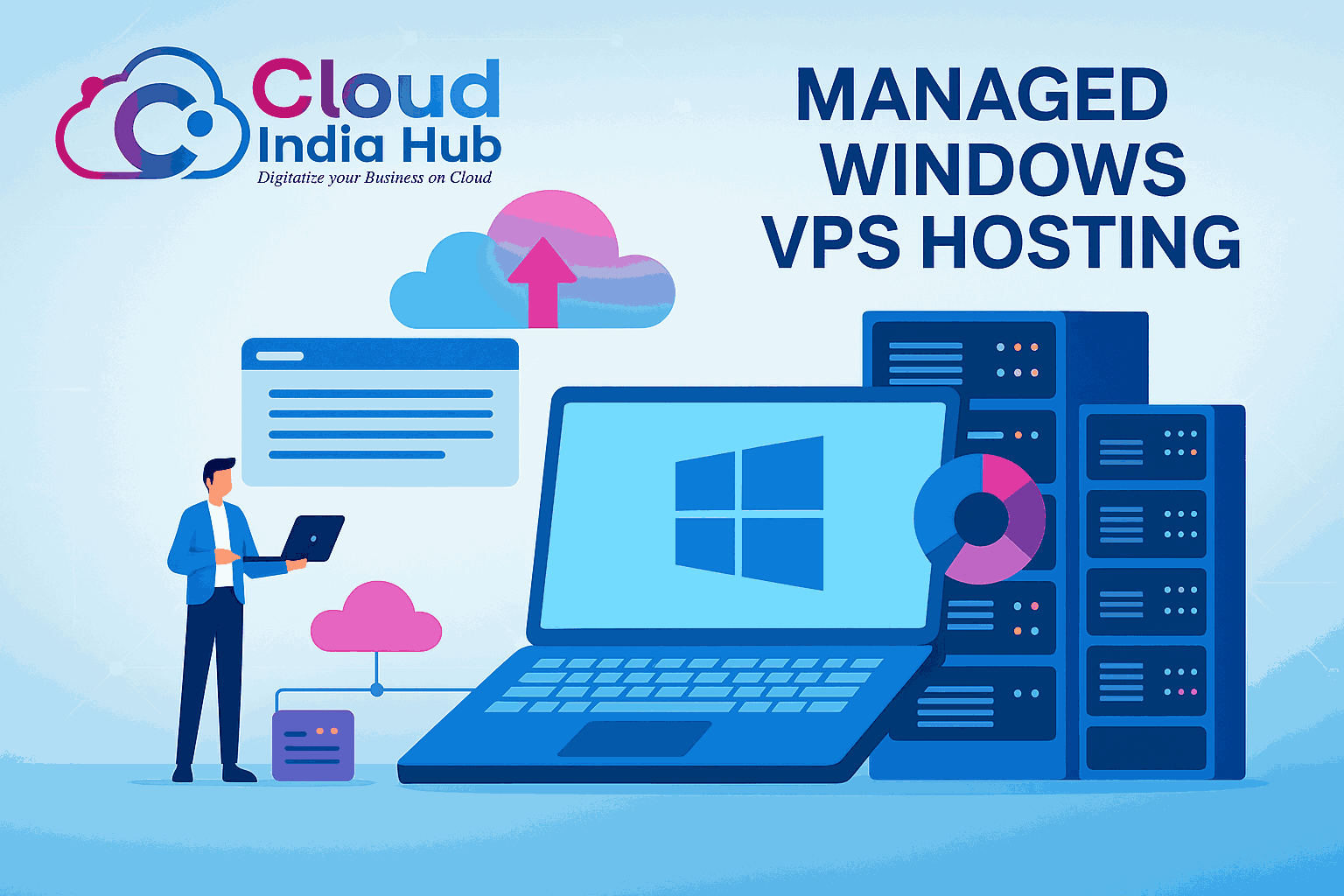
A VPS on Windows is a private virtual server running Windows Server, controlled through Remote Desktop with full administrator access. Cloud India Hub backs its Windows VPS with a 99.9% uptime guarantee and 24/7 expert support.
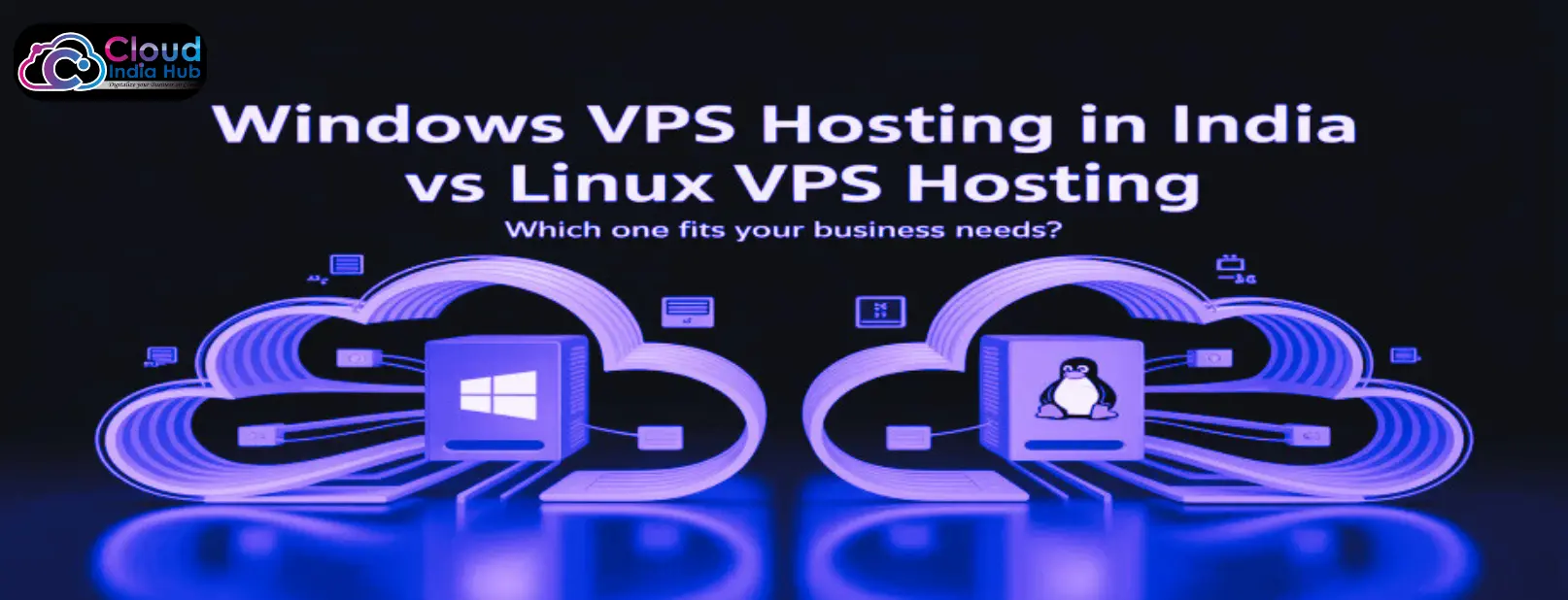
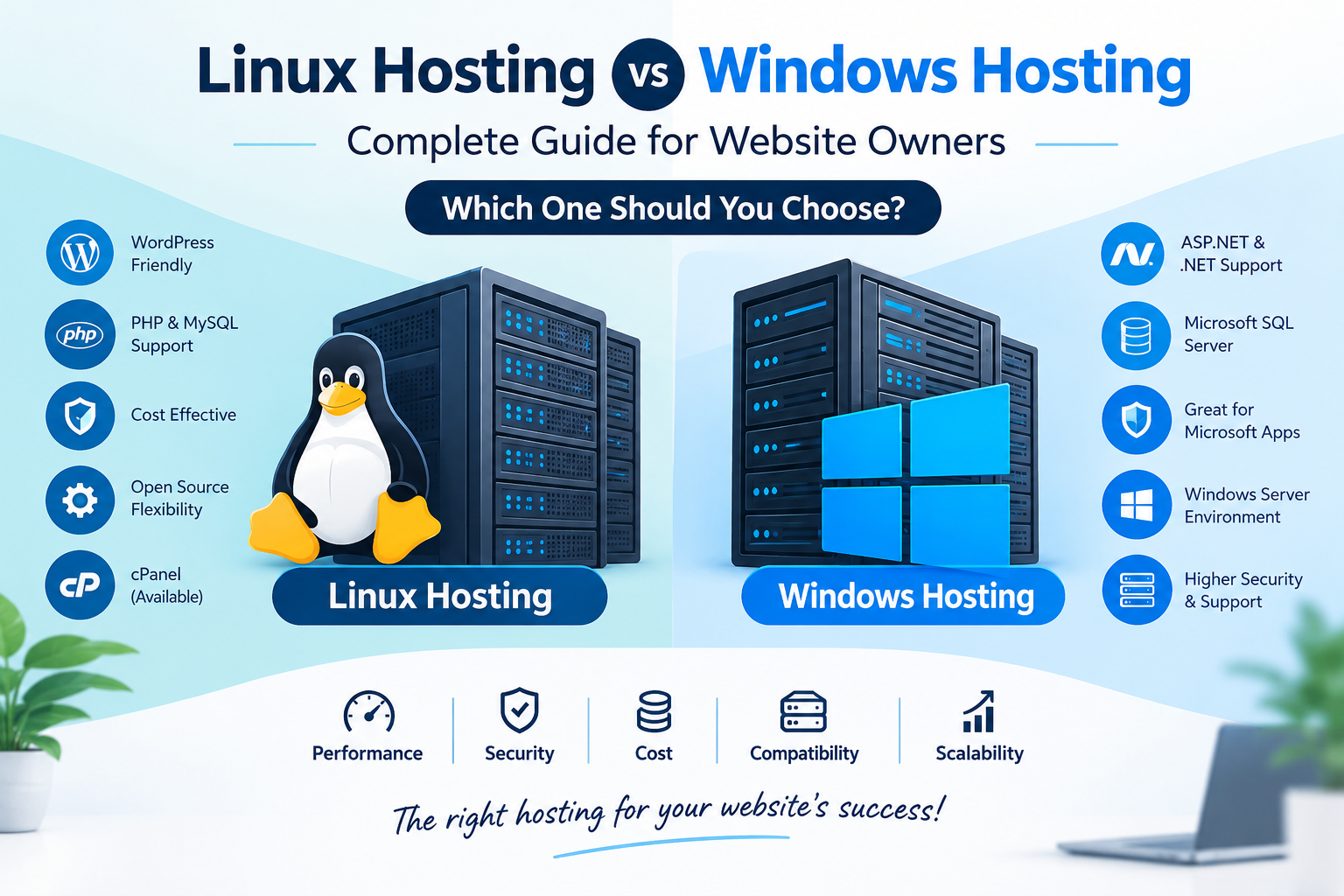
Choosing Windows over Linux is the first decision, and our guide to Linux and Windows hosting explains the trade-offs. This post covers what comes next: how the connection works, how to size the server and how to keep Remote Desktop safe.
At A Glance
• Access: Remote Desktop Protocol (RDP)
• Control: Full administrator access
• Uptime: 99.9% uptime guarantee
• Support: 24/7 expert support
• RDP listens on TCP port 3389 by default, so protect it first.
What Does A VPS On Windows Give You That Shared Hosting Does Not?
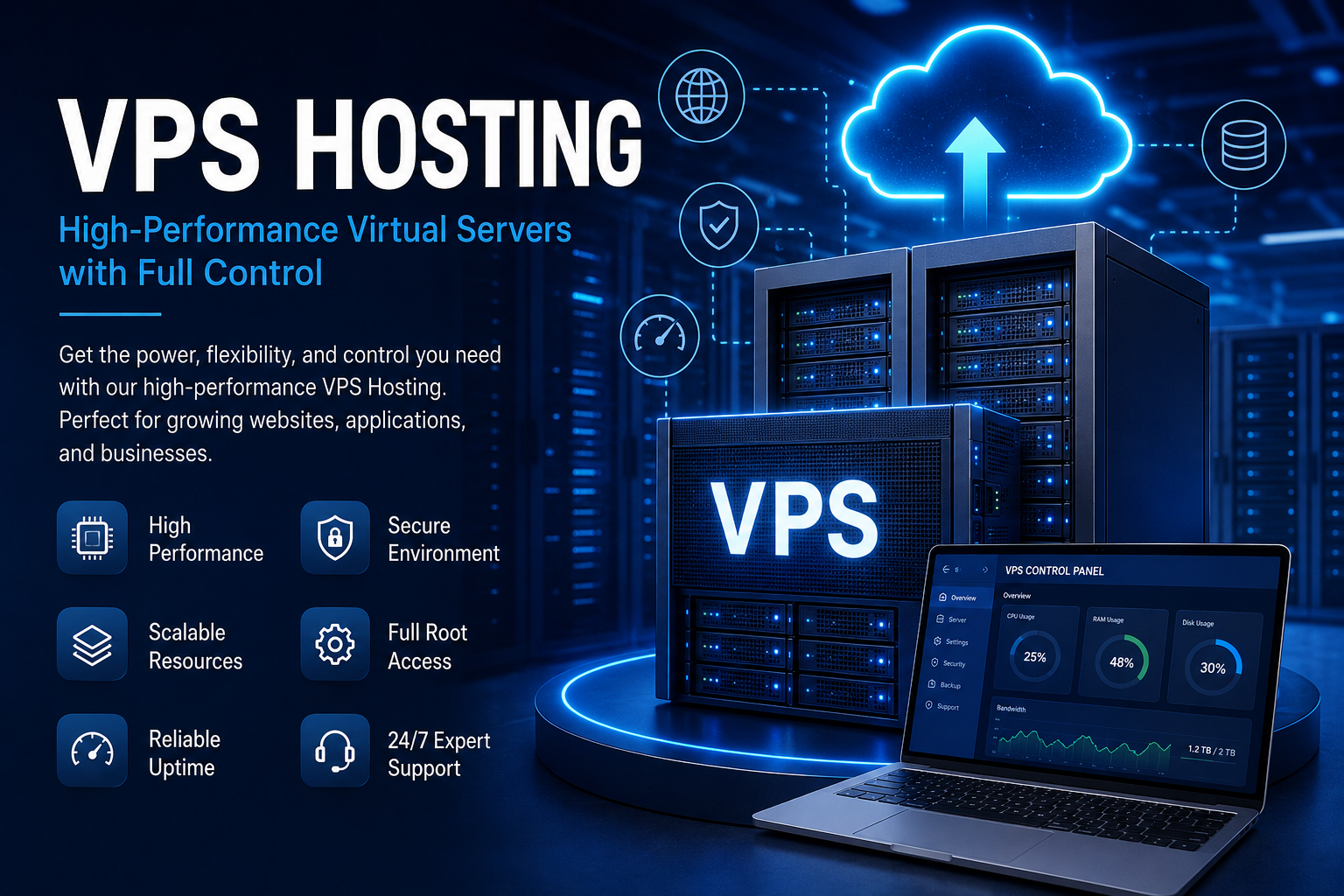
A VPS on Windows gives you dedicated CPU, RAM and storage plus full administrator access, so you can install any Windows software, run ASP.NET and MSSQL, and change settings that shared hosting locks away. You control the machine, not just a folder on it.
Shared hosting suits a website that needs space and a control panel. A virtual server suits a workload that needs its own operating system, its own scheduled tasks and background services that keep running around the clock. That difference matters most for software that installs like a desktop application.
The Windows VPS hosting page lists what matters here: full administrator access, an environment tuned for Microsoft technologies, Windows Firewall and BitLocker, and resources you can scale as demand grows.
• Install and update any Windows application you hold a licence for
• Run scheduled jobs and services without a browser tab open
• Host ASP.NET sites and MSSQL databases on one machine
• Add CPU, RAM or storage when load grows
How Does Remote Desktop Connect You To Your Server?
Remote Desktop Protocol carries your screen, keyboard and mouse between your computer and the server, so a VPS on Windows feels like a local desktop. The server listens on TCP port 3389 by default, and you sign in with an administrator account.
A VPS remote desktop session needs three things: the server’s IP address, a username and a password. Windows PCs include the Remote Desktop Connection app, while macOS, Linux, Android and iOS use free RDP clients.
Closing the window is not the same as signing out. A disconnected session usually stays alive on the server, so your applications keep running until you sign out or a policy ends the session. That is useful for long jobs and risky for forgotten logins.
Distance changes how the session feels. Every keystroke makes a round trip, so a server in India responds faster to a team in India than one on another continent. Choose a location close to the people who connect.
Before the first login, have these ready:
• The server’s IP address and administrator username
• A strong password that you change on day one
• An RDP client on your laptop or phone
• A network that allows outbound traffic to the RDP port
Which Jobs Suit A Windows VPS With Remote Desktop?
A Windows VPS with Remote Desktop suits work that needs a Windows desktop running all day: ASP.NET hosting, MSSQL databases, accounting software, shared team desktops and automation tools that only run on Windows.
Each job shares one trait. It depends on Windows itself, not just on a web server. If your site runs on WordPress and PHP, a Linux server is usually the simpler and cheaper choice. the server runs the Microsoft stack your developers already use.
• ASP.NET applications and APIs: the server runs the Microsoft stack your developers already use.
• MSSQL for business software: the database sits next to the application that queries it.
• A shared desktop for a small team: a few people sign in to one managed workspace.
• Always-on schedulers and bots: Windows-only tools run overnight without a spare office PC.
Two limits apply. Windows Server normally allows two simultaneous administrative sessions, and heavier use needs extra Remote Desktop licensing. Ask support about licensing before you plan a shared desktop for more than two people.
Windows Or Linux: Which Server Should You Pick?
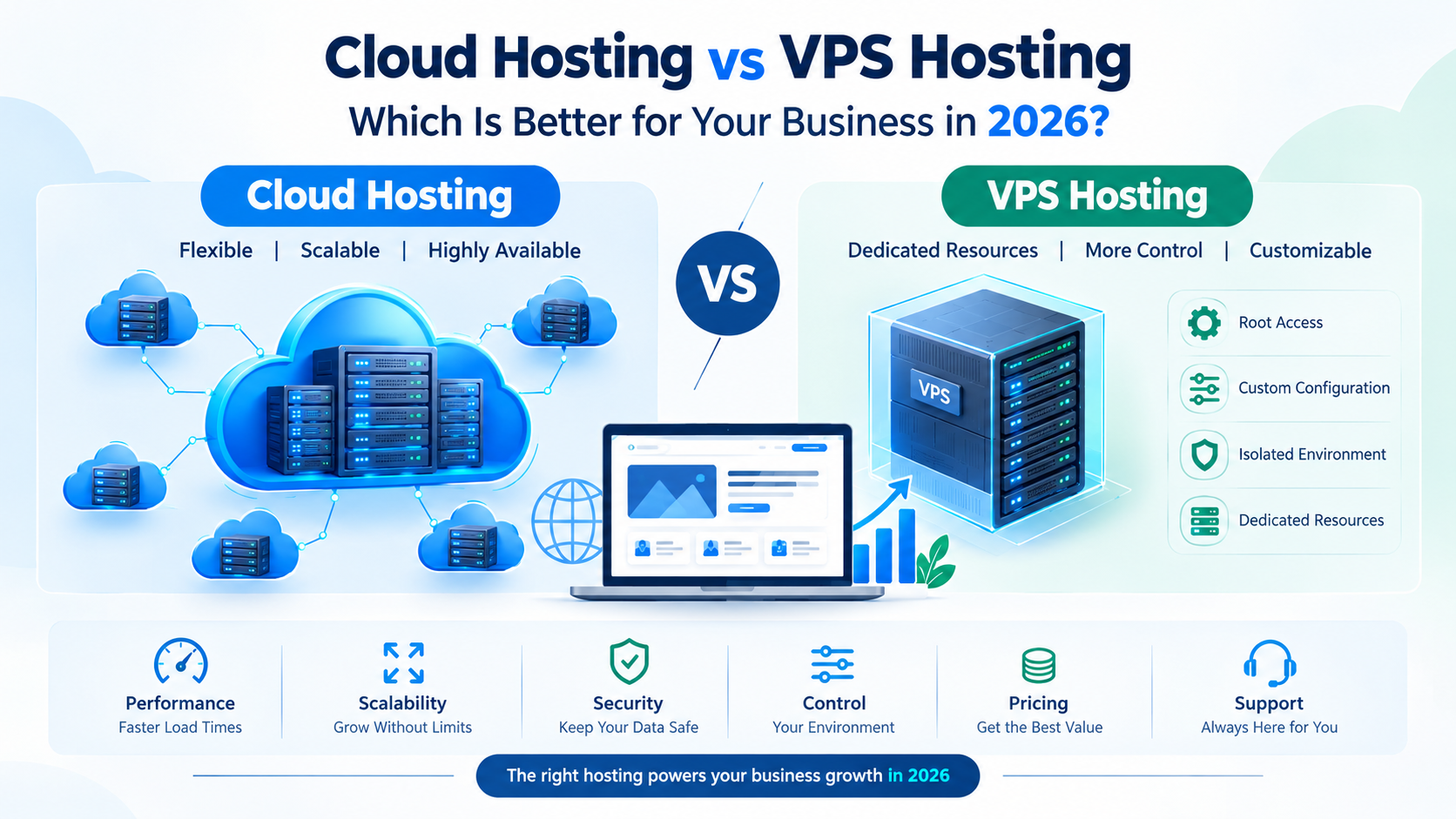
Pick Windows when your software needs it and Linux when it does not. A VPS on Windows fits ASP.NET, MSSQL and desktop tools, while Linux suits PHP, Python and Node.js stacks that you manage from a terminal.
If your stack is open source, compare the Linux VPS plans, which list four tiers starting at 1 core and 2 GB of RAM.
|
Factor |
Windows server |
Linux server |
|
Typical software |
ASP.NET, MSSQL, desktop apps |
PHP, Python, Node.js, MySQL |
|
How you manage it |
Remote Desktop with a full desktop |
Terminal over SSH |
|
Licensing |
Windows licensing usually adds to the price |
Open source, usually lower cost |
|
Best for |
Microsoft stack and Windows-only tools |
Open-source web stacks |
Switching later is possible but not free. Data moves easily, while Windows-only applications cannot run on Linux without being replaced. Decide by the software you must keep, not by the price of the first month.
How Much CPU And RAM Does A Windows Server Need?
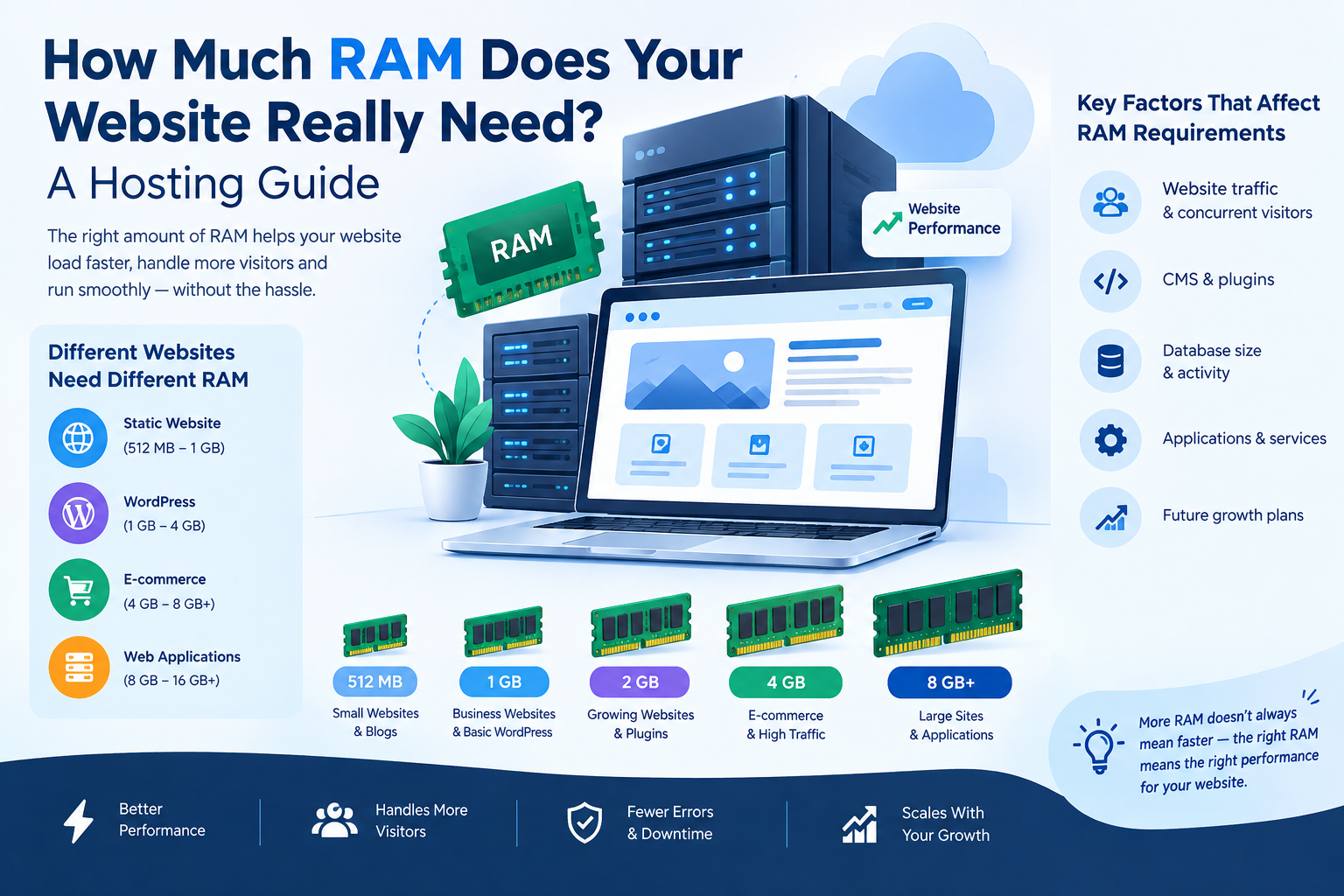
Size the server for Windows plus your workload, because the operating system uses memory before your applications start. Begin with your software vendor’s recommendation, add headroom, and upgrade when usage stays high instead of buying the largest plan on day one.
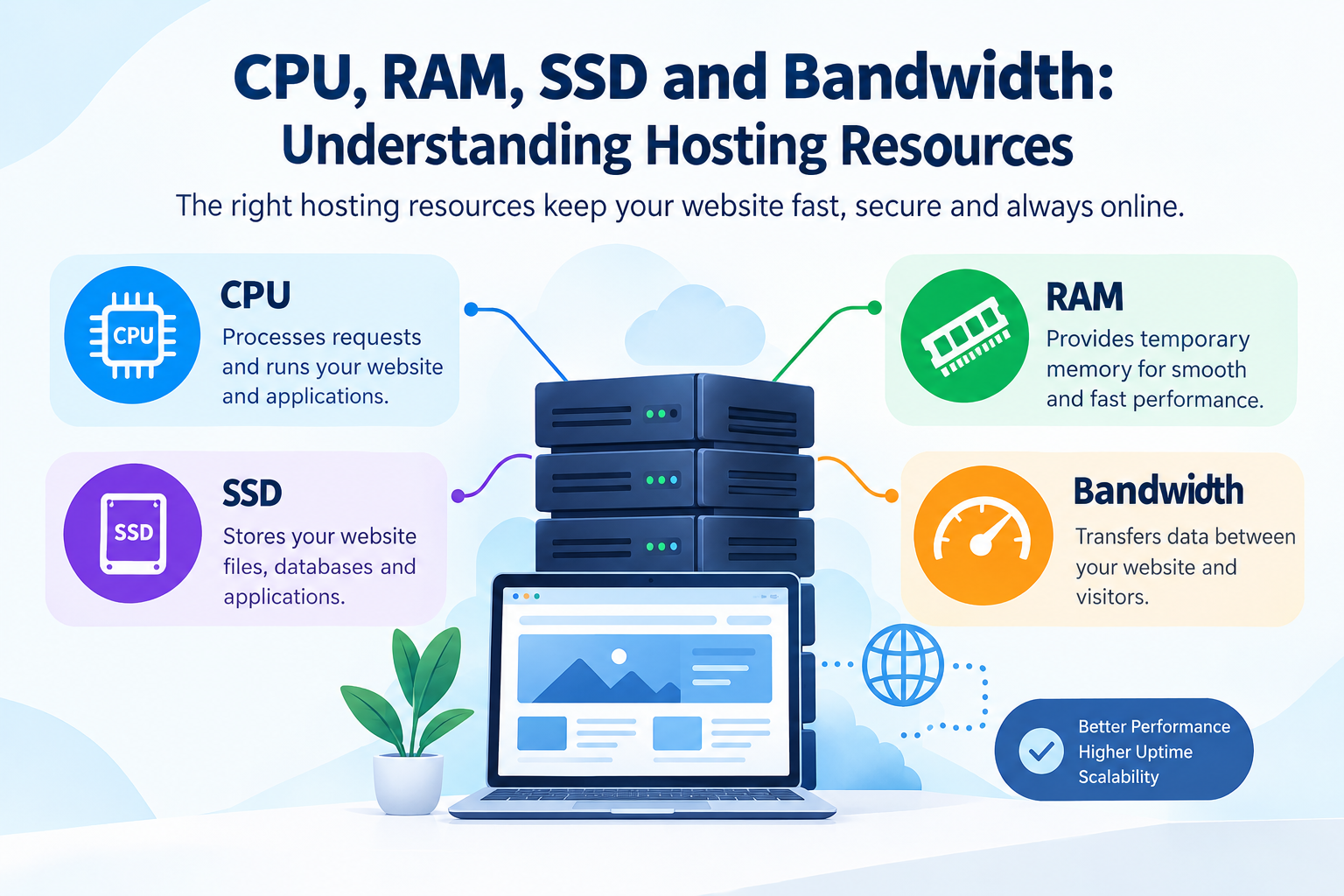
Remote Desktop adds load too. Each signed-in session runs a desktop, so a server shared by several people needs more memory than one that only runs a background service. Our guide to CPU, RAM, SSD and bandwidth explains how each resource behaves under load.
Watch for these upgrade signals:
• Memory stays near its limit during normal work
• The desktop redraws slowly when you click
• Disk space keeps shrinking after updates
• Scheduled jobs overlap or run late
Windows updates and application installers fill a disk faster than most people expect. Leave free space and clear old installers so updates do not fail halfway.
Confirm the exact Windows plan specifications with support before you buy, as the VPS plans page describes Linux tiers.
Why Does Remote Desktop Need Extra Protection?
Securing a VPS on Windows starts with limiting who can reach port 3389, then hardening the login itself. The Center for Internet Security names seven low-cost RDP mitigations, from VPN gateways to idle-session limits.
The same CIS release reported in 2020 that RDP ranks among the most attacked protocols, using data from the Multi-State ISAC. Treat every Windows VPS RDP login as a target. Attackers guess passwords against exposed ports, so a weak password plus an open port invites trouble.
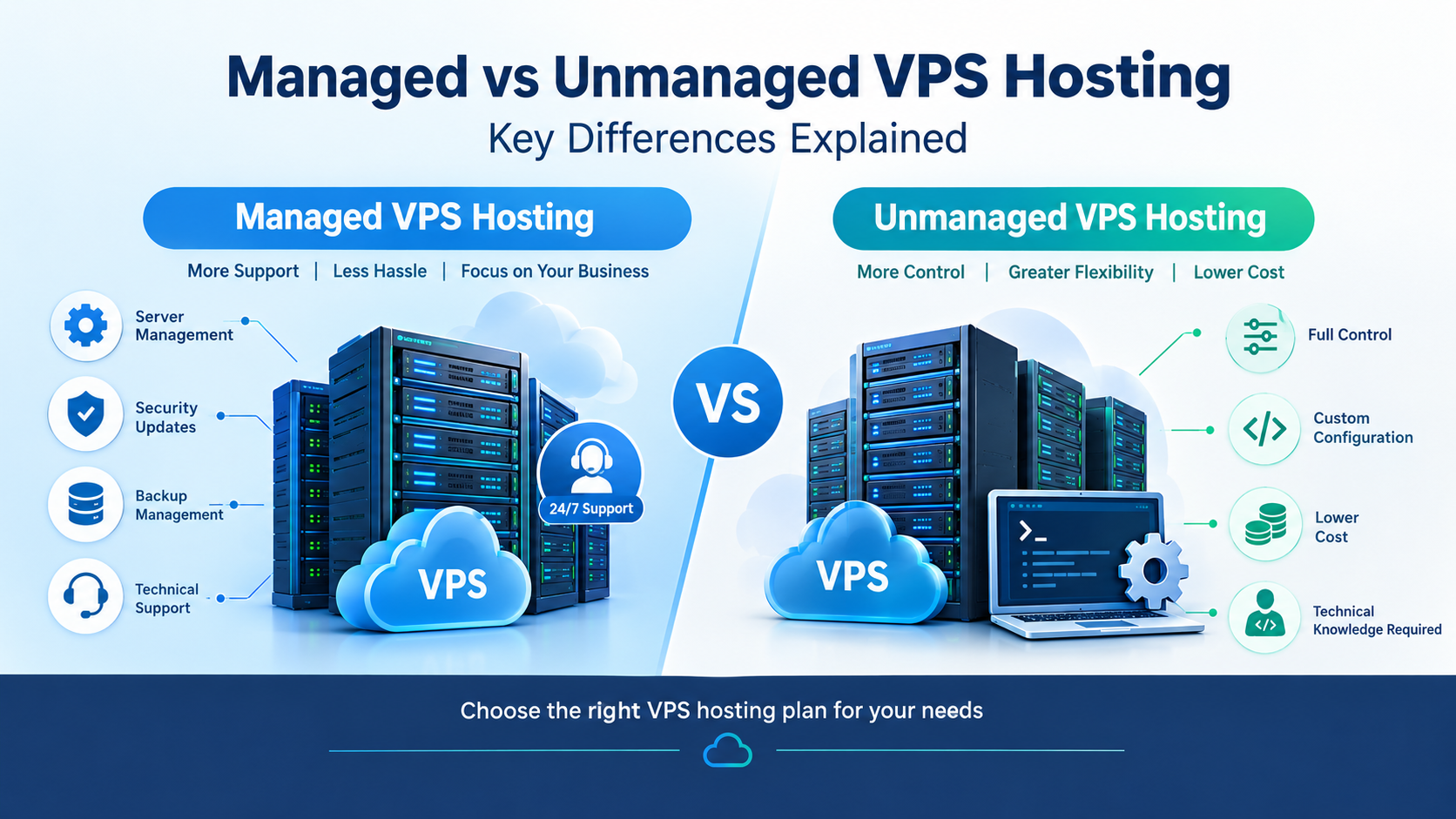
Patching is part of the job too. Who applies Windows updates depends on your plan, and our comparison of managed and unmanaged VPS hosting shows which tasks land on you.
The usual weak points are easy to list:
• A weak or reused administrator password
• RDP open to every address on the internet
• Missing Windows updates
• Sessions left signed in on shared computers
How Do You Set Up And Lock Down RDP On A New Server?
Setting up a VPS on Windows safely takes seven steps: set a strong password, patch, create your own admin account, restrict RDP by IP, add a VPN or gateway, enable lockout and idle limits, and verify backups.
1. Change the administrator password. Use a long, unique passphrase that you have not used anywhere else.
2. Install Windows updates. Patch before you install applications, then repeat on a schedule.
3. Create a named admin account. Use it for daily work instead of the built-in Administrator account.
4. Restrict RDP by IP. Allow port 3389 only from your office or home addresses in Windows Firewall.
5. Add a VPN or Remote Desktop Gateway. Keep Network Level Authentication switched on as well.
6. Set lockout and idle limits. Lock accounts after repeated failures and disconnect idle sessions.
7. Verify backups. Restore a test copy so you know recovery works before you need it.
Do steps one and two before you open the port to anyone. A fresh server with a default password and missing patches is an easy target, and the fix takes minutes.
If the first login fails, check the basics before you contact support:
• The IP address and username match the details you were given
• Your office or home network allows traffic to the RDP port
• Your own IP address is on the allowed list from step four
• The account is not locked after repeated failed attempts
Frequently Asked Questions
Can I run a VPS on Windows without Remote Desktop?
Yes, but RDP is the normal way to manage it. A VPS on Windows can also be reached with PowerShell remoting, though most administrators prefer a full desktop for installing and testing software.
Is RDP safe to leave open to the internet?
Not by default. CIS names RDP as one of the most attacked protocols, so restrict access by IP address, use a VPN or gateway, set strong passwords and keep Windows patched.
How many people can use one server at once?
Windows Server normally allows two simultaneous administrative sessions. More users need Remote Desktop licensing, so confirm licensing with support before you share the server with a team.
Can I upgrade CPU and RAM later?
Yes. The Windows VPS hosting page describes CPU, RAM and storage as upgradeable as your needs grow, so you can start small and scale when usage rises.
Does a Windows server cost more than a Linux one?
Usually, because Windows licensing adds to the price. Compare the exact Windows plan with a Linux plan, and confirm what the licence covers before you decide.
How do I connect from a Mac or a phone?
Install a free RDP client, enter the server’s IP address and sign in with your administrator account. Clients exist for macOS, Linux, Android and iOS.
Ready To Launch Your Windows Server?
Start with the seven steps above, then match the plan to your workload. If you want help choosing, talk to the Cloud India Hub support team about launching a VPS on Windows with the right resources for your software.
Sources and stats: the Windows VPS hosting page and the Center for Internet Security release linked above back every figure in this post.
Serving Bengaluru, Karnataka.




























































































































































Leave A Comment