
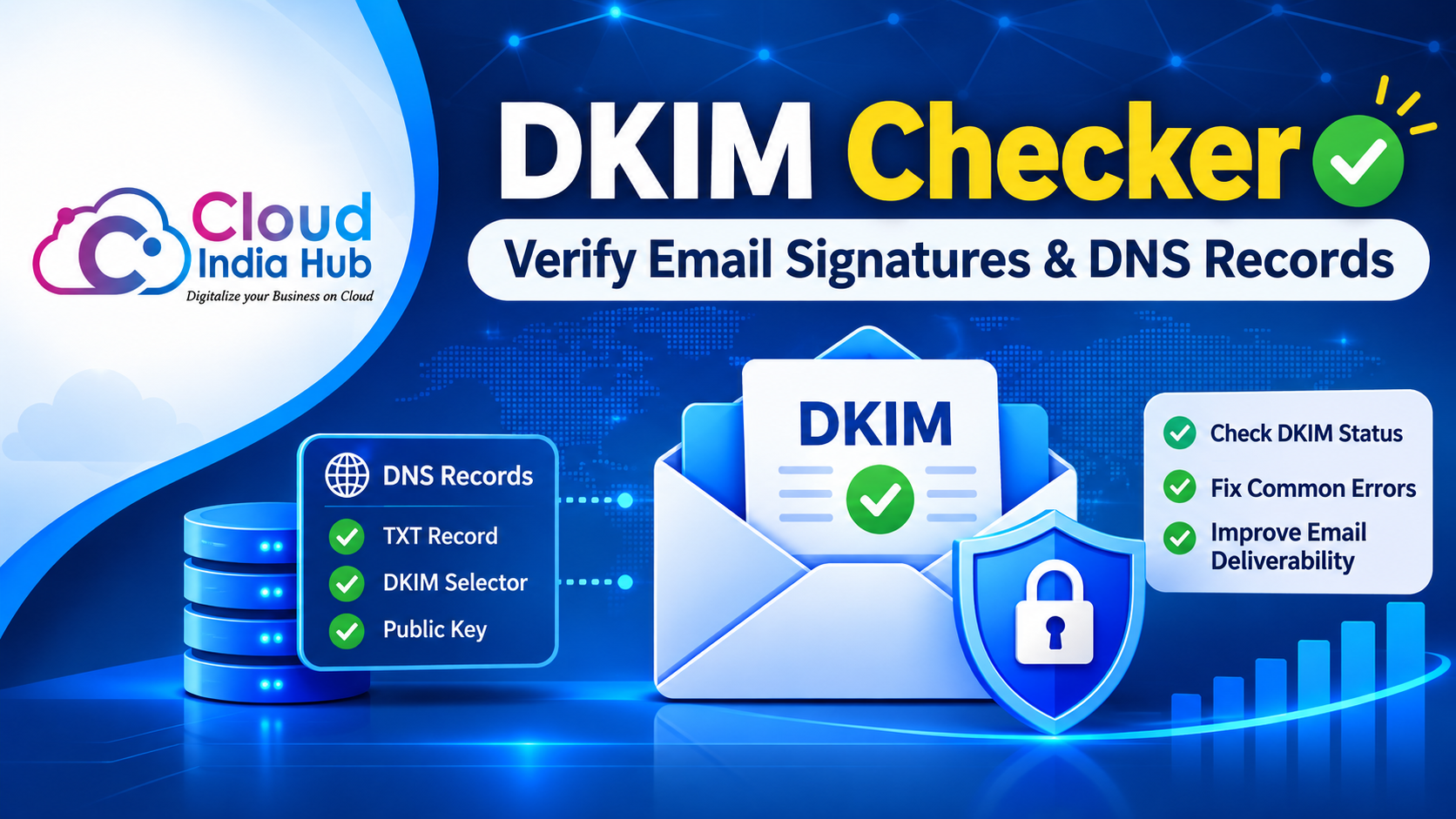
How To Use A DKIM Checker And Fix Failing Email Signatures
A DKIM checker looks up the public key your domain publishes in DNS under its selector name and confirms it is valid, so receiving servers can verify the signature on your mail. Gmail needs a key of at least 1024 bits and recommends 2048 bits.
If you have never set up email authentication before, start with our simple SPF, DKIM and DMARC setup guide for Indian SMBs. This post picks up after setup, when you need to prove the signature works and find out why it fails.
At A Glance
• Selector source: the s= tag in the DKIM-Signature header
• Record type: TXT, or a CNAME pointing to your mail provider
• Minimum key length: 1024 bits, with 2048 bits recommended
• Bulk sender rule: SPF, DKIM and DMARC above 5,000 messages a day
• Each sending service, such as your CRM or newsletter tool, gets its own selector
What Does A DKIM Checker Actually Test?
A DKIM checker queries DNS for the TXT record at your selector, confirms the record exists, parses its tags, and checks that the public key is present, readable and long enough. Some tools also verify a real signed message, which proves the private key on your server matches.
There are two layers to test, and most problems sit in only one of them.
The DNS layer is the public half. The lookup confirms:
• A record answers at the selector name, with no NXDOMAIN or timeout
• The version tag reads v=DKIM1 when present, and it comes first
• The key type is k=rsa (the default) or k=ed25519
• The p= tag holds a base64 key and is not empty
• The key length meets the 1024-bit floor
• No stray quotes, spaces or line breaks have crept into the value
The message layer is the private half. A signed email carries a DKIM-Signature header with the signing domain in d=, the selector in s=, a body hash in bh= and the signature in b=. Only a test message proves your server signs with the key DNS advertises.
To see the raw value exactly as resolvers return it, run your domain through our DNS record lookup tool and choose the TXT type. It is the fastest way to spot a value that was pasted with extra characters.
How Does A DKIM Record Checker Find Your Selector?
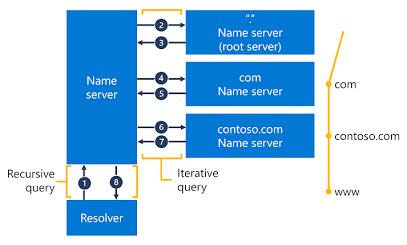
A DKIM record checker cannot guess your selector reliably, because DKIM has no fixed record name. You supply the selector, which is the label your mail provider chose, and the tool builds the full name: selector, then _domainkey, then your domain.
You can find the selector in two places. In your mail provider’s admin panel, look under domain authentication or DKIM settings. Or open any email you sent, view its full headers, and read the s= value in the DKIM-Signature line.
Common defaults are a good starting point:
|
Mail service |
Usual selector |
Record style |
|
Google Workspace |
|
TXT with the public key |
|
Microsoft 365 |
selector1 and selector2 |
CNAME to your onmicrosoft.com tenant |
|
Plesk or cPanel server |
default |
TXT created by the panel |
|
Mailchimp |
k1 |
CNAME to Mailchimp’s key |
|
SendGrid |
s1 and s2 |
CNAME to SendGrid’s key |
|
Amazon SES |
three random tokens |
Three CNAME records |
A domain can publish many selectors at once, one for each service that sends as you. That is why a DKIM checker that only tries a few guessed names may report “not found” for a key that is perfectly fine. Always test the exact selector from your header.
How Do You Read DKIM Checker Results?
Read DKIM checker results by matching each message to its layer. “No record found” and “invalid key” are DNS problems you fix in your zone. “Body hash did not verify” and “signature mismatch” are message problems you fix on the sending server or in the path the mail takes.
|
Result you see |
What it means |
Most likely fix |
|
Record found, key valid |
DNS is correct for this selector |
Send a test message to confirm signing |
|
No record found |
Wrong selector, wrong zone, or not yet propagated |
Check the s= value and where your DNS is hosted |
|
Key revoked (empty p=) |
The p= tag is blank, which means revoked |
Publish the current public key again |
|
Syntax or parse error |
Broken quotes, spaces or tags in the value |
Re-paste the key as one clean value |
|
Key too short |
Key under 1024 bits |
Generate a 2048-bit key and rotate |
|
Body hash did not verify |
The message changed after signing |
Find the gateway, footer or list that edits mail |
Two results need extra care. A t=y flag in the record means test mode, so some receivers treat failures softly. Remove it once signing works. And a pass in the lookup with a fail in the message almost always means the private key on the server does not match the public key in DNS.
Is DKIM Checker MXToolbox Enough On Its Own?
Most people who search for DKIM checker MXToolbox want a quick answer: type a domain and selector, get pass or fail. That online lookup is excellent for the DNS layer, but it cannot see your outgoing messages, so it will not catch a signing or alignment problem.
Use a mix of tools, each for the job it does best:
|
Tool |
What it checks |
Best for |
|
MXToolbox DKIM lookup |
Record exists, tags parse, key reads |
Quick public check from a browser |
|
Cloud India Hub DNS lookup |
Raw TXT value at any name |
Spotting pasted characters and old values |
|
dig or nslookup |
Answer from a resolver you choose |
Server admins and propagation checks |
|
Gmail “Show original” |
Real signature on a delivered message |
Proving signing and alignment end to end |
From a terminal, dig TXT default._domainkey.yourdomain.com +short returns the published key in a second. Query your authoritative nameserver directly with @ns1.yourprovider.com to skip cached answers.
Then send a message to a Gmail address, open it, and choose “Show original”. Gmail prints a PASS or FAIL line for SPF, DKIM and DMARC, along with the signing domain. That single screen tells you more than any lookup can.
Why Run A DKIM SPF DMARC Checker Together?
Run a DKIM SPF DMARC checker as one test because receivers judge all three together. DMARC passes only when SPF or DKIM passes and the passing domain aligns with your From address. A valid key signed under the wrong domain still fails DMARC.
The big mailbox providers now enforce this. Google’s email sender guidelines for Gmail require every sender to set up SPF or DKIM, and anyone sending more than 5,000 messages a day to personal Gmail accounts needs SPF, DKIM and DMARC, plus alignment.
Here is how the three fit:
• SPF lists the servers allowed to send for your domain
• DKIM signs each message so the content and domain can be verified
• DMARC tells receivers what to do when both fail, and sends you reports
DKIM matters most when mail is forwarded, because forwarding often breaks SPF but leaves a DKIM signature intact. That makes DKIM the record that keeps DMARC passing for forwarded mail.
If your SPF result is the weak link, our guide on how to read SPF record checker results walks through softfail, permerror and the 10-lookup limit.
What Breaks DKIM After A Mail Or DNS Change?
Most DKIM failures appear right after a change: a new mail provider, a DNS move, a new marketing tool, or a security gateway that adds a footer. The record or the signing key drifts out of step with the mail that is actually sent.
Watch for these causes:
• Provider migration. You move to a new host but keep the old key in DNS, so new mail is signed with a key nobody published.
• Nameserver move. You switch DNS hosting and the selector record is not copied to the new zone.
• Long keys split badly. A 2048-bit key exceeds the 255-character limit of one TXT string, so it must be split into quoted chunks. Some panels do this for you, others need it done by hand.
• Messages edited in transit. Disclaimers, link rewriting and mailing list footers change the body after signing, so the body hash fails.
• Third-party senders unsigned. A CRM or invoicing tool sends as your domain but was never given its own DKIM record.
How Do You Fix A Failing DKIM Signature In Six Steps?
Fix a failing signature by working from the header back to DNS. Find the selector in a real message, run the DKIM checker on that exact name, compare the key with your provider’s panel, correct the zone, wait for the TTL, and retest with a live email.
1. Read the header. Open a recent sent message, view the source, and note the d= domain and s= selector.
2. Look up that selector. Query selector._domainkey.yourdomain.com and confirm a single, clean answer.
3. Compare the keys. Copy the public key from your mail panel and check it matches DNS character for character.
4. Edit the right zone. Make the change where your nameservers actually point. Our explainer on DNS settings and where to change them shows how to confirm which zone is live.
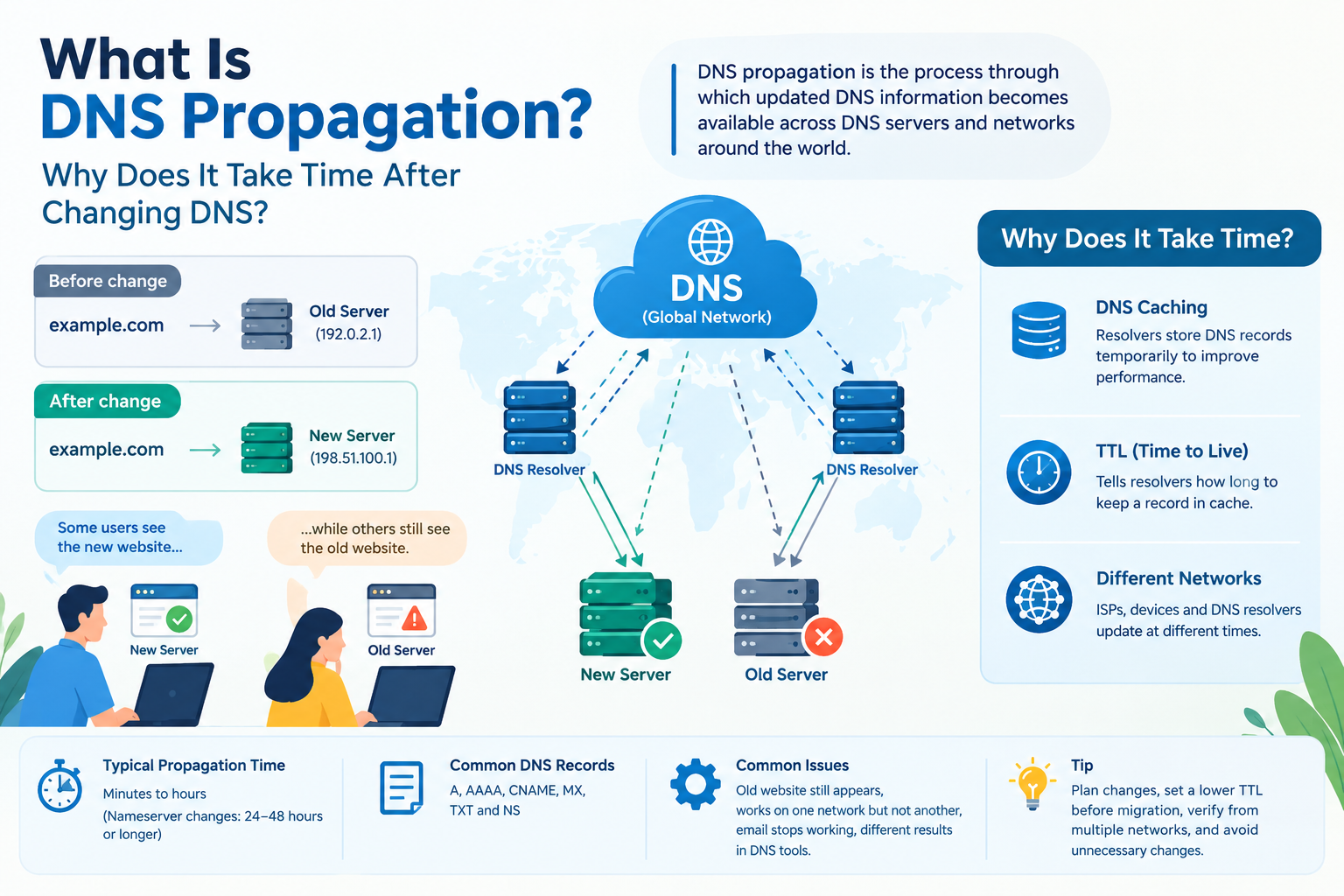
5. Wait out the TTL. Resolvers keep cached answers until the time to live expires, so a fix may not show at once.
6. Retest end to end. Send to a Gmail address, check “Show original”, and confirm DKIM reads PASS with your own domain.
On a Plesk server, also confirm DKIM signing is switched on in the domain’s mail settings. The panel can publish the default record while signing is turned off, which gives a clean lookup and unsigned mail.
Frequently Asked Questions
Is it free to check a DKIM record?
Yes. Public DKIM lookups are free because the record lives in public DNS, so any lookup tool, dig or nslookup can read it. Paid DMARC platforms charge for ongoing monitoring, not a single check.
What is a DKIM selector?
A selector is a label that tells receivers which public key to fetch. It lets one domain publish several keys at once, for example one for Google Workspace and another for a newsletter service.
Can a domain have more than one DKIM record?
Yes, one per selector. Each sending service should have its own selector and key. Two different TXT records at the same selector name is an error, so keep exactly one answer per name.
How long does a new DKIM record take to appear?
Most DNS changes show within minutes to a few hours, but resolvers hold cached answers until the TTL expires. Run the DKIM checker again after that window before you assume the record is wrong.
Does DKIM stop my emails going to spam?
Not by itself. DKIM proves the message is genuine, but inbox placement also depends on SPF, DMARC, sending reputation, complaint rates and content. A missing or failing signature, though, makes spam filtering far more likely.
Should I use a 1024-bit or 2048-bit DKIM key?
Use 2048 bits wherever your DNS host accepts it. Gmail requires at least 1024 bits and recommends 2048 bits for security. Rotate to a new selector when you change keys, then retire the old one.
Ready To Get Every Message Signed And Verified?
Pick the selectors your domain uses, run a DKIM checker on each one today, and fix anything that is not a clean pass. If you would rather have signing, SPF and spam protection handled for you, explore our enterprise email hosting on your own domain and send mail that receivers trust.
Expert advice
|
Learn how a DKIM checker reads your selector and public key, what each result means, and how to fix a failing signature in six steps, with selector names for Google Workspace, Microsoft 365, Plesk and more. |
Serving Bengaluru, Karnataka.






























































































































































































































Leave A Comment