
Cloud Based Backup Services: How to Protect Your Server Data
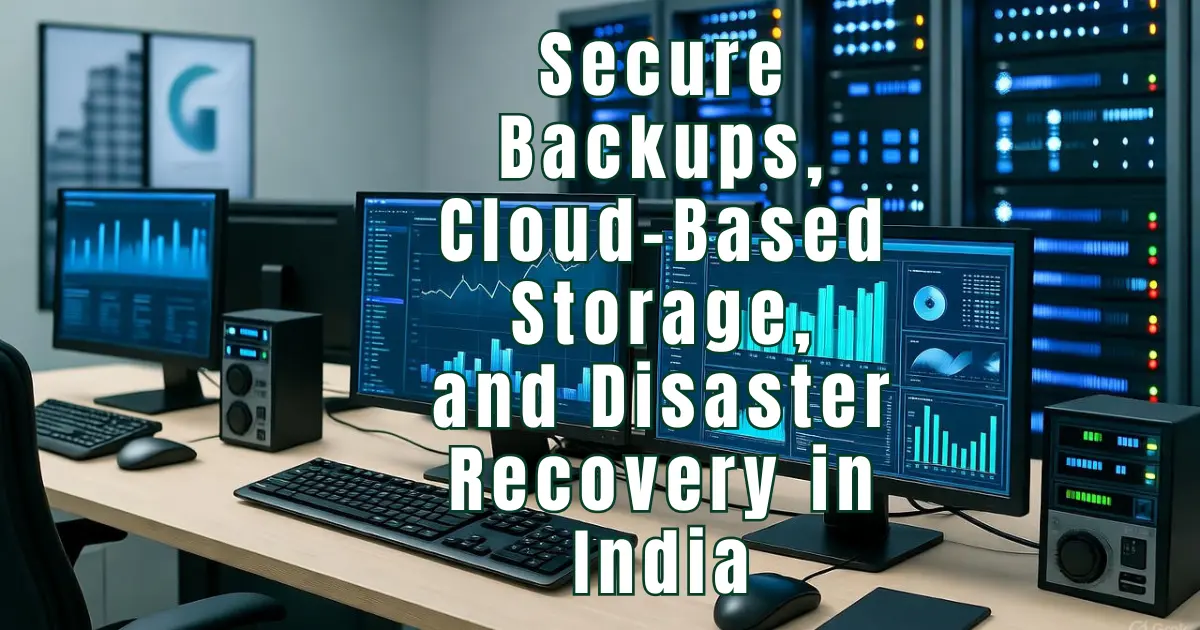
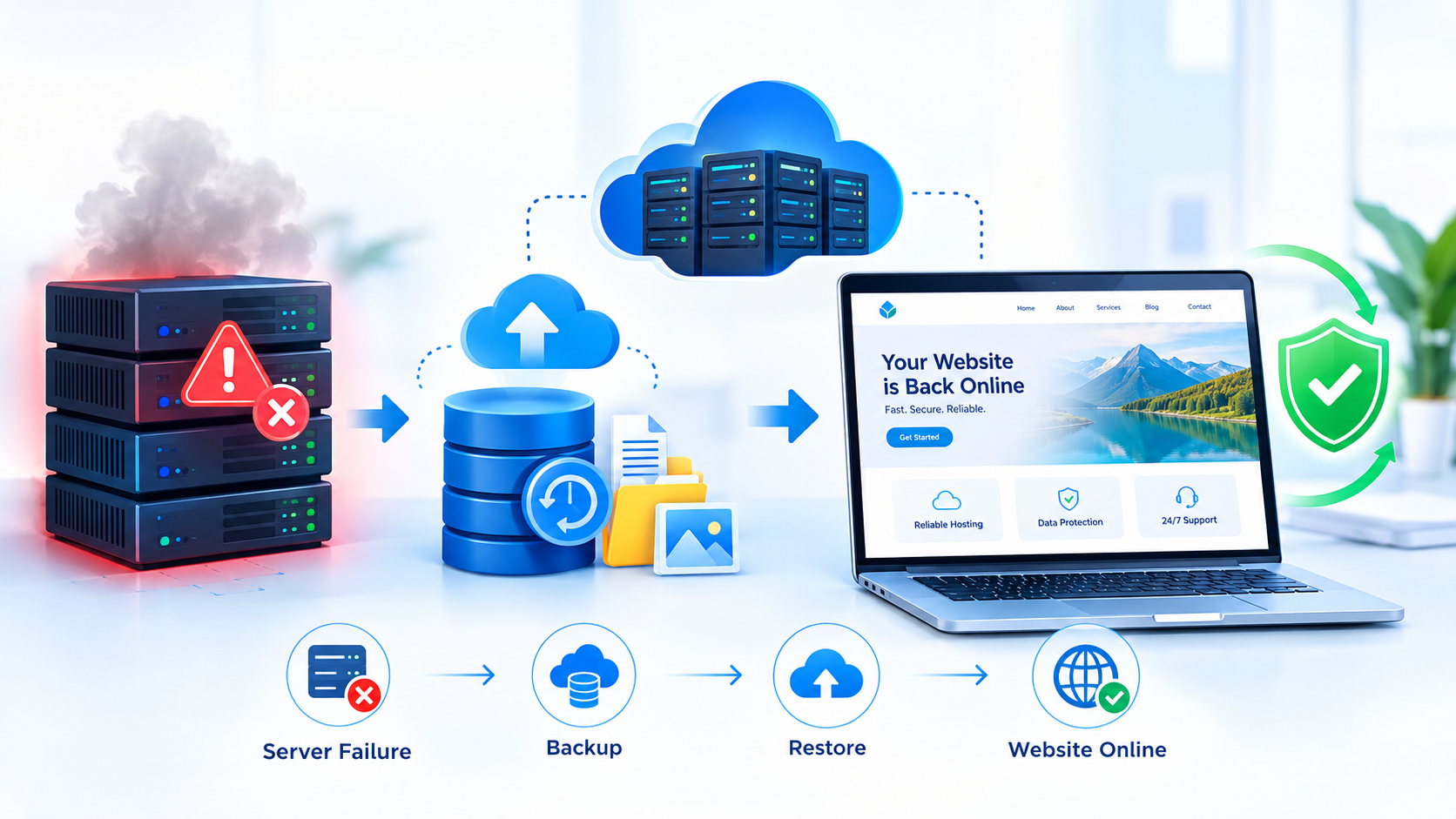
Cloud based backup services copy your server files, databases, and system images to a separate off-site data centre on a fixed schedule, so you can restore after a crash, hack, or bad update. CISA's 3-2-1 rule calls for 3 copies of important data, with 1 kept off-site.
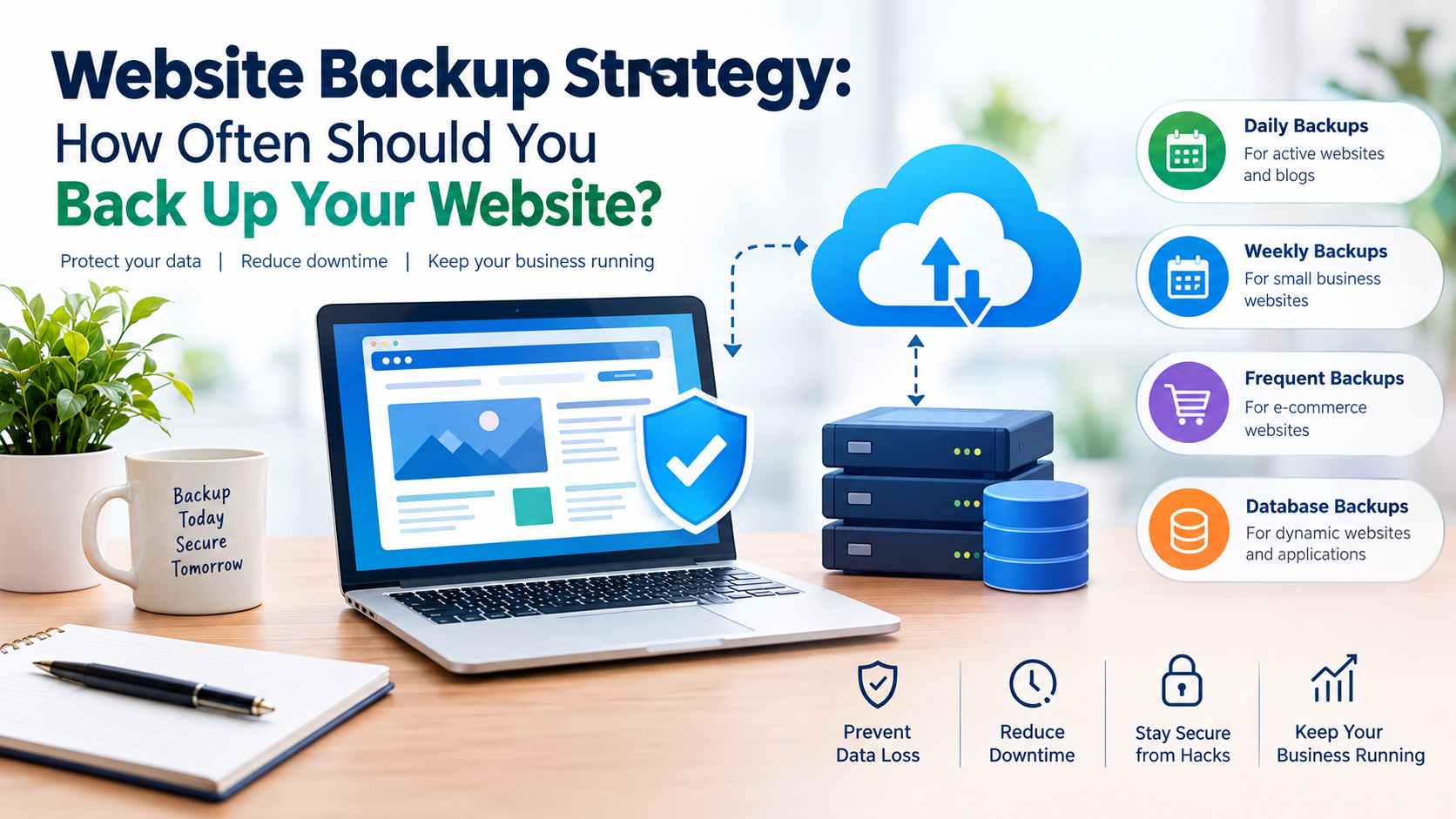
If your website, app, or business database runs on a VPS, one failed disk or one wrong command can erase years of work. Our website backup frequency guide explains how often to back up a site. This post covers where those copies should live and how to set them up.
At A Glance
• Price: Cloud India Hub VPS plans with daily backups start from ₹649/month
• Backup frequency: daily or weekly, depending on the hosting plan
• Recommended rule: 3 copies, 2 storage types, 1 off-site
• Restore window: be able to roll back at least 7 days
• Test a full restore every quarter, not only the backup job
How Do Cloud Based Backup Services Work?
A backup agent or script on your server packs selected files and databases, encrypts them, and sends them over the internet to storage run by a separate provider. Good cloud based backup services then upload only changed data on each run and keep older versions for a set retention period.
Most tools follow the same cycle, whether you use a hosting control panel, a managed backup add-on, or an open-source tool such as restic.
• Schedule: a cron job or panel setting starts the job, usually at night when traffic is low.
• Capture: the tool reads your web root, configuration files, and a fresh database dump.
• Deduplicate: only data that changed since the last run is uploaded, which saves bandwidth and storage.
• Encrypt: data is encrypted on your server before it leaves, so the storage company cannot read it.
• Retain: older versions are kept by a policy, for example 7 daily, 4 weekly, and 6 monthly copies.
• Restore: you pull back one file, one database, or the whole server from a chosen date.
The restore step is the only one your customers ever notice. Everything before it exists to make that step fast and predictable.
Why Does Your Server Need An Off-Site Backup?
A backup stored on the same server, or in the same data centre, can fail along with it. Cloud based backup services put a copy in a different location, so a disk failure, ransomware attack, billing lockout, or fire at one site never takes your only copy with it.
Cloud server backup protects you against five common failures:
• Hardware failure: SSDs and RAID controllers do fail, and RAID copies a deletion as faithfully as it copies data.
• Ransomware and hacks: attackers who gain root access often delete local backups first.
• Bad updates: a plugin, package, or PHP upgrade can break a working site in seconds.
• Human error: a wrong command, a dropped database table, or an overwritten config file.
• Account problems: an expired card or suspended account can lock you out of a panel and its built-in backups.
Check what your current plan includes before you assume you are covered. On our shared web hosting plans, Starter has no backups, Basic has weekly backups, and Standard and Professional run daily backups. Provider backups are a sound first layer, but they still sit with one company.
Which Type Of Backup Fits Your Server?
Most servers need two layers: a fast provider snapshot for quick rollbacks and an independent off-site copy for disasters. Choosing between cloud based backup services gets easier once you know what each type captures, how quickly it restores, and whether it survives losing your hosting provider.
|
Backup type |
What it captures |
Restore speed |
Survives a provider outage? |
Best for |
|
Provider snapshot |
The whole disk at one moment |
Usually minutes |
No |
Rolling back a bad update |
|
Provider daily backup |
Files and databases on the host’s backup storage |
Minutes to an hour |
Usually not |
Everyday mistakes |
|
Off-site file-level backup |
Chosen folders plus database dumps |
Fast for single files, slower for a full rebuild |
Yes |
Ransomware and account loss |
|
Full image to cloud storage |
The entire server, operating system included |
Slowest, often hours |
Yes |
Rebuilding on new hardware |
For a small business server running WordPress, Laravel, or a Node.js app, pairing a provider snapshot with an off-site file-level backup is the practical middle ground. It costs little, restores quickly, and does not depend on any single company.
Full images make sense when rebuilding the operating system by hand would take a day, for example on a heavily customised mail or ERP server.
What Should You Look For In Cloud Backup Solutions?
Judge cloud backup solutions on seven points: encryption, schedule, retention, storage location, restore options, access security, and pricing. The best cloud based backup services make each one visible in the dashboard or the contract, instead of leaving you to find out during an emergency.
1. Client-side encryption: data is encrypted before upload, with a key that only you hold.
2. Schedule control: you choose the time and frequency, daily at minimum for a live business site.
3. Retention policy: enough history to go back to a point before a silent problem began.
4. Storage location: an India region keeps restores quick for Indian traffic and simplifies data handling reviews.
5. Restore options: single-file, single-database, and full-server restores you can start yourself.
6. Access security: separate credentials, two-factor login, and ideally immutable copies that malware cannot delete.
7. Clear pricing: storage per GB per month, plus any fee for downloading data during a restore.
Retention and testing deserve extra weight. The US Cybersecurity and Infrastructure Security Agency advises businesses to run scheduled recovery tests and be able to roll data back at least seven days. If a service keeps only 3 days of history, a problem found on day 4 leaves no clean copy to return to.
How Much Does Off-Site Server Backup Cost?
Cost depends on how much data you store, how many versions you keep, and whether backups come bundled with your hosting. Bundled daily backups add nothing extra on many plans, while separate off-site storage is usually billed per gigabyte each month, sometimes with a download fee.
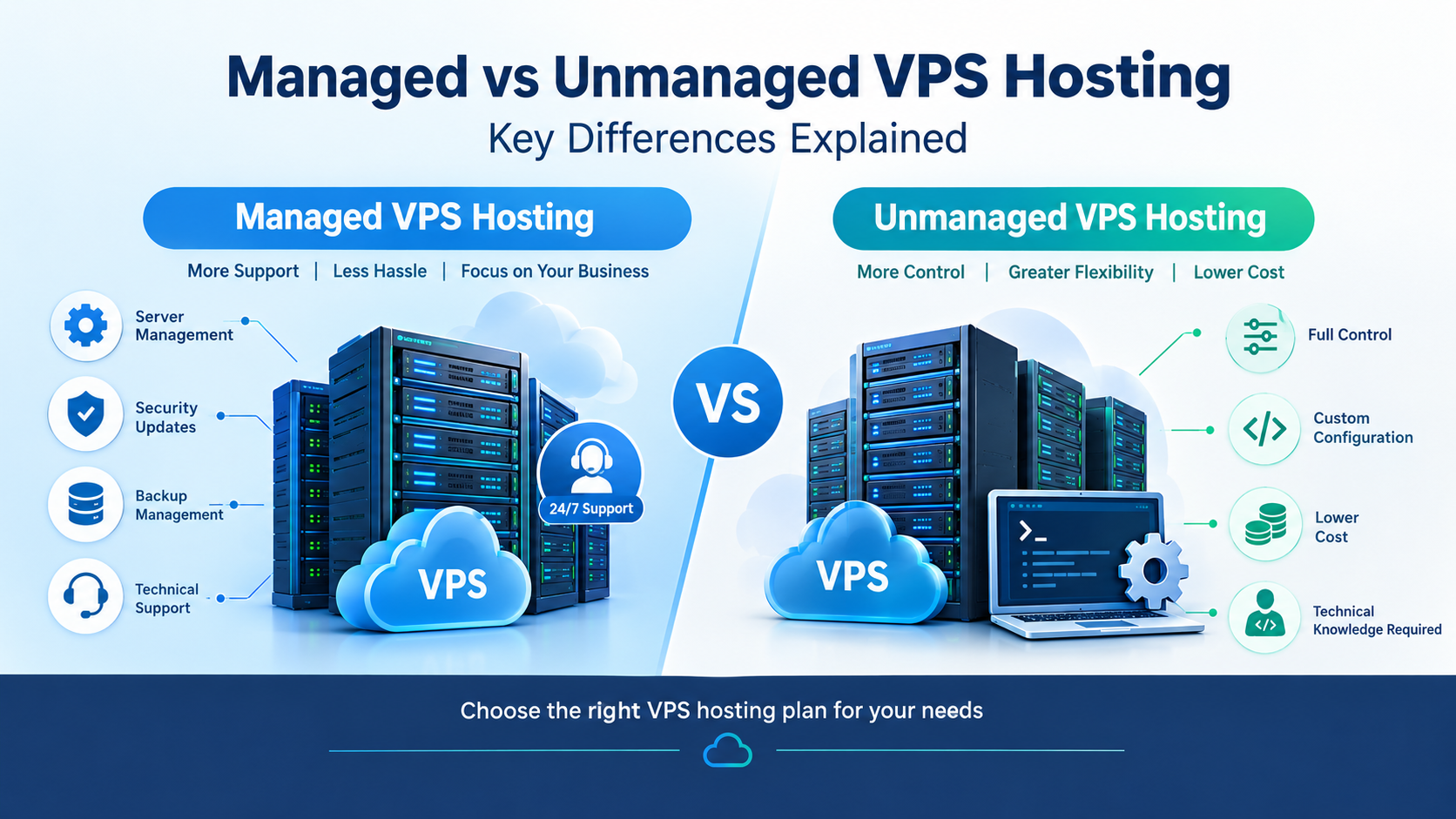
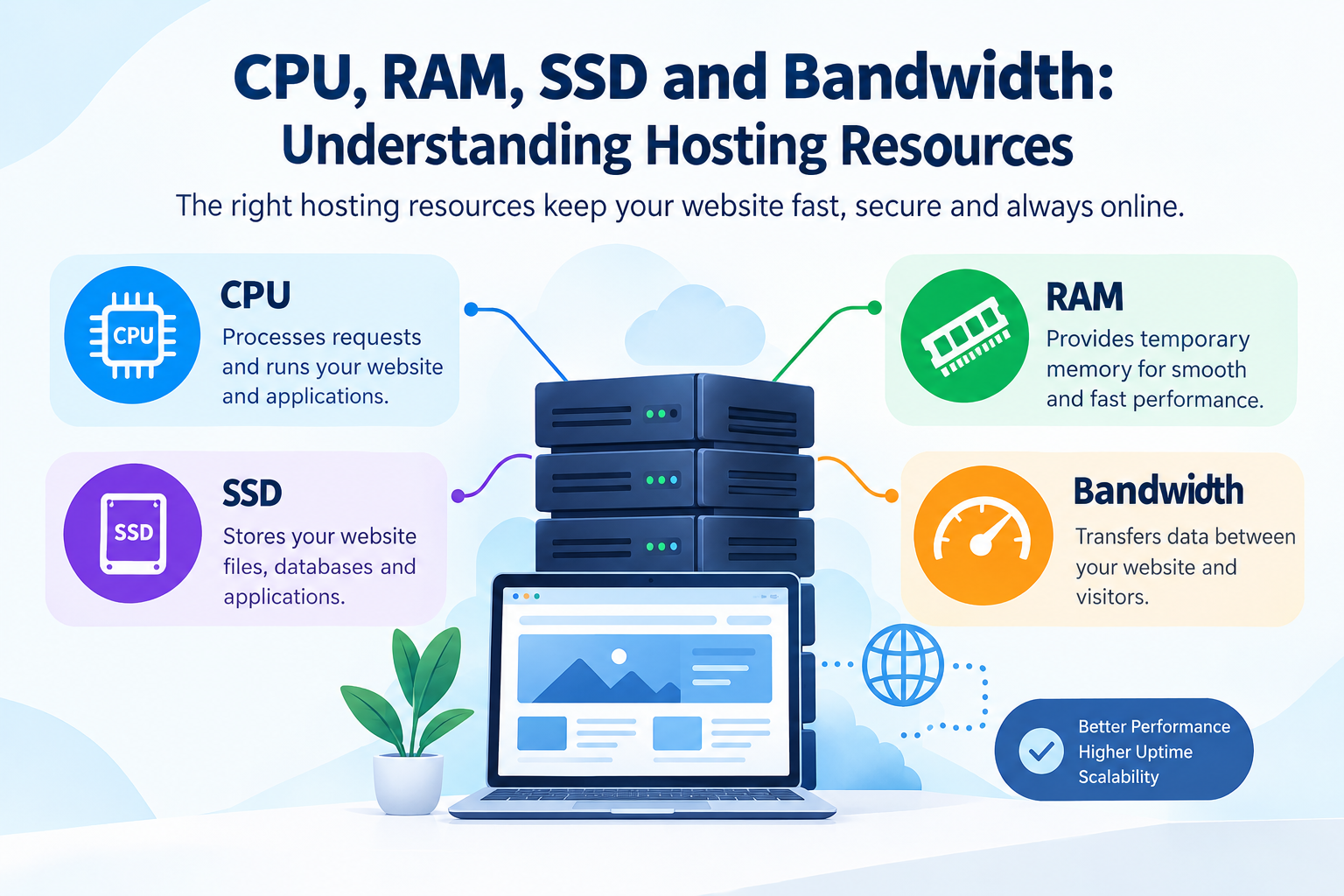
On Cloud India Hub, automated daily backups are included at no extra cost on our Linux VPS plans, which start at ₹649/month for 1 vCPU, 2 GB RAM, and 40 GB SSD storage. You can also take manual snapshots before risky changes, and the plans carry a 99.9% uptime guarantee.
Four things push an off-site backup bill up or down:
• Data size: your web root, uploads, and database dumps, after compression.
• Retention depth: 30 daily copies cost more than 7, though deduplication keeps growth modest.
• Change rate: sites that change heavily each day upload more data per run.
• Restore traffic: some storage companies charge to download data, which adds up on a full server restore.
A simple way to budget: start with a hosting plan that includes backups, then add a small off-site bucket for the one copy that must survive anything.
How Do You Set Up Cloud Server Backup On A Linux VPS?
Setting up cloud based backup services on a Linux VPS takes about an hour: choose remote storage, install a backup tool, dump your databases, schedule a nightly job, set retention, and test a restore. The steps below use restic, a free, open-source tool that encrypts every backup by default.
1. Create off-site storage. Open an S3-compatible bucket or SFTP account with a company other than your host.
2. Install restic. On AlmaLinux, enable EPEL and run dnf install restic. On Ubuntu or Debian, run apt install restic.
3. Initialise an encrypted repository. Run restic -r REPO init and keep the password in a password manager, not only on the server.
4. Dump databases first. Run mysqldump --single-transaction for each MySQL database into a local folder, so the backup holds a consistent copy.
5. Back up the right paths. Include /var/www, /etc, your database dumps, and app .env files. Skip caches and node_modules.
6. Schedule it. Add a nightly cron entry, for example at 2 AM, that runs the dump and then restic backup.
7. Set retention. Run restic forget --keep-daily 7 --keep-weekly 4 --keep-monthly 6 --prune after each backup.
8. Test a restore. Run restic restore latest --target /tmp/restore-test and open the files to confirm they work.
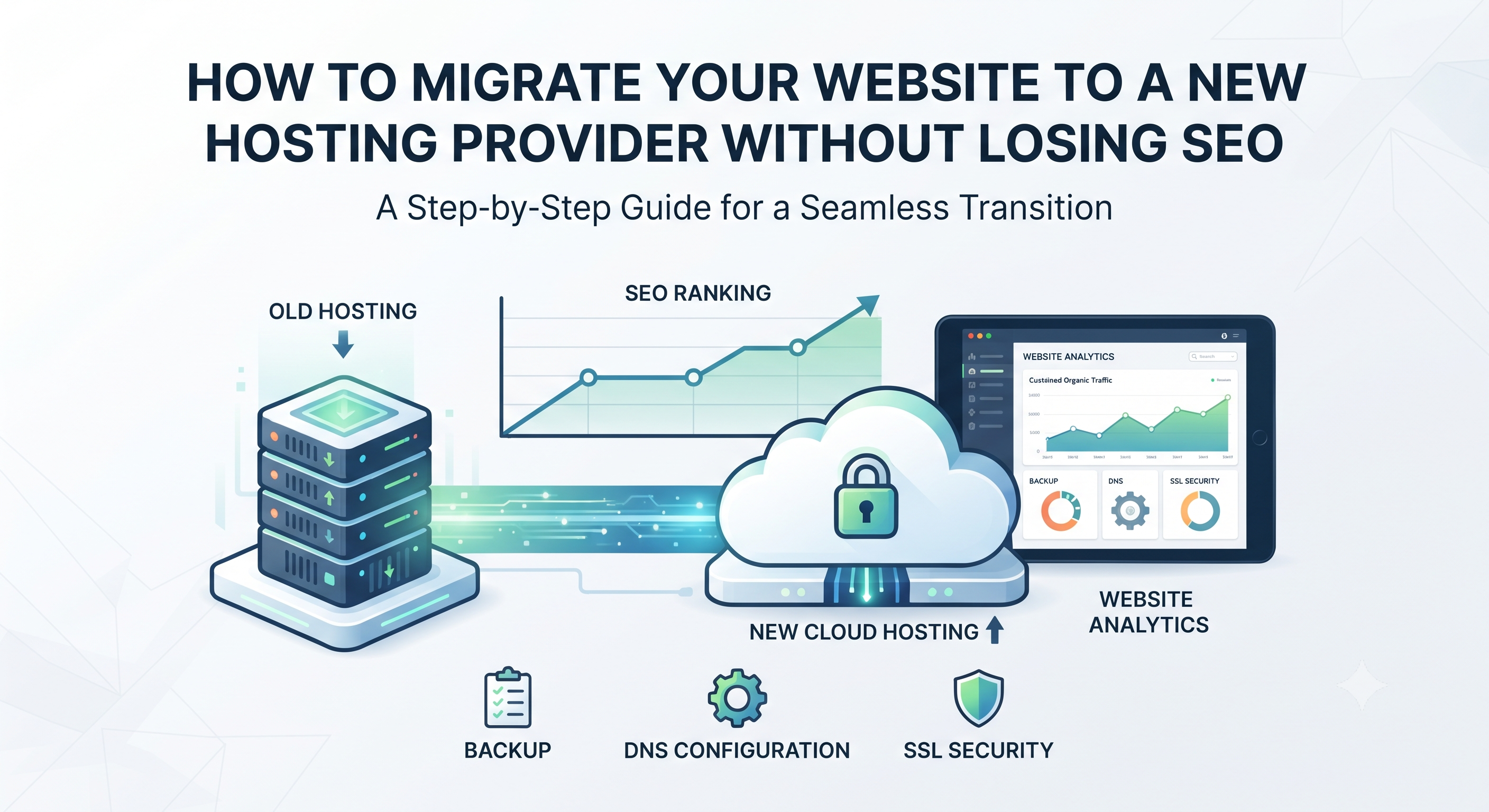
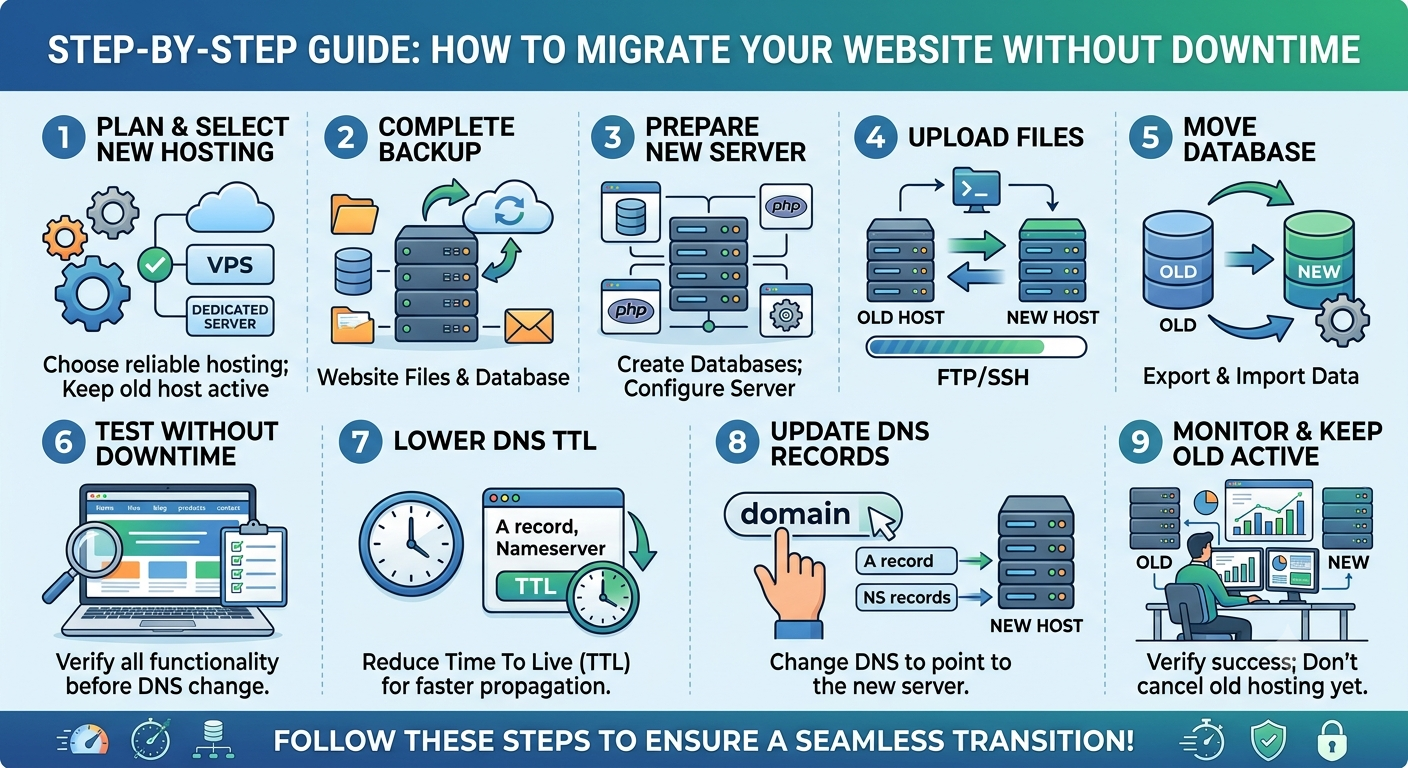
Moving to a new host? Take a fresh backup before anything else, then follow our step-by-step website migration guide to switch with little or no downtime.
Frequently Asked Questions
Is cloud backup the same as cloud storage?
No, because sync tools like Google Drive mirror your files, so a deletion or ransomware encryption can sync too. A backup keeps dated versions you can return to after the original is damaged.
How often should a business server be backed up?
Daily at minimum for any live business site, and more often for online stores or apps that take frequent orders. Match the schedule to how much data you can afford to re-enter.
Are provider backups enough on their own?
They handle everyday mistakes well, but they share one company with your server. Good cloud based backup services add an independent off-site copy that survives an account lockout or a data centre problem.
Is server backup different from desktop backup?
Yes, cloud backup for servers must capture live databases consistently, run without anyone logged in, and restore whole configurations, not only documents. Desktop tools rarely handle database dumps or file permissions.
Can ransomware reach my cloud backups?
It can if the server holds credentials that can delete old backups. Use separate access keys, two-factor login on the storage account, and immutable or append-only copies where available.
How do I know my backup actually works?
Restore it. Pull a recent copy into a test folder or a spare VPS every quarter, open the site or database, and confirm the data is complete and current.
Ready To Protect Your Server Data?
Start with what you already have: check your plan’s backup schedule, then add one off-site copy you control. If you want a VPS with daily backups built in, or help choosing cloud based backup services for an existing server, contact the Cloud India Hub support team and share your current setup.
Expert advice
|
Learn how cloud based backup services protect your VPS or website server, which of the 4 backup types you need, the 7 checks to run before you pay, and how to set up a nightly encrypted off-site backup on Linux. |
Serving Bengaluru, Karnataka.




































































































































































Leave A Comment