
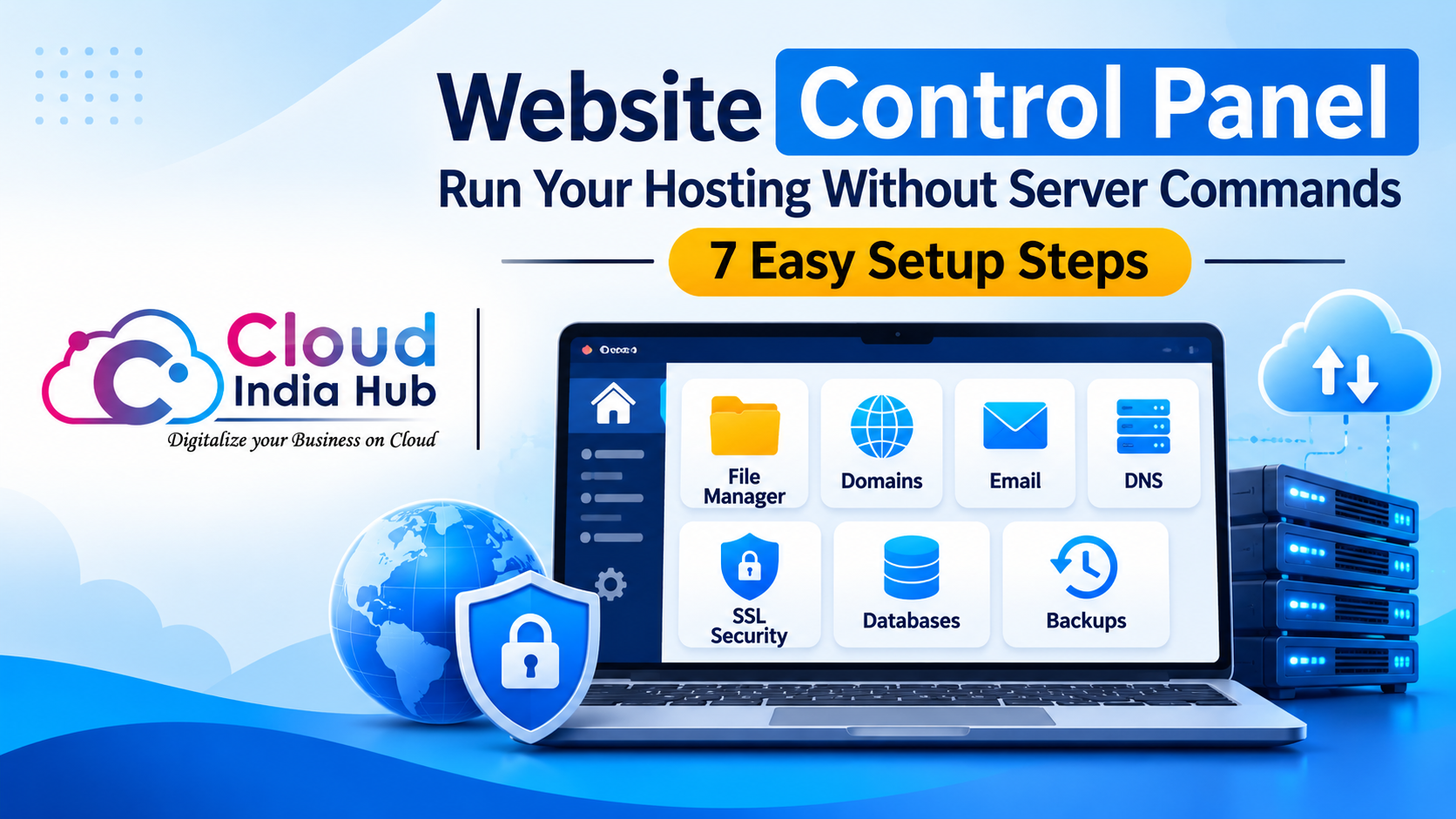
Website Control Panel: Run Your Hosting Without Server Commands
A website control panel is the browser dashboard your host gives you to manage files, domains, email, databases, SSL, and backups without typing server commands. Cloud India Hub shared hosting starts at ₹299 a month and comes with a 99.9% uptime guarantee.
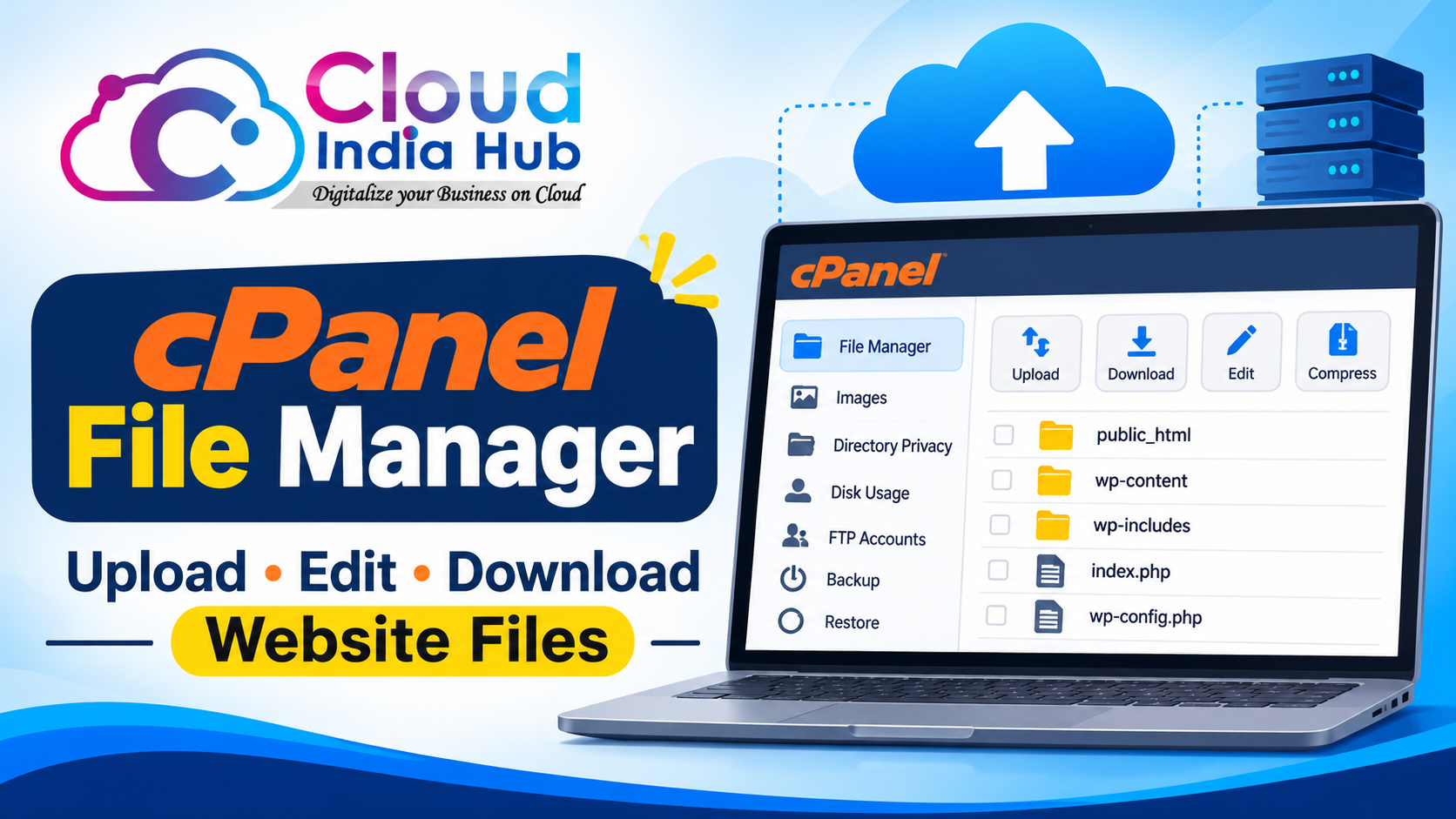
This guide shows what each part of the dashboard does, how the popular panels compare, and how to set up a new site in seven steps. If you already use one and need to move files, start with our step-by-step guide to the cPanel File Manager.
At A Glance
• Price: ₹299 per month on the Starter shared plan
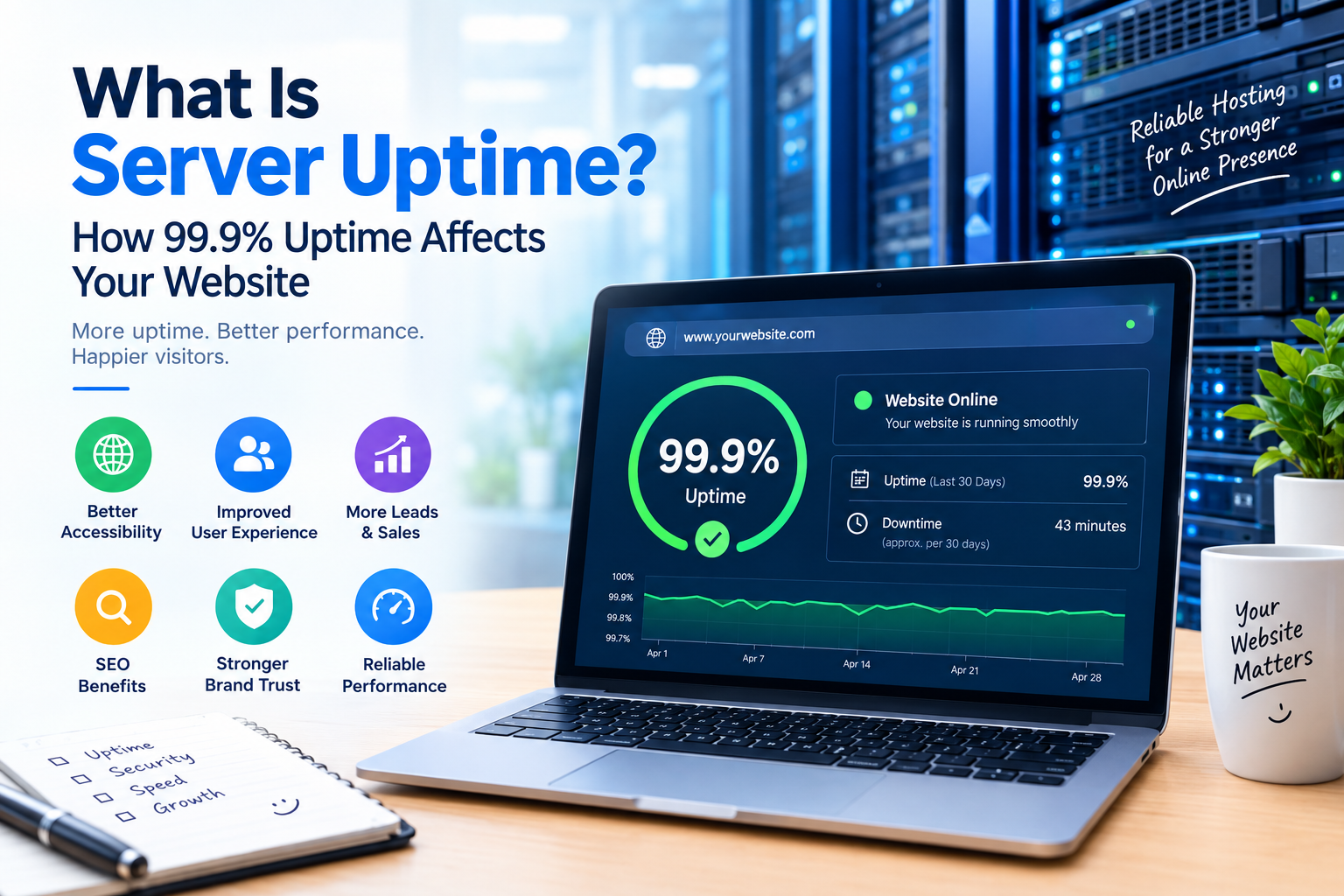
• Uptime: 99.9% uptime guarantee
• Support: 24/7 support
• Common panels: cPanel, Plesk, DirectAdmin, and CyberPanel
• Most daily jobs, from new mailboxes to SSL, take under five minutes
What Does A Website Control Panel Actually Do?
A website control panel groups every hosting task into labelled tools, so you click “Email Accounts” or “SSL” instead of editing configuration files over SSH. It talks to the web server, mail server, DNS zone, and database engine on your behalf.
Behind the icons, the panel is a set of modules. Each one replaces a job that once needed a system administrator:
• Files: a browser file manager, FTP accounts, and disk usage reports
• Domains: add-on domains, subdomains, redirects, and parked names
• DNS: A, CNAME, MX, and TXT records for the domains on your account
• Email: mailboxes, forwarders, autoresponders, and spam filters
• Databases: MySQL or MariaDB databases, users, and phpMyAdmin
• Security: SSL certificates, IP blocking, and password-protected folders
• Software: PHP version selection, cron jobs, and one-click app installers
• Backups and logs: restore points, error logs, and visitor statistics
The value is speed and safety. A task such as creating a database user with the right privileges takes three fields and a button, and the panel applies permissions correctly every time. Small business owners, agencies, and developers all use the same screens, just at different depths.
Which Web Hosting Control Panel Should You Choose?
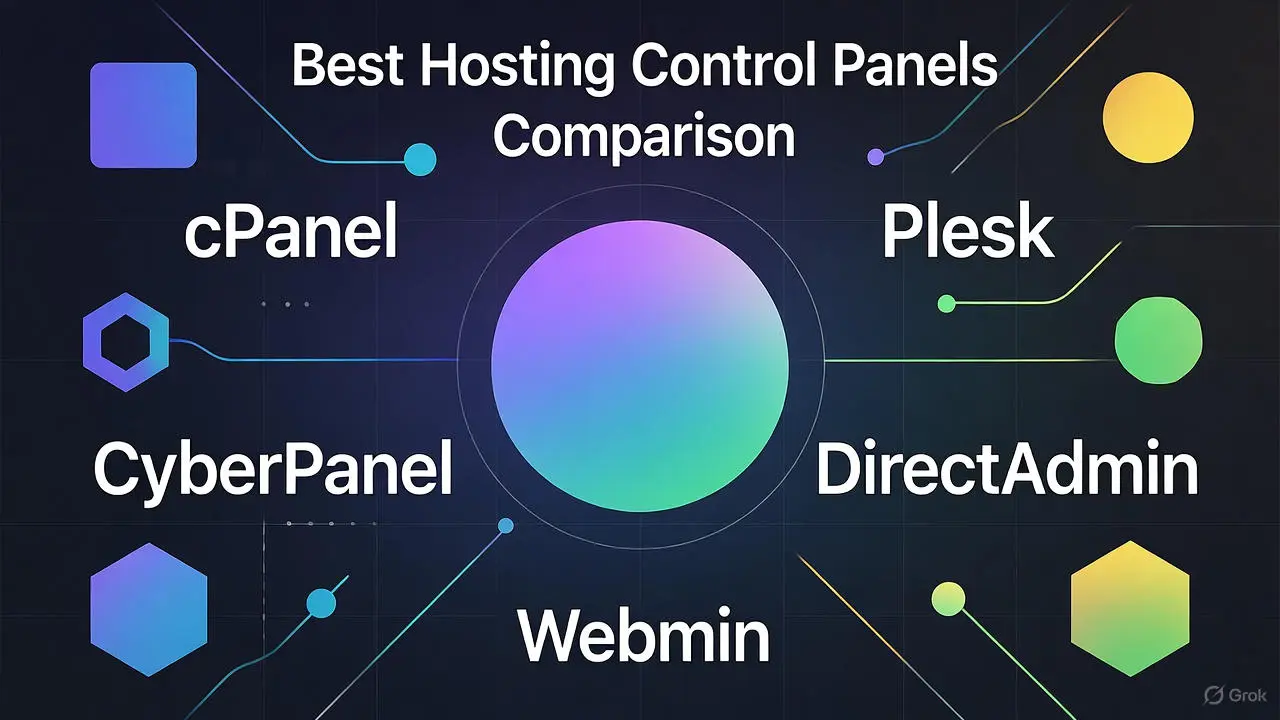
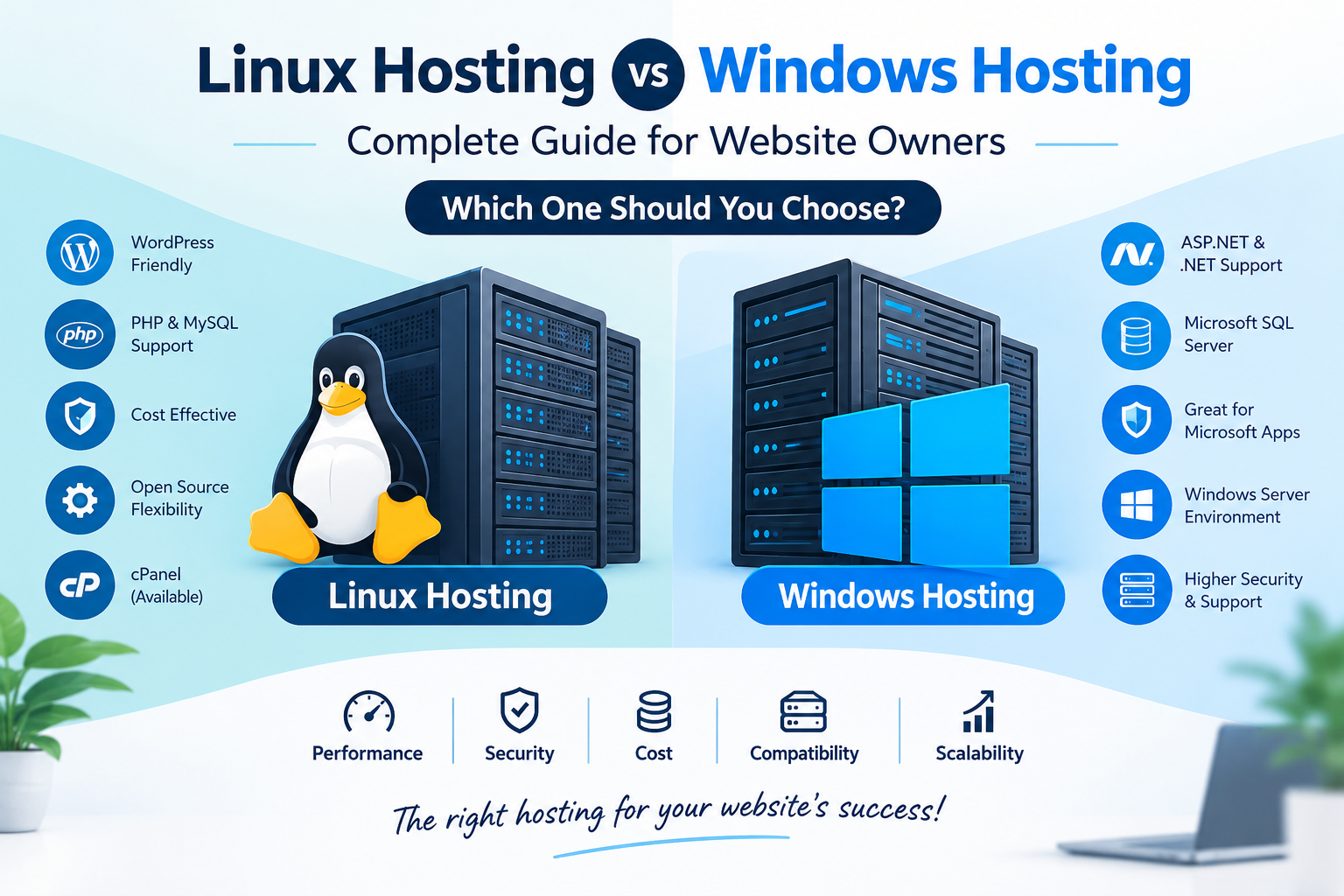
Pick the web hosting control panel that matches your server and your team. cPanel suits Linux shared hosting, Plesk suits mixed Linux and Windows work, and lighter options suit a small VPS. On shared plans, the host chooses the website control panel for you.
|
Panel |
Server OS |
Licence |
Best for |
Watch out for |
|
cPanel and WHM |
Linux |
Paid, priced by account count |
Shared hosting and resellers |
Licence cost rises as accounts grow |
|
Plesk |
Linux and Windows |
Paid, tiered editions |
Agencies running WordPress or .NET sites |
Some extensions cost extra |
|
DirectAdmin |
Linux |
Paid, lower cost |
Small VPS with modest RAM |
Fewer third-party plugins |
|
CyberPanel |
Linux |
Free, open source |
OpenLiteSpeed and WordPress speed |
Smaller support community |
|
Webmin with Virtualmin |
Linux |
Free, open source |
Admins who want full control |
Steeper learning curve |
Three questions settle most choices:
• Do you need Windows and ASP.NET? Plesk is the practical pick.
• Will you host many client accounts? cPanel with WHM gives resellers clean account separation.
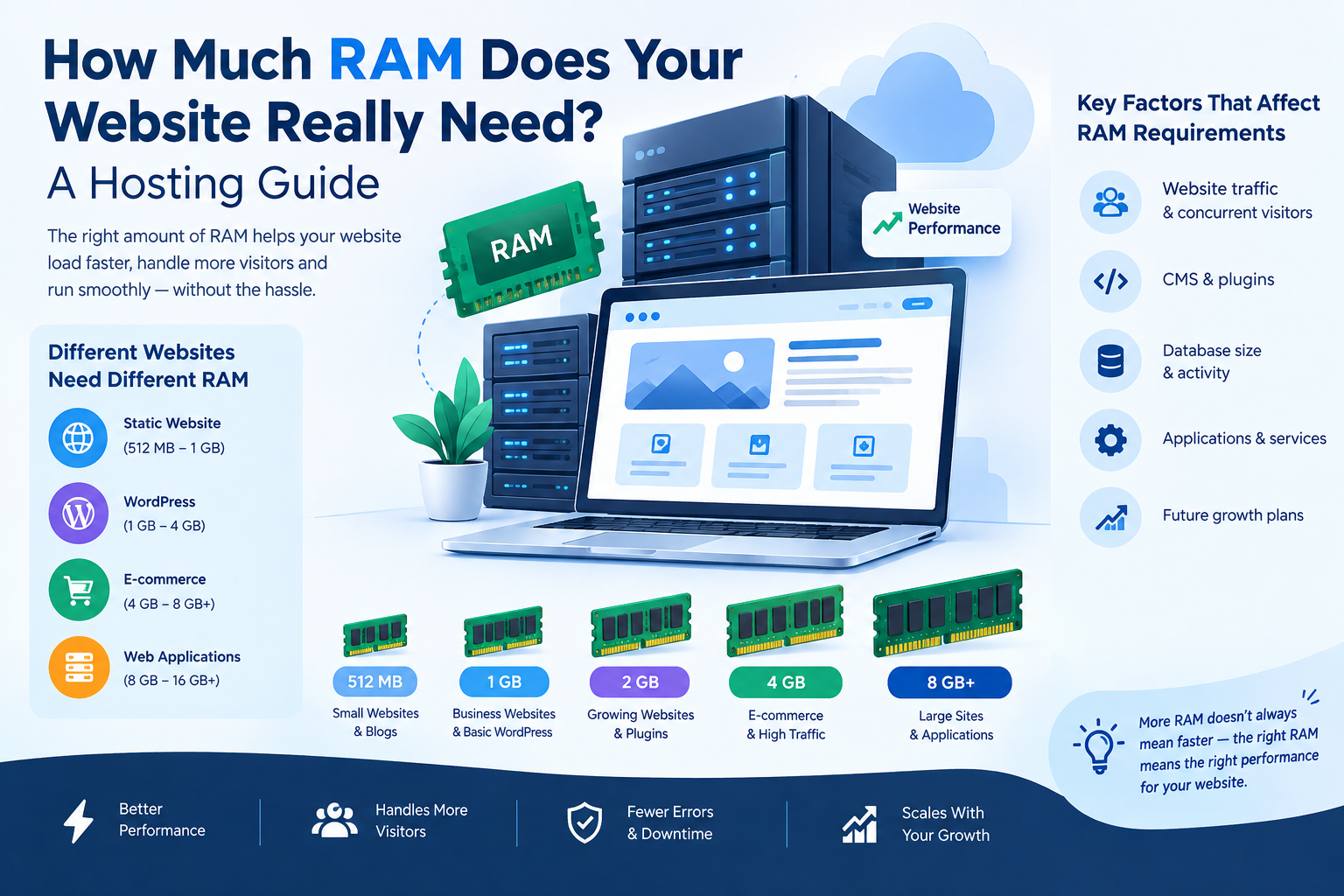
• Are you on a 2 GB VPS? A lighter panel such as DirectAdmin or CyberPanel leaves more memory for your site.
Familiarity matters too. If your team already knows one panel, the hours saved on training often outweigh a small licence difference. Ask for a demo login before you commit, and test the three tasks you do most often, such as creating a mailbox, restoring a backup, and adding a subdomain.
How Do You Handle Domains, DNS And Email In One Place?
You manage domains, DNS, and email from three linked screens. Add the domain first, let the website control panel create its default DNS zone, then build mailboxes on top of it. The panel writes the matching MX and SPF records for you.
Here is the usual order on a new account:
1. Add the domain or subdomain and choose its document root folder.
2. Check the DNS zone the panel created, especially the A record and MX record.
3. Create mailboxes with strong passwords and set storage quotas.
4. Add SPF, DKIM, and DMARC records so your mail reaches inboxes.
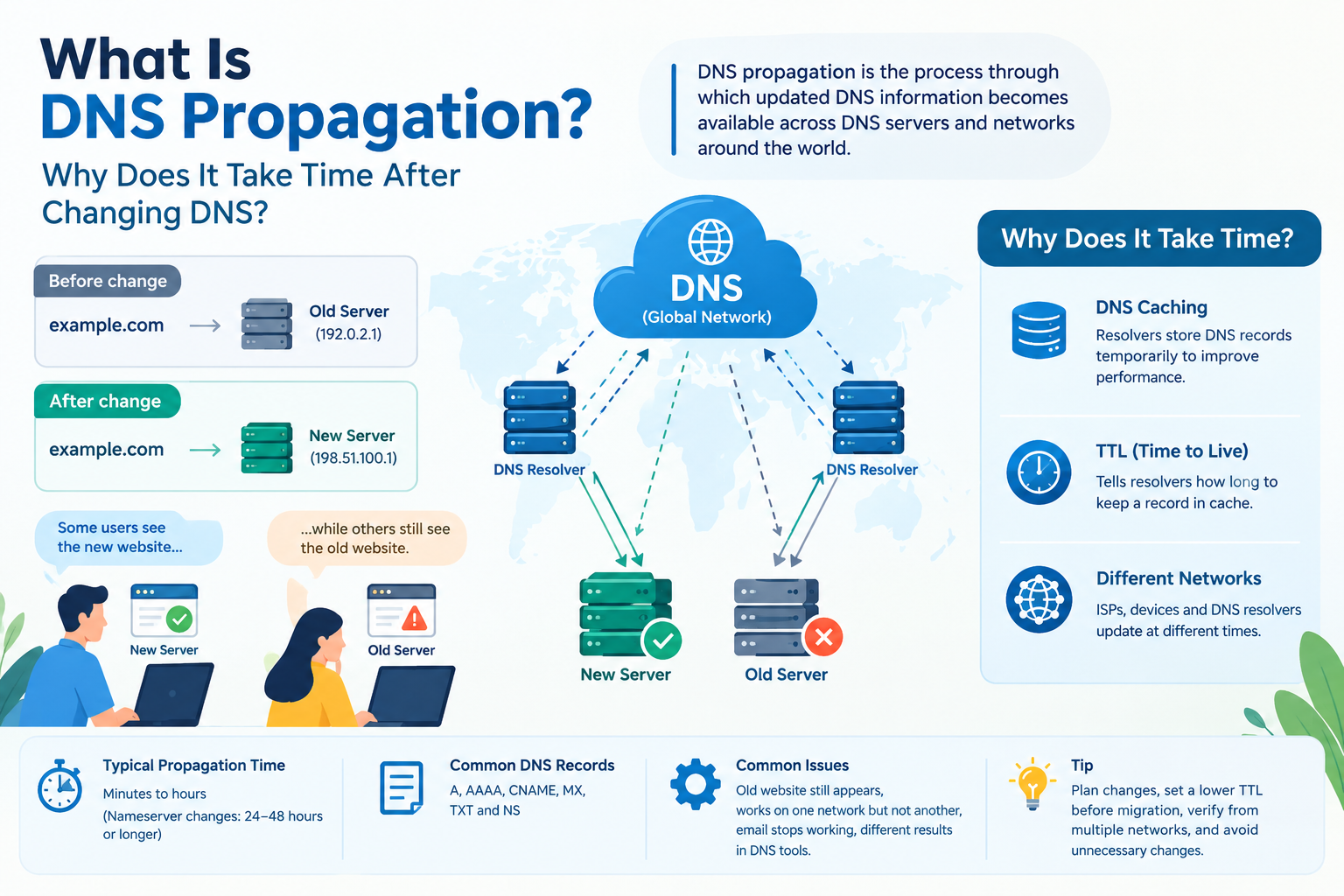
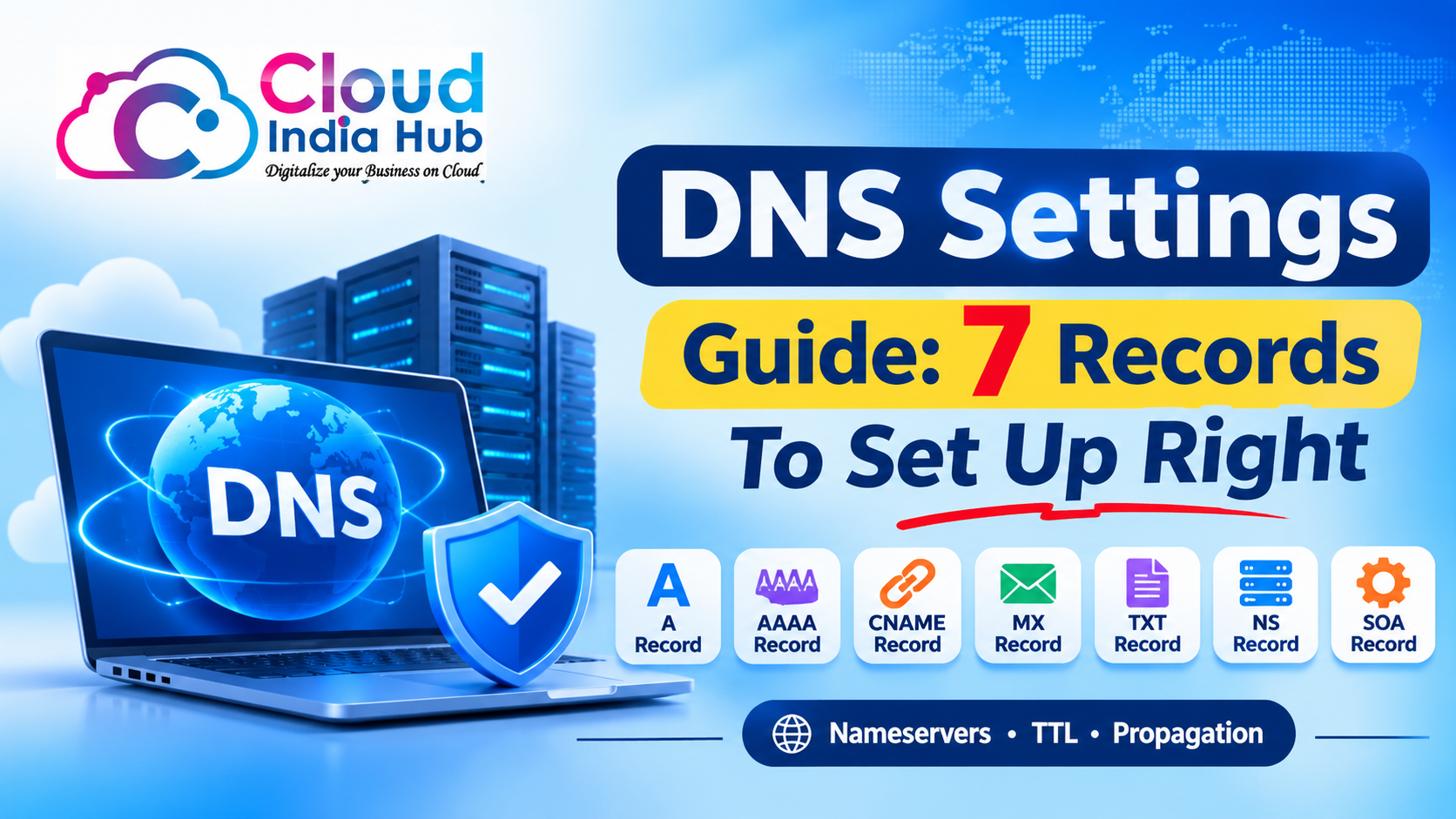
Most email problems trace back to DNS, not the mailbox. If a record looks wrong, compare it with our guide to DNS settings and how to point your domain correctly before you change anything. A single typo in an MX record can stop incoming mail for hours.
Keep one rule in mind: if your domain uses outside nameservers, edits in the panel’s DNS editor do nothing. Change records wherever your nameservers point.
How Does The Panel Keep Your Site Secure And Up To Date?
The panel protects a site through SSL, software version controls, backups, and access settings. A well-run website control panel lets you issue a free certificate, switch PHP versions per domain, schedule restore points, and turn on two-factor login, all without a support ticket.
PHP is the setting people forget. According to PHP’s official supported versions page, each release branch gets two years of active support and two more years of security fixes only. PHP 8.2 security support ends on 31 December 2026, so sites still on it need a plan now.
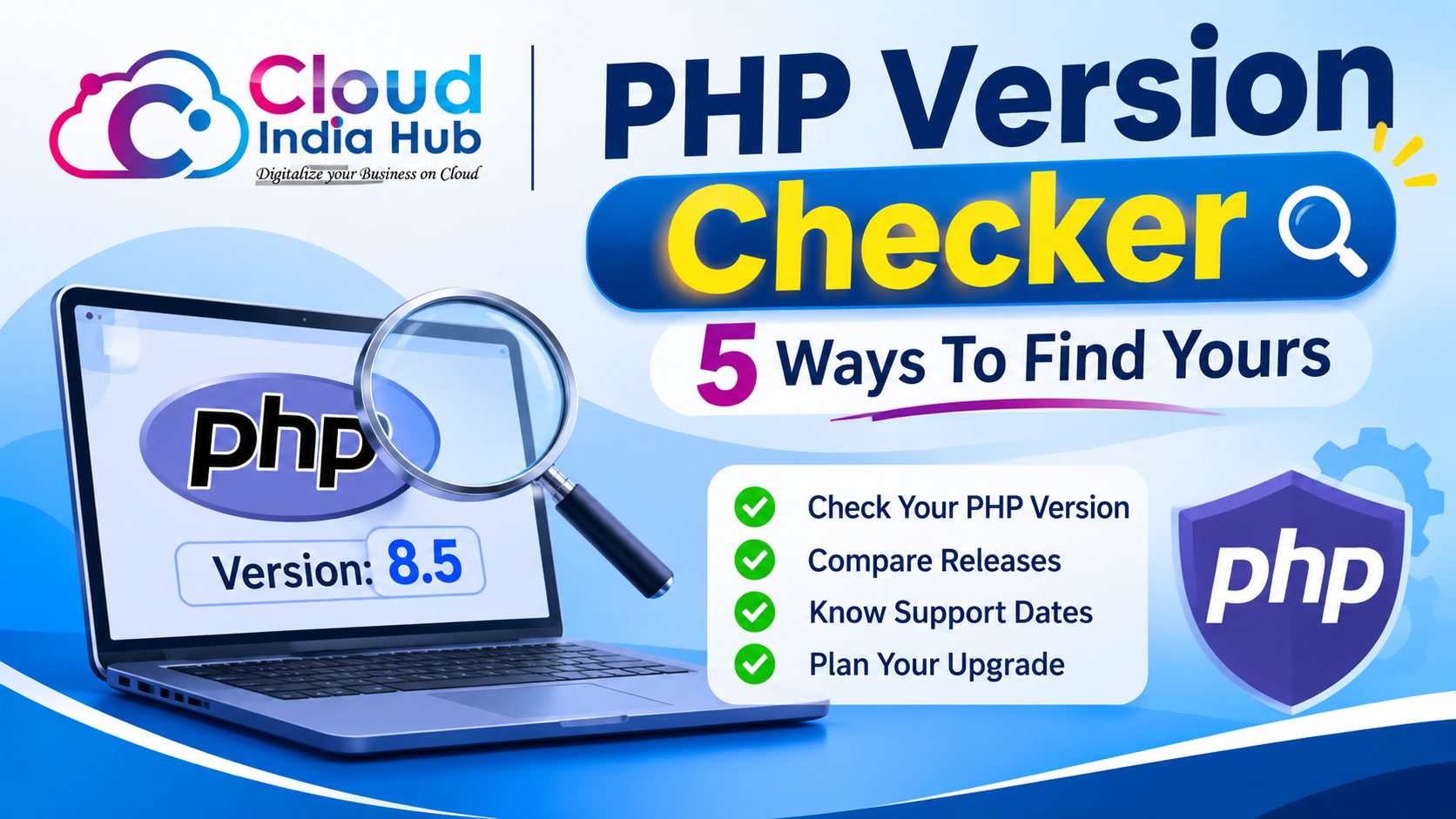
Before you switch, confirm what each domain runs today. Our PHP version checker guide walks through five ways to find it, including the panel’s own PHP selector.
Other security tools worth turning on today:
• Free SSL: issue a Let’s Encrypt certificate and force HTTPS
• Two-factor login: protect the panel itself, not just the site
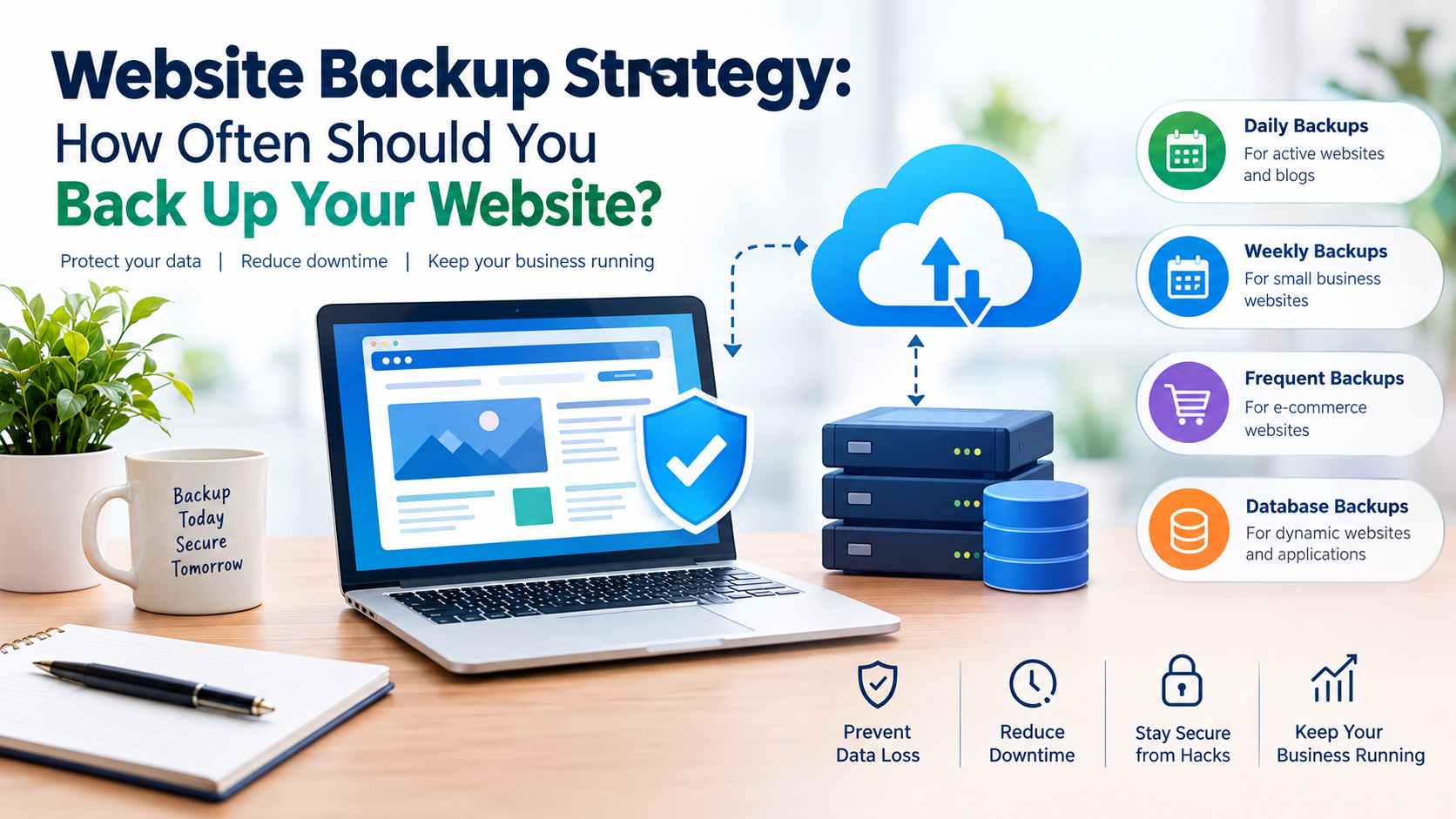
• Backups: daily restore points on Standard and Professional plans, weekly on Basic run them after every plugin or theme install
• Malware scans: run them after every plugin or theme install
• Directory privacy: lock admin folders behind a second password
Is A Website Hosting Control Panel Different On Shared Hosting And VPS?
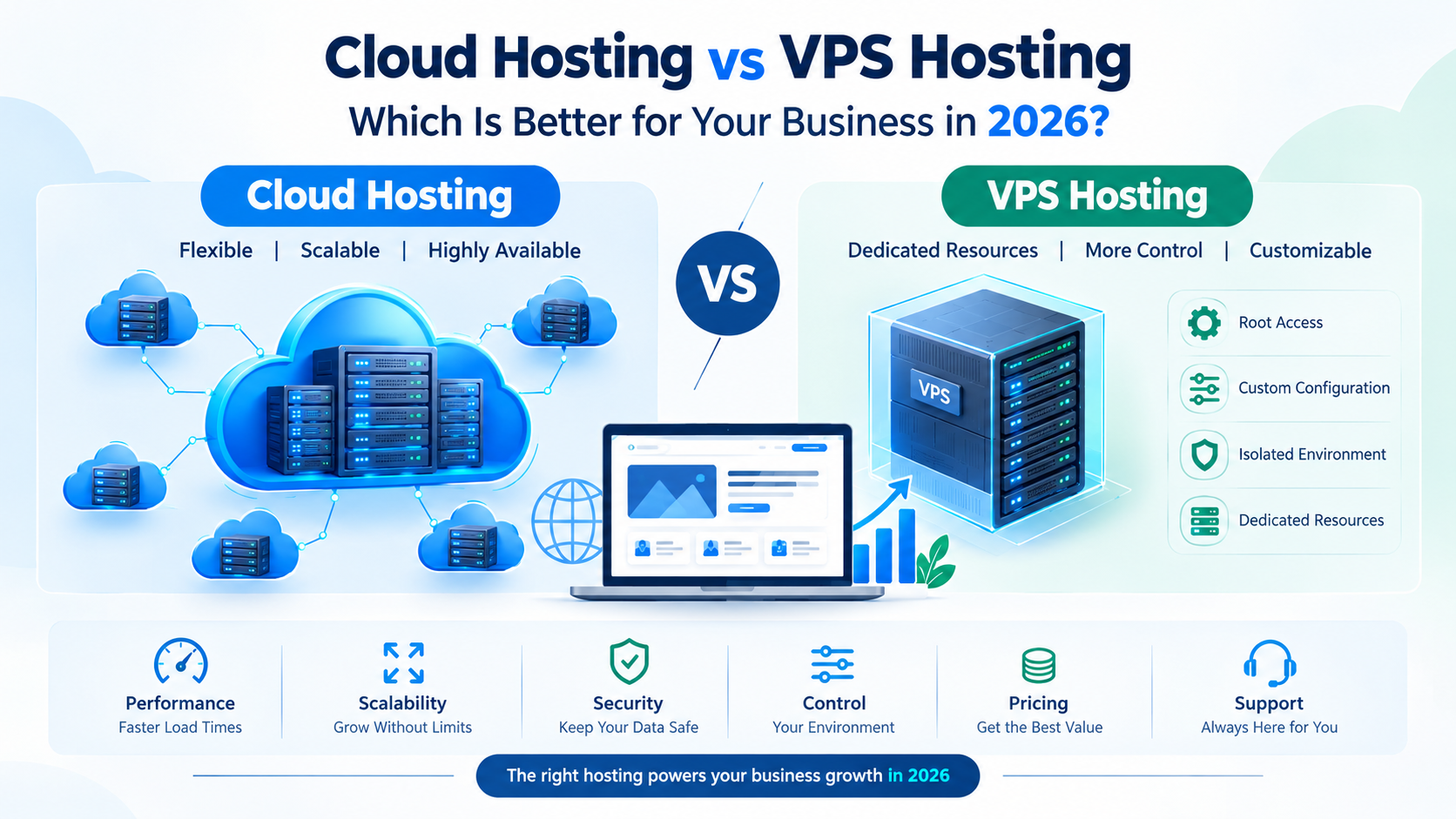
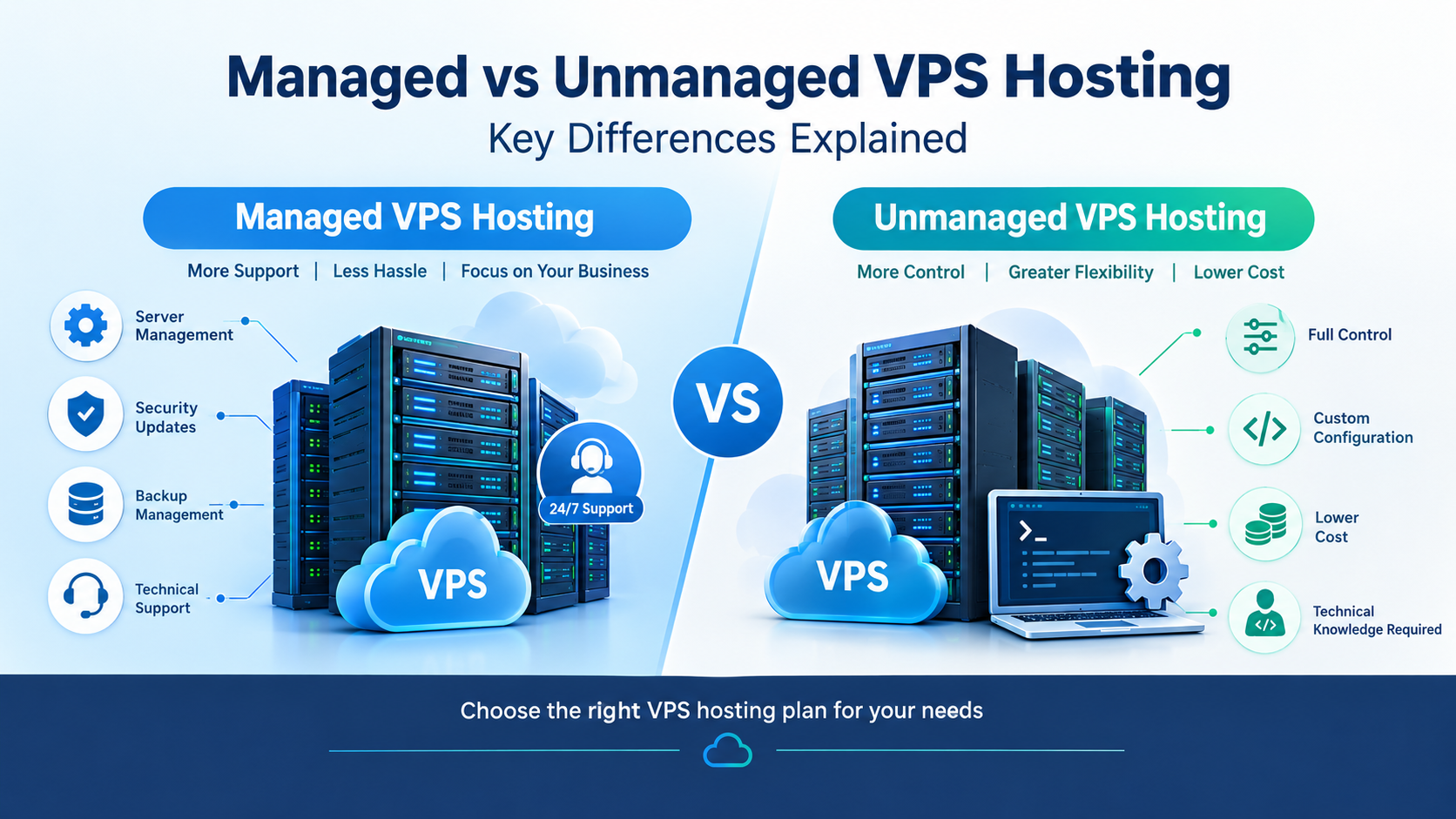
Yes. On shared hosting, the website hosting control panel is installed and maintained by the host, and you see only your own account. On a VPS you get root access, so you can install a panel yourself, choose its licence, and manage the server underneath it.
|
Factor |
Shared hosting |
VPS hosting |
|
Starting price |
₹299 per month |
₹649 per month |
|
Resources |
Shared server, plan limits |
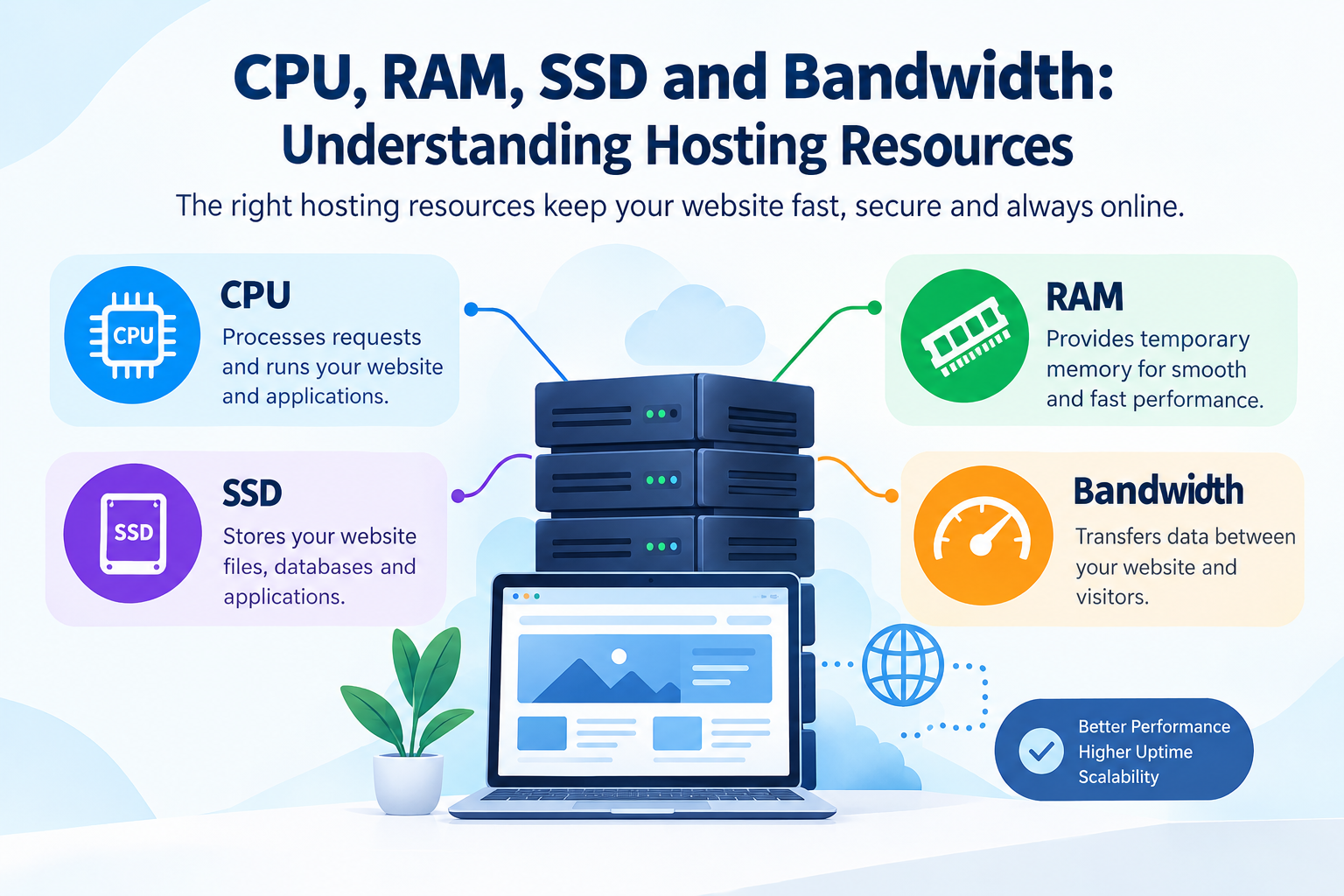
1 vCPU, 2 GB RAM, 40 GB SSD on the entry plan |
|
Root access |
No |
Yes |
|
Panel |
Provided by the host |
You choose and install one |
|
Updates |
Handled by the host |
Your responsibility |
|
Best for |
Business sites, blogs, small shops |
Custom apps, many sites, heavy traffic |
Shared hosting is the easier start for most businesses. You can compare storage, mailboxes, and backup frequency across the four Cloud India Hub shared web hosting plans, from 1 website on Starter to unlimited websites on Professional.
Move to a VPS when you hit CPU limits, need custom server software, or want to host client sites under your own reseller setup.
Cloud India Hub VPS plans include root access, NVMe SSD storage, DDoS protection, and free daily backups, but the plan pages do not list a bundled panel, so budget for a licence if you want cPanel or Plesk on top.
How Do You Set Up Your First Site From The Panel?
Setting up a site in a website control panel takes about seven steps and under an hour for a simple WordPress or HTML site. Work in this order so DNS, SSL, and email are ready before visitors arrive.
1. Log in: use the panel link from your welcome email and change the default password.
2. Turn on two-factor login: do it before you upload anything.
3. Add your domain: point it to the right folder and check the A record.
4. Issue SSL: request the free certificate and enable the HTTPS redirect.
5. Create a database: add a database, a user, and grant only the privileges the app needs.
6. Install your app: use the one-click installer or upload a zip and extract it in the file manager.
7. Set backups and PHP: choose a supported PHP version and confirm the backup schedule.
After step 7, open the site in a private browser window, send a test email, and check the error log. Fixing a warning now is far cheaper than fixing it after launch.
What Mistakes Should You Avoid In A Website Management Control Panel?
The costliest mistakes in a website management control panel are editing live files without a backup, deleting DNS records you do not recognise, and sharing one master login. Each takes seconds to make and hours to undo.
Watch for these as well:
• Staying on an old PHP version because “the site still works”
• Running the Starter plan, which has no backups, for a site that takes orders
• Ignoring disk and inode warnings until email stops arriving
• Giving a freelancer the main login instead of a separate FTP account
• Installing plugins from unknown sources through the file manager
• Turning off the HTTPS redirect to fix a mixed content error
A good habit: before any big change, take a manual backup and note what you changed in a simple log with the date. For theme or plugin updates, test first on a copy using our guide to setting up WordPress staging without risking your live site.
Check the panel’s resource usage page once a month as well. Rising CPU, memory, or entry process numbers warn you before visitors see slow pages or errors.
Frequently Asked Questions
Is a website control panel free with hosting?
On shared hosting, the website control panel is usually included in the plan price. On a VPS you may need to buy a licence for paid panels such as cPanel or Plesk.
Do I need technical skills to use a web hosting control panel?
No. A web hosting control panel replaces commands with forms and buttons, so anyone who can fill in an online form can create mailboxes, add domains, and issue SSL.
How do I log in to my control panel?
Use the login link in your welcome email. cPanel usually opens on port 2083 and Plesk on port 8443, after your domain or server IP address.
Can I move from cPanel to Plesk later?
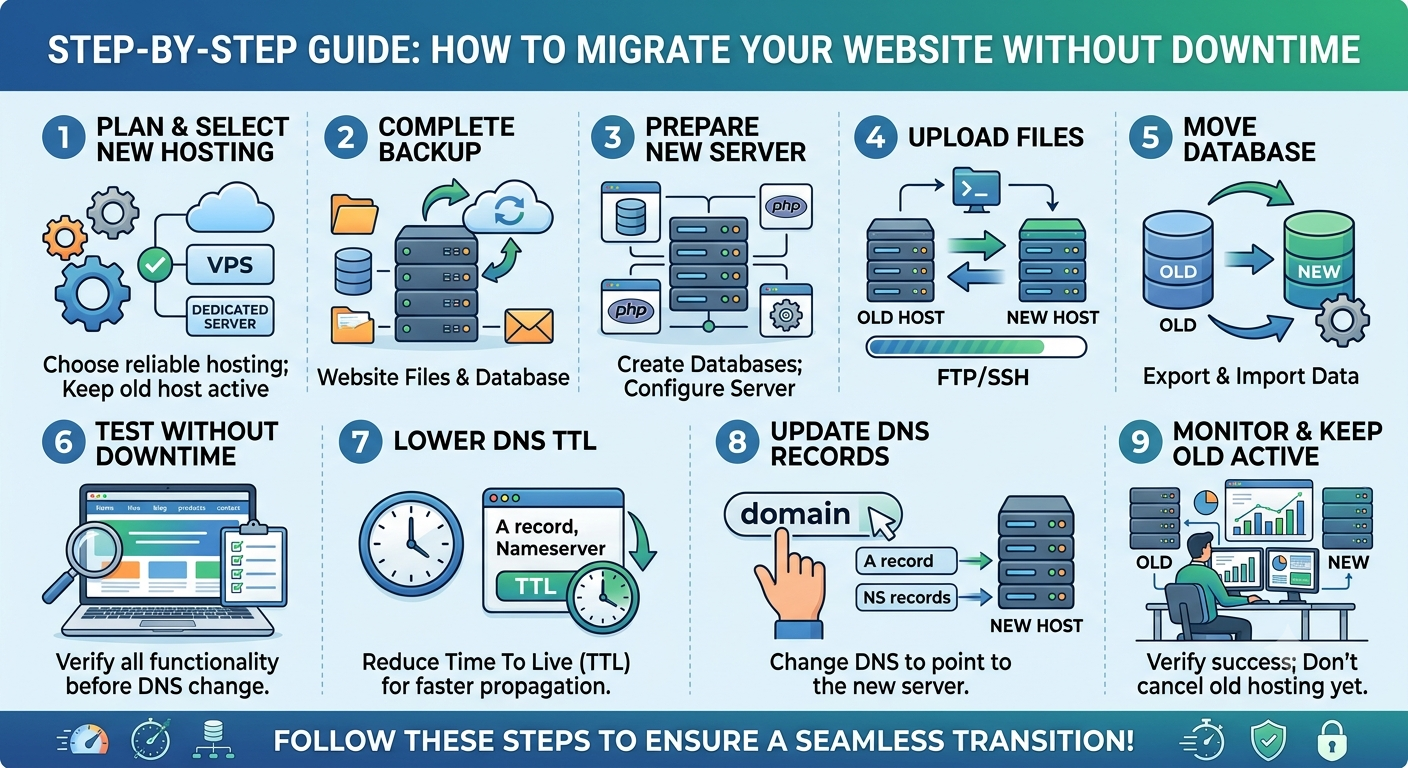
Yes, but it is a migration. Back up files, databases, and mail, move them to the new server, test everything, then update your DNS records.
Can I manage several websites from one panel?
Yes, if your plan allows it. Cloud India Hub Basic hosts 5 websites, Standard hosts 10, and Professional hosts unlimited websites, all from one login.
Is it safe to give someone access to my panel?
Only through separate accounts. Create an FTP user or a limited sub-user for each person, and never share your main password or two-factor codes.
How Do You Get Started With The Right Panel?
Start with a shared plan if you run one to ten business sites, and choose a VPS when you need root access. Not sure which website control panel fits your projects? Contact the Cloud India Hub team and tell them what you host, and they will point you to the right plan.
Expert advice
|
A website control panel turns server work into clicks. See what it manages, how cPanel, Plesk, and DirectAdmin compare, and the 7 steps to set up your first site. |
Serving Bengaluru, Karnataka.















































































































Leave A Comment