

Website Caching Explained: Speed Up Every Page Load
Website caching keeps a finished version of a page or file on hand, so the next visitor gets it without waiting for the server to rebuild it. Browsers can hold versioned files for 31,536,000 seconds, one full year, while pages that change often need shorter limits.
This guide shows where each cache sits, which headers control it, and what never belongs in a cache. To pair the work with servers closer to your visitors, read our nine-step CDN setup guide as well.
At A Glance
• Price: ₹299 per month for the Starter shared hosting plan
• Longest browser cache lifetime: 31,536,000 seconds, equal to one year
• Support: 24/7 expert support for plan and setup questions
• Cache layers covered: browser, CDN edge, page, object and opcode
• Biggest risk: stale pages that keep showing old prices or content
What Is Website Caching And How Does It Work?
Website caching works by saving the finished result of a request, such as a rendered page, an image or a script, and replaying it for later visitors. The first request builds the response, and every repeat request reads the saved copy instead.
Every saved copy has a lifetime, called time to live or TTL. While the copy is fresh, the cache answers on its own, which is a cache hit. When the copy expires or is missing, the request travels onward, which is a cache miss.
The gain comes from skipped work. A WordPress page normally runs PHP, queries a database and assembles HTML on every visit. A saved copy skips all three steps, so the server spends its memory and CPU on visitors who truly need fresh data.
A well-tuned cache gives you four benefits:
• Faster pages, because a stored file travels less far and takes less time to build
• Lower server load during traffic spikes such as sales or campaign launches
• Fewer timeouts on small plans with limited CPU and RAM
• Less data transferred for visitors on slow mobile connections
Which Cache Layers Sit Between Your Server And Your Visitor?
Website caching happens in up to five layers: the visitor’s browser, a CDN edge, a full-page cache on the server, an object cache for database results, and an opcode cache for PHP. Each layer removes a different slice of repeated work.
|
Layer |
What it stores |
Who controls it |
Main risk |
|
Browser cache |
Images, CSS and JavaScript on the visitor’s device |
Your Cache-Control headers |
Visitors keep old files after an update |
|
CDN edge cache |
Copies of files, sometimes full pages, near visitors |
CDN dashboard and your headers |
Old pages served after a missed purge |
|
Page cache |
Finished HTML for each URL |
Host tools or a WordPress plugin |
Private data shown to the wrong person |
|
Object cache |
Database query results held in memory |
Redis or Memcached, if your plan offers it |
Needs memory and correct invalidation |
|
Opcode cache |
Compiled PHP code |
PHP settings, usually the host |
Needs a reset after code changes |
Before you change a layer, record a baseline with the Cloud India Hub website speed test, which asks you to sign in before it runs. Repeat the test after each layer so you know which change helped.
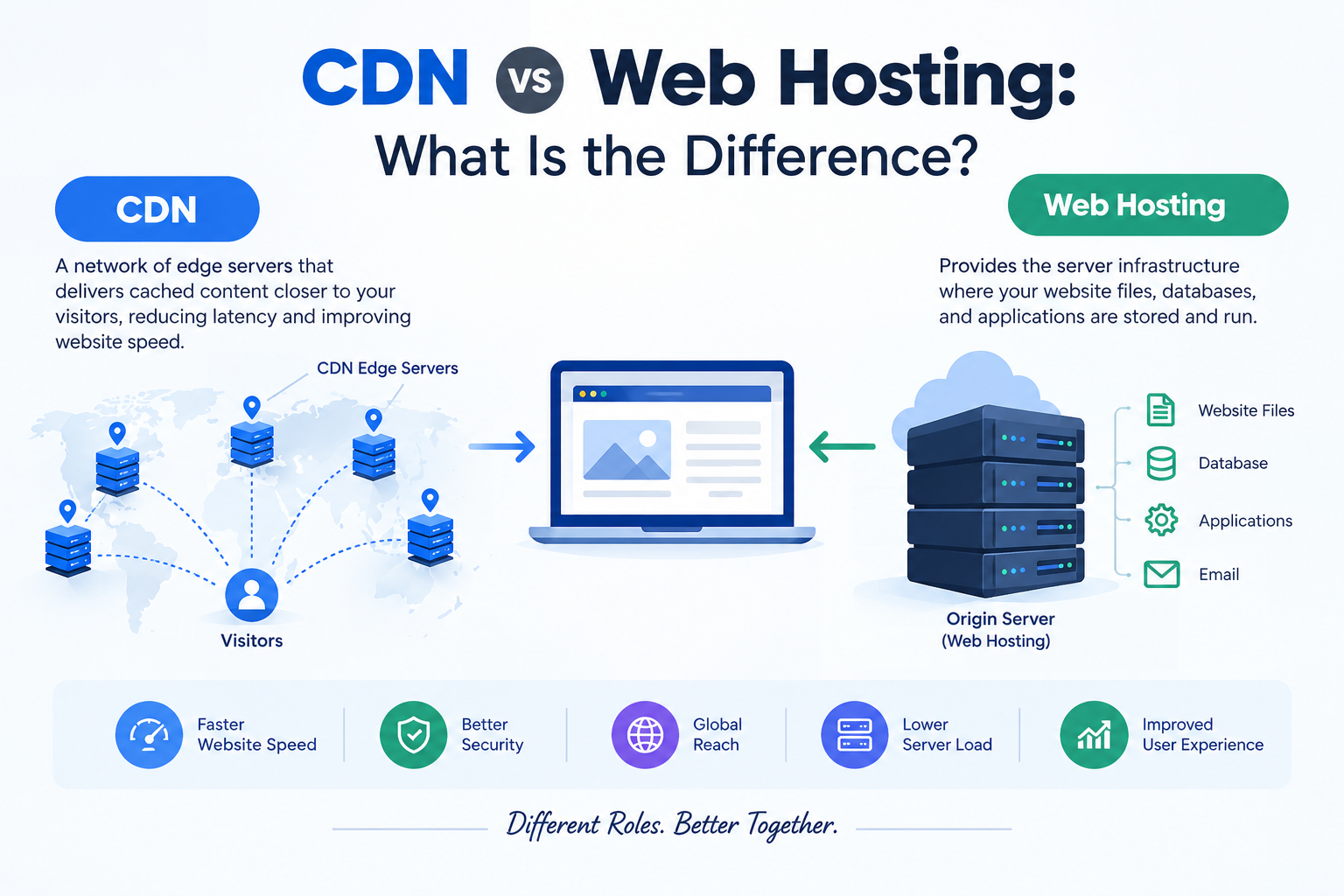
A web cache website setup is easiest to picture at the CDN layer: copies of your files sit in several cities, and each visitor connects to the nearest one. Most small sites start with the browser and page layers, because those need no extra service.
How Do Cache-Control Headers Tell Browsers What To Keep?
Cache-Control is the response header that sets how long browsers and shared caches may reuse a file. For website caching that lasts, give versioned files a one year lifetime, and make HTML revalidate so visitors still see updates quickly.
Google’s web.dev guide to the HTTP cache recommends max-age=31536000 for versioned resources, which is the largest value supported. It also explains that leaving the header out does not switch caching off, because browsers then guess a lifetime for you.
|
Value |
What it does |
Use it for |
|
max-age=31536000 |
Reuse for one year without asking the server |
Files with a version or hash in the name |
|
no-cache |
Reuse only after the server confirms the copy is current |
HTML pages that update often |
|
no-store |
Never save any copy |
Account pages and private data |
|
private |
Browsers may keep it, shared caches may not |
Pages with personal content |
|
public |
Any cache may keep it |
Shared assets such as logos and fonts |
Versioned file names make long lifetimes safe. A file named style.x234dff.css can stay cached for a year, because a new release gets a new name and browsers fetch it at once.
Pair these values with an ETag header. When a file expires, the browser sends the saved ETag back, and a server that sees no change replies with a short 304 Not Modified instead of the whole file.
How Do You Cache A Web Page On WordPress Or A Custom Site?
To cache web page output, save the finished HTML after the first visit and serve that file to everyone who requests the same URL. WordPress sites usually do this with a caching plugin or a host tool, while custom sites use server rules.
Readers who ask what is website caching in practice usually mean this layer, because a page cache is the easiest one to switch on and to measure. Custom sites have three common routes:
• Server rules in nginx or Apache that store responses for a set time
• A reverse proxy such as Varnish placed in front of the application
• Application code that writes rendered pages to disk or memory
Cloud India Hub’s WordPress hosting plans list advanced caching and content delivery networks among their performance technologies, with prices from ₹299 per month. The plan pages do not name the cache software, so ask support which tool is active before you install a second plugin.
Take a backup before you touch cache settings. The same page shows no backups on Starter, weekly backups on Basic at ₹499 per month, and daily backups from the ₹899 per month Standard plan. Run only one page cache tool, because two often conflict.
What Should You Never Cache?
Never cache anything that differs for each visitor or must be current to the second. That includes carts, checkout steps, logged-in dashboards, account pages and form responses, because one stored copy could show the wrong person private data.
Add these to your bypass list:
• Cart and checkout pages, since prices, stock and totals change per visitor
• Login, account and admin screens, which carry private details
• Search results with unique queries and one-time confirmation pages
• Forms that use security tokens, which expire and break when cached
Stale content is the other danger. A page cache keeps serving the old version until it expires or you purge it, so a price change can stay hidden for hours. Clear the cache after every edit that visitors must see at once.
How Do You Set Up Caching Step By Step?
Set up website caching in seven steps: measure, back up, choose layers, send headers, turn on a page cache, exclude private pages and test. Do the work on a staging copy first, then repeat it on the live site.
1. Measure first. Record load time and server response time for your top three pages.
2. Back up the site. Save files and database so you can roll back a bad setting.
3. Pick your layers. Start with browser headers and a page cache, then add a CDN.
4. Set Cache-Control. Give versioned files one year and make HTML revalidate.
5. Enable the page cache. Use the host tool or one caching plugin, never two.
6. Exclude private pages. Add cart, checkout, login and account URLs to the bypass list.
7. Test and purge. Reload in a private window, check headers, then clear every layer.
Try steps 3 to 6 on a private copy first, as our WordPress staging guide explains. That guide also reminds you to clear every cache layer, including any CDN, after you push files to the live site.
To confirm a page is cached, open your browser’s developer tools, choose the Network tab and read the response headers of the page request. Look for Cache-Control, and note that many CDNs add a header reporting a hit or a miss.
Frequently Asked Questions
What is the difference between browser cache and server cache?
Browser cache stores files on the visitor’s own device and speeds repeat visits by one person. Server cache stores copies on your hosting or CDN side and speeds visits for everyone.
Does caching help SEO rankings?
Indirectly, yes. Website caching shortens load time and reduces server strain, which supports a smoother experience for visitors and crawlers, but it is not a ranking trick, and stale pages can hurt.
How do I clear the cache on my website?
Use the purge or clear cache button in your caching plugin, host panel or CDN dashboard. Clear each layer you use, then reload in a private window to confirm the new version appears.
How long should a cache last?
Use one year for files with versioned names, minutes to hours for pages that change often, and revalidation for HTML that changes daily. Match the lifetime to how long a stale copy is acceptable.
Can caching break my website?
Yes, if private pages get cached or a purge is missed, because visitors may see old content or a stuck cart. Exclude carts, logins and forms, and test on a staging copy first.
Do I still need caching if I use a CDN?
Usually yes. A CDN covers the edge layer, but a page cache and opcode cache still reduce work on your own server, and browser headers still control what visitors keep on their devices.
Where Do You Go From Here?
Good website caching grows one layer at a time, so start with a baseline test and measure after every change. To match a hosting plan to your traffic, tell us about your site on the Cloud India Hub contact page. Chat runs 24x7.
Expert advice
|
Website caching keeps finished versions of your pages and files on hand, so visitors skip repeated server work. This guide shows the five cache layers, the headers that control them, what never to cache, and a seven-step setup you can test on your own site. |
Serving Bengaluru, Karnataka.



































































































































































































































Leave A Comment